Moneris® Go Plus: Using Your Terminal 21
Purchase - Partial approval
A partial approval of a purchase transaction occurs when the customer pays for a purchase with a pre-paid
credit card but the value on the pre-paid card is less than the purchase amount.
A pre-paid card refers to a credit card (such as Visa® or Mastercard®) loaded with a specific value.
1. Start at the Purchase screen and follow steps 1 to 8 in the Purchase
transaction procedure (refer to page 13).
If your terminal is at a different screen, tap the Main menu ≡ icon then
tap Transactions.
Note: Process any pre-paid cards first -- the customer may have more
than one.
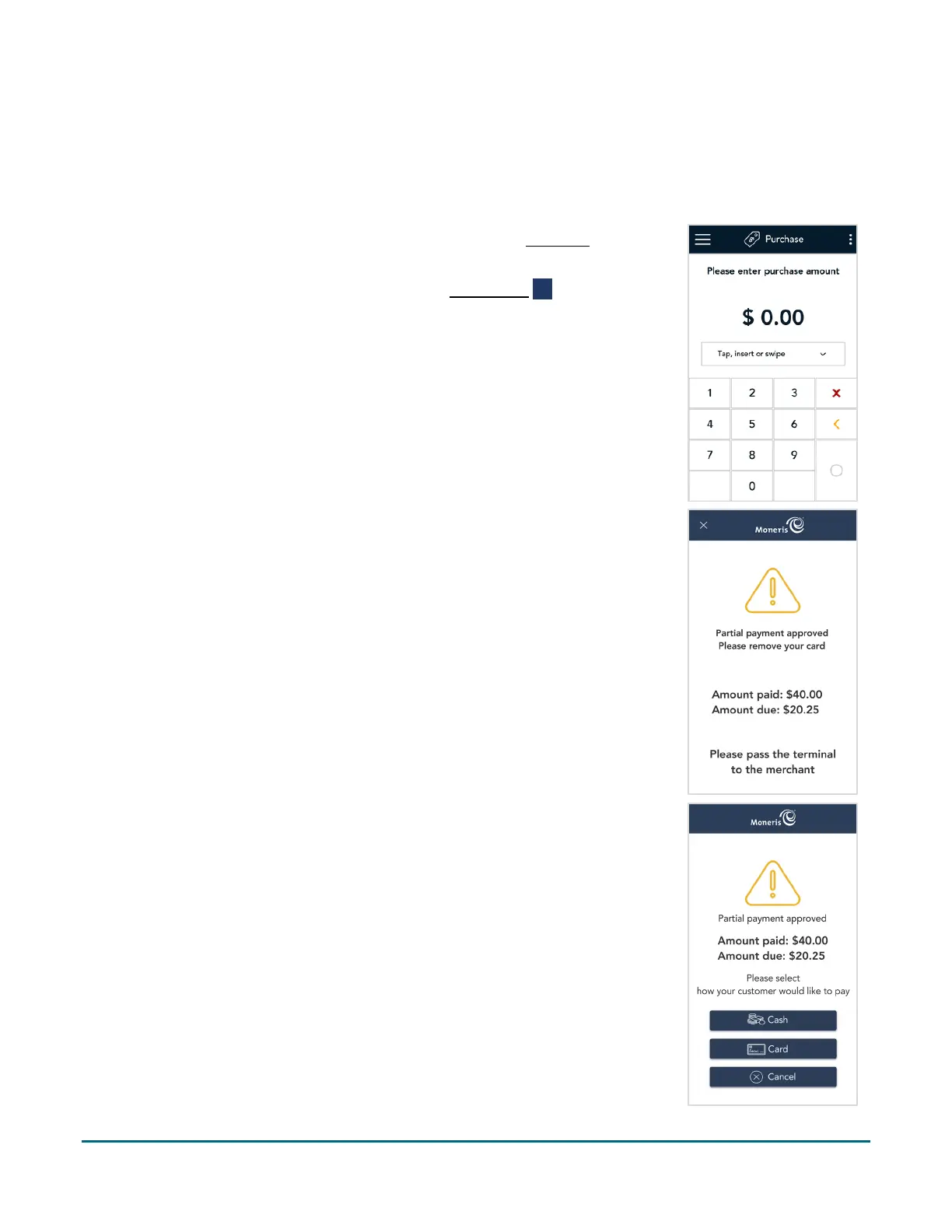
2. When a partial payment is approved, the screen displays the following
information to the customer:
The approval message;
The amount paid;
The amount still due;
A prompt to pass the terminal back to the merchant.
3. The customer passes the terminal back to you.
4. The screen displays the partial approval information, together with 3
options. Ask the customer how they would like to proceed.
To continue the transaction, tap Cash or Card depending on the
customer’s response. Go to step 5.
If the customer decides to cancel the sale, tap Cancel. The
application will automatically cancel all partially approved
transactions that were processed as part of this sale and
automatically print a cancellation receipt. At the “Partial approval
cancelled” message, tap OK to return to the default transaction
screen.



 To Next Page