Moneris® Go Plus: Using Your Terminal 46
Reprinting receipts
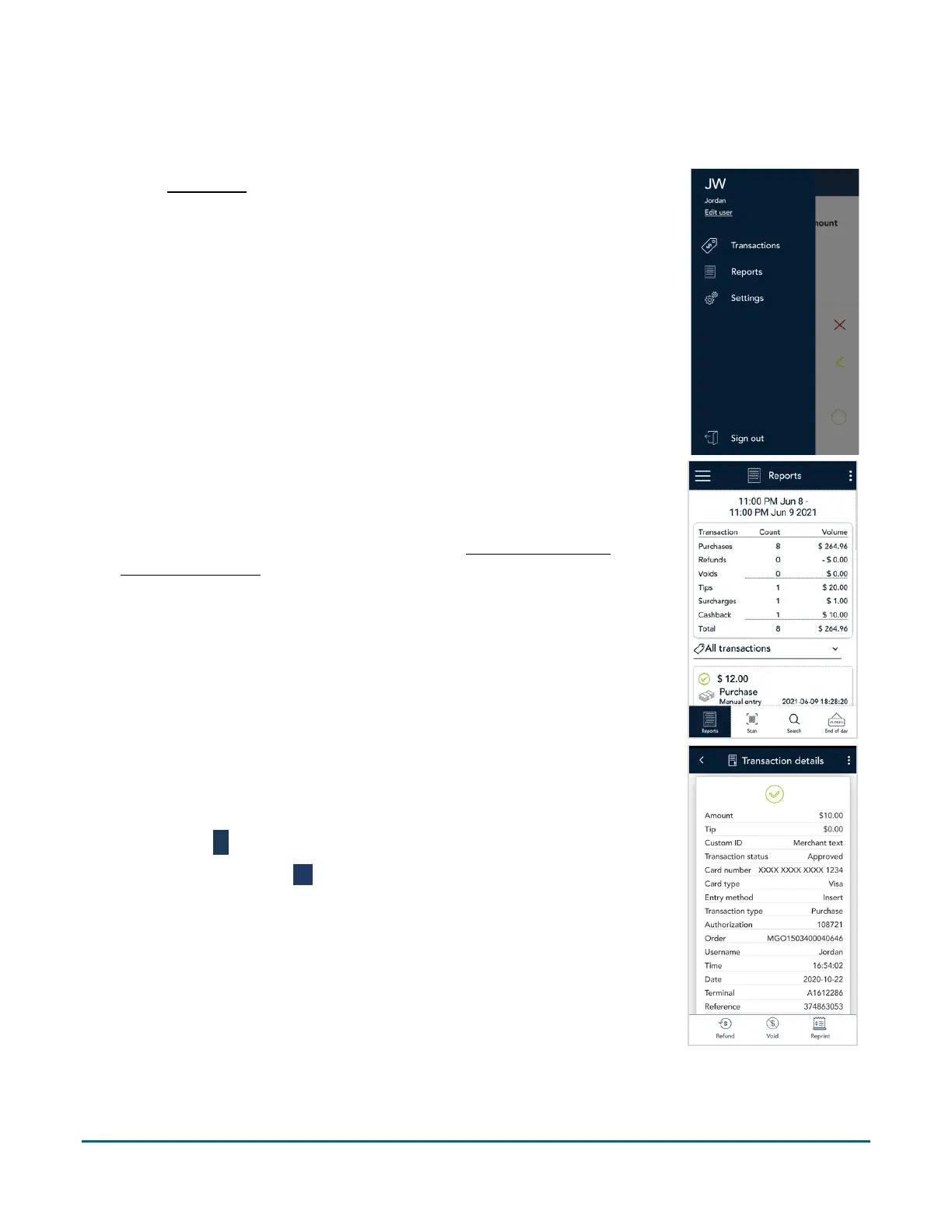
To reprint both the customer copy and the merchant copy of a transaction, follow these steps.
1. At the Main menu
, tap Reports.
2. On the Reports screen, tap the transaction for which you want to reprint
the receipts.
You can also tap Scan to scan the QR code from a receipt or tap Search to
look for the transaction. For instructions, refer to
Finding a transaction
using scan or search (page 51).
3. When the transaction details appear, tap Reprint.
The application reprints both the customer copy and the merchant copy
of the receipt.
4. Tap the Back
icon in the title bar to return to the previous screen.
5. Tap the Main menu icon ≡ and then tap Transactions to return to the
default transaction screen.



 To Next Page