Moneris® Go Plus: Using Your Terminal 17
Purchase – Card not present
If your business receives orders by Internet, mail, or telephone, follow these steps to process a Purchase
transaction where you can manually enter the customer’s credit card information.
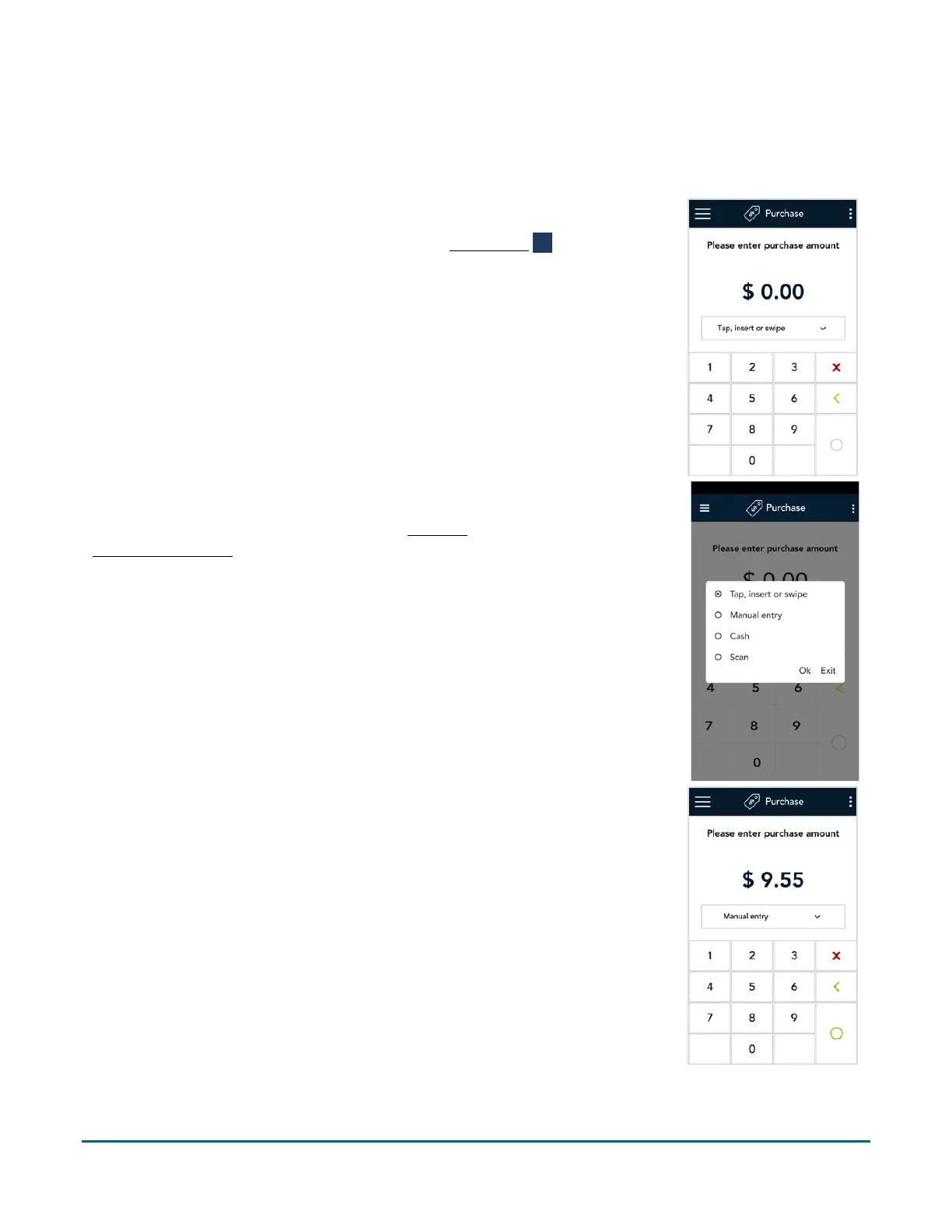
1. Start at the Purchase screen. This is the default transaction.
If your terminal is at a different screen, tap the Main menu ≡ icon, then
tap Transactions.
2. Tap the card entry field (Tap, insert or swipe) to display the card entry
options.
3. Tap Manual entry, then OK.
Note: Manual entry must be enabled in your user role
(page 58) and in
Transaction settings (page 55).
4. Enter the purchase amount, then tap the OK
key.
Note: The order of these initial steps is flexible. You can enter the
purchase amount first, or you can choose the method of card entry first.
Both will work.



 To Next Page