Moneris® Go Plus: Using Your Terminal 51
Finding a transaction using Scan or Search
In addition to using filters, you can find a transaction by tapping Scan or Search.
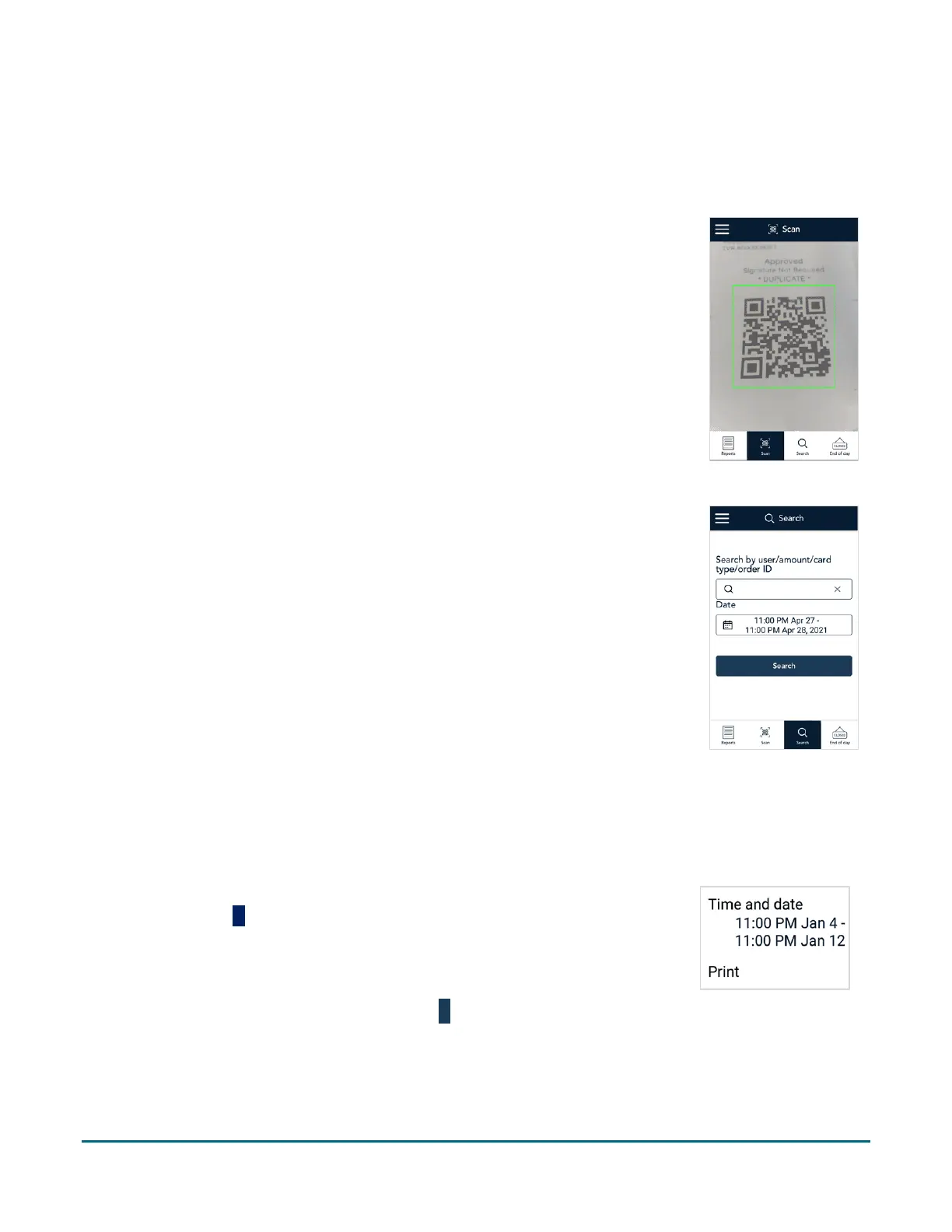
Scan the QR code on a receipt
You can quickly find a specific transaction on the terminal by scanning the QR code
on a printed receipt for that transaction.
1. On the Reports screen, tap Scan to active the terminal’s rear camera.
2. Hold the paper receipt below the terminal so that the QR code is visible on the
screen.
3. The application automatically reads the QR code and retrieves the transaction
details.
Search for a transaction using specific values
You can also find a transaction on the terminal by entering a specific search term.
1. On the Reports screen, tap Search.
The Search screen appears.
2. Tap the Search field to enter a value to look for. You can enter:
A username, to find all transactions processed by that person.
An amount, for example, 50.20.
A card brand, for example, Visa, MC, Amex, and Interac.
An order ID.
3. Review the Date field which displays the current 24-hour period.
To change it, tap the field, set the desired time and date range, and tap
Go.
4. Tap Search to retrieve any transactions that match both the search value and the time/date range you
entered.
The application displays a list of matching transactions.
To quickly change the date/time range of the search, tap the additional
options
icon, then tap Time and date, select a new range, then tap Go.
To print the search results, then tap Print. The terminal will print up to
50 transactions.
Tap any transaction on the list of search results to see more details.
If no transactions are found, tap the Back
icon in the title bar to return to the Search screen.



 To Next Page