Moneris® Go Plus: Using Your Terminal 59
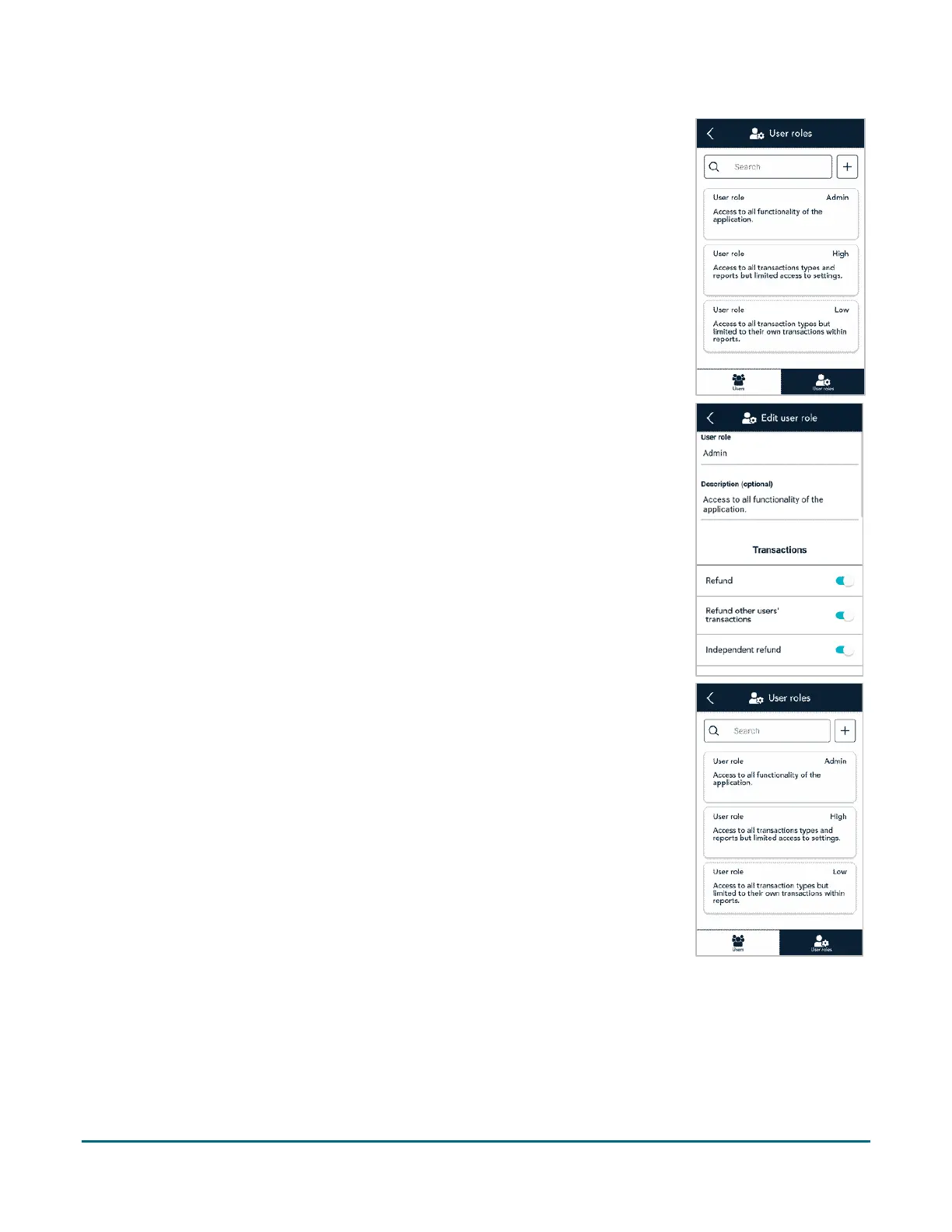
1. On the Settings menu, tap User management.
The Users screen appears.
2. At the bottom of the screen, tap User roles.
Each existing user role appears in a compact format, showing the first two
fields.
3. Choose a task.
View and edit a user role: Tap a user role then go to step 4.
Search for a user role: Tap the Search field then go to step 5.
Create a new user role: Tap
+ next to the Search field then go to step 6.
4. View the details of the user role you selected and change them if needed.
If your own user role is Admin, you can perform these actions:
Tap a field to edit it.
For transactions, reports, and settings, tap the adjacent toggle to enable or
disable which ones this user role is allowed to access. Tap Save when
finished.
Delete the user role.
Note: You cannot delete a user role if that role is currently assigned to any
users.
5. Use the on-screen keyboard to enter a specific value in the Search field, such
the name of the user role (for example, High) or a word that might appear in
the description of the user role (for example, manager).
The application displays all user roles that match your search terms.
Tap on a user role to display full details.
6. On the “+ Add user role” screen, fill in each field and review each setting.
a. Tap the User role field and enter a name (for example, Middle).
b. Tap the Description field and enter a short description (for example,
Supervisors) to indicate who this role might be assigned to. This field is
optional.



 To Next Page