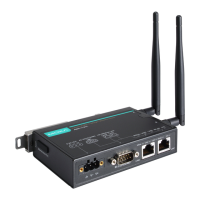
AirWorks AWK-1137C Web Console Configuration
Operation mode
Setting Description Factory Default
Client The AWK-1137C plays the role of wireless Client Client
Client-Router The AWK-1137C plays the role of wireless Client, but includes
the router function to divide the WLAN and LAN interfaces into
two subnets.
Slave The AWK-1137C plays the role of wireless Slave.
Sniffer Turns the device into a remote Wireshark interface to capture
802.11 packets for analysis.
Sniffer Mode Instructions:
1. Set operation mode to Sniffer mode on the AWK-1137C and then save/reboot the device.
2. Connect the AWK-1137C to a laptop with Wireshark installed (v1.12.0 or later release) via Ethernet.
3. Add a remote interface by entering the IP address of the AWK-1137C.
Detailed Wireshark instructions can be found at:
https://www.wireshark.org/docs/wsug_html_chunked/ChCapInterfaceRemoteSection.html
4. Start capturing 802.11 wireless packets with Wireshark.
Basic WLAN Setup
The WLAN Basic Setting Selection panel is used to edit the SSIDs and set the RF type for the AWK device.
You can use the RF type selection to configure the AWK-1137C to operate either on the 2.4 GHz or 5 GHz
frequency band. An SSID is a unique identifier that wireless networking devices use to establish and maintain
wireless connectivity. Set the SSID of the AWK-1137C to match with the SSID of the AP that you want it to
connect to so that the AWK-1137C will associate with the network defined by the SSID.
Click on Add SSID to create more SSIDs.
Click on Edit to assign different configuration settings to each SSID. The configuration panel appears as
follows:


 To Next Page
 Loading...