Moxa Managed Ethernet Switch (UI_2.0_FW_5.x) User Manual
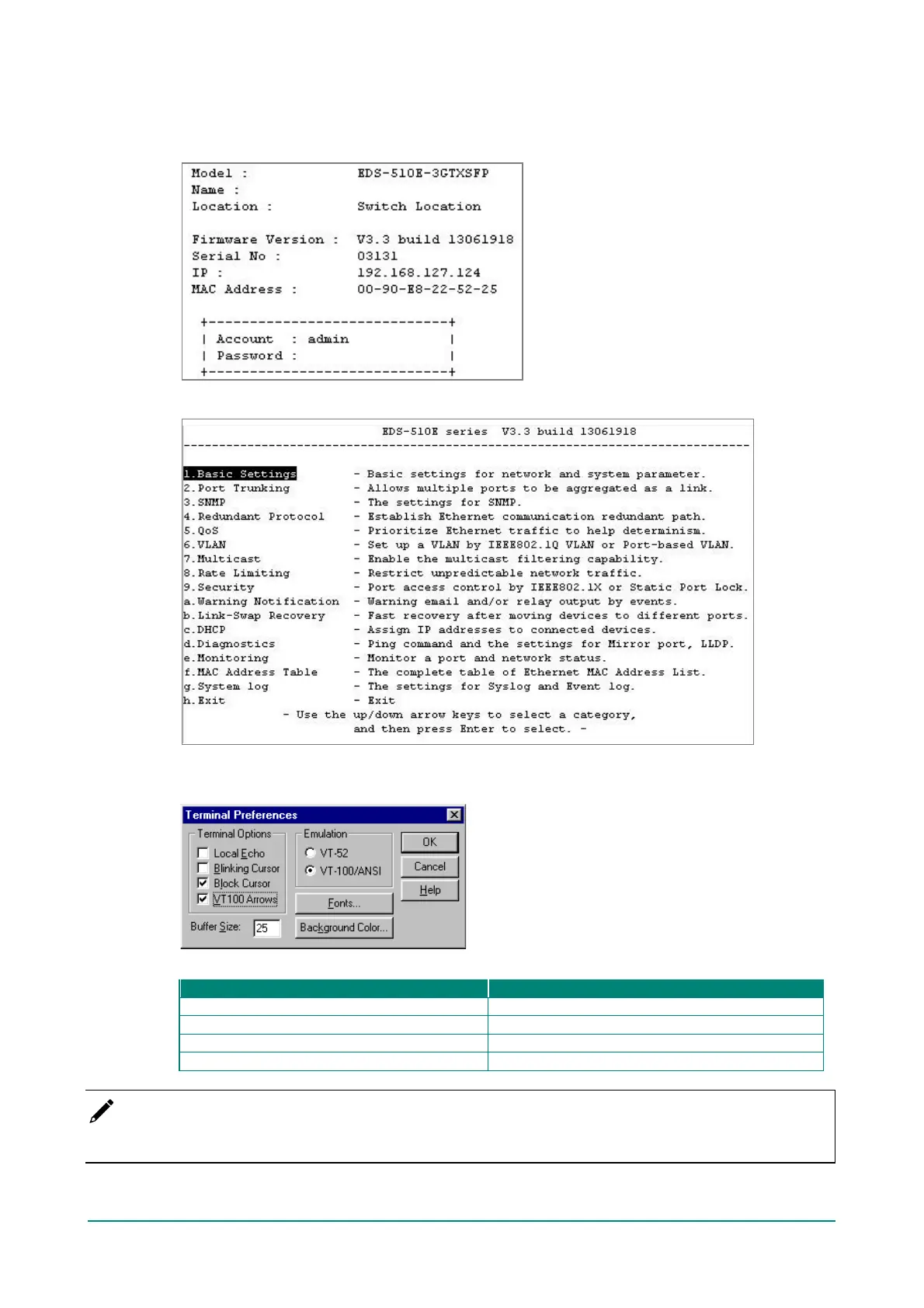
3. The Telnet console will prompt you to log in. Press Enter and then select admin or user. Use the down
arrow key on your keyboard to select the Password f ield and enter a password if desired. This
password will be required to access any of the consoles (web, serial, Telnet). If you do not wish to
create a password, leave the Password f ield blank and press Enter.
4. The Main Menu of the Moxa switch’s Telnet console should appear.
5. In the terminal window, select Preferences… f rom the Terminal menu on the menu bar.
6. The Terminal Preferences window should appear. Make sure that VT100 Arrows is checked.
7. Use the f ollowing keys on your keyboard to navigate the Moxa switch’s Telnet console:
Up, down, right, lef t arrow keys, Tab
Display and select options
NOTE
The Telnet console looks and operates in precisely the same manner as the USB console.


 To Next Page
 Loading...