LinkCom 5 User Manual
Page 20
7 Configuring LinkCom 5 PrintServer
7.1 Use of PrintGuide
All configuration of the PrintServer involves the use of PrintGuide. Please ensure
that you have downloaded the latest version of PrintGuide from
https://www.mpitech.com/ under “Support”, “Software downloads”. The version of
PrintGuide must be PrintGuide version S42 065.490 or newer.
Some configurations can also be made by making changes via the built-in web
server. More about this in section 7.10
Please contact support@mpitech.com if you are not able to get a copy of the
PrintGuide Software version. Make sure to include the LinkCom 5 PrintServer’s MAC
address and Serial number in the e-mail.
For a full introduction to the PrintGuide application, please consult the document
“Getting started with PrintGuide” that is bundled with the software download.
7.2 Getting started with PrintGuide
Install PrintGuide and start the application.
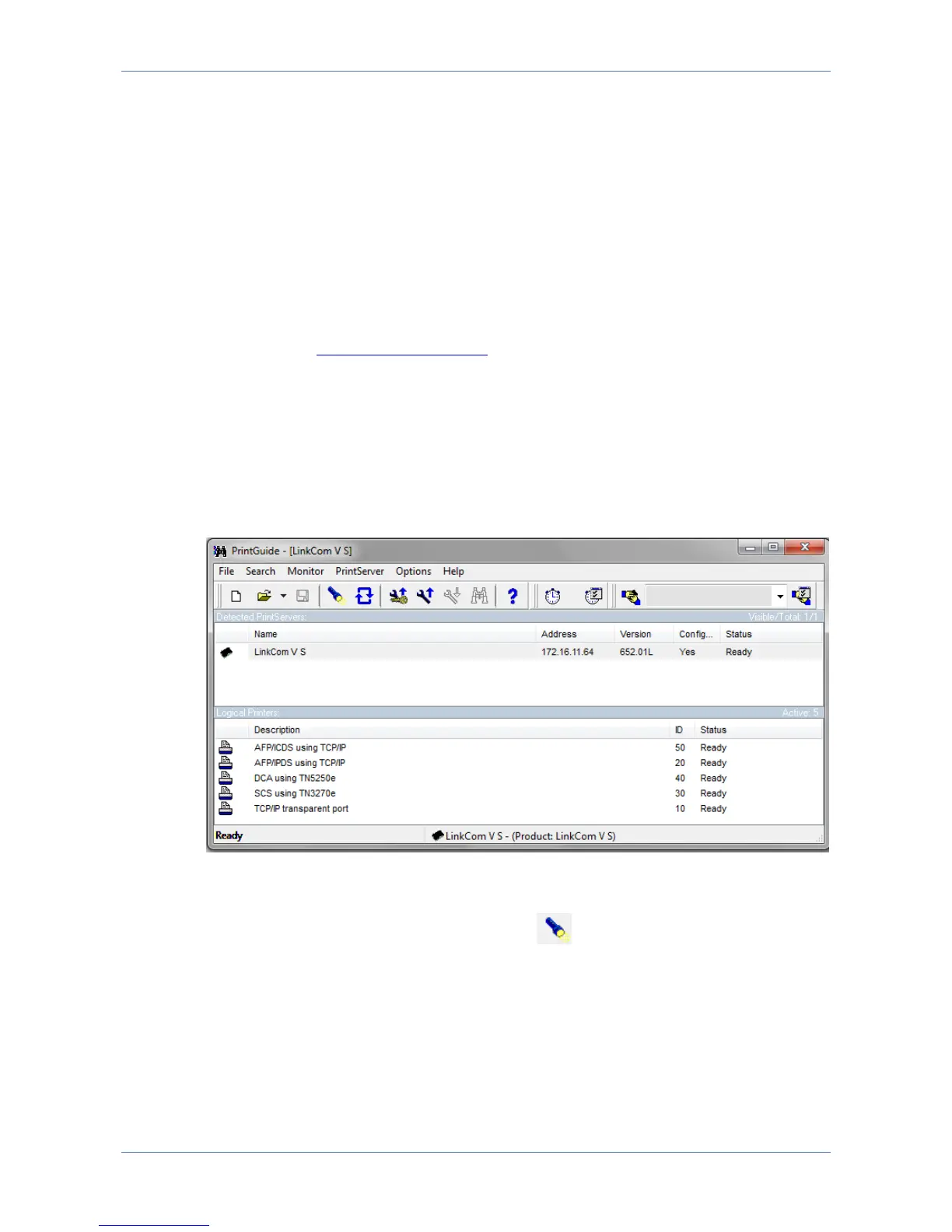
On start-up PrintGuide will scan the network and search for any MPI Tech device
(default setting).
To request a forced network scan, press the icon.
In the default view, PrintGuide displays the PrintServer name, currently assigned IP
address, firmware version (if the PrintServer has been configured), and the general
status.
The list of logical printers displays the available number logical printers/transforms
according to the purchased license.



 To Next Page