IOM-EZVAVINST
Date: 10-2016 Supersedes: 7-2016
Nailor reserves the right to change any information concerning product or specification without notice or obligation.
Page 20 of 48
Installation and Operation Manual
●
EZvav Digital Controls
Proceduretosettheairowsetpoints(connue)
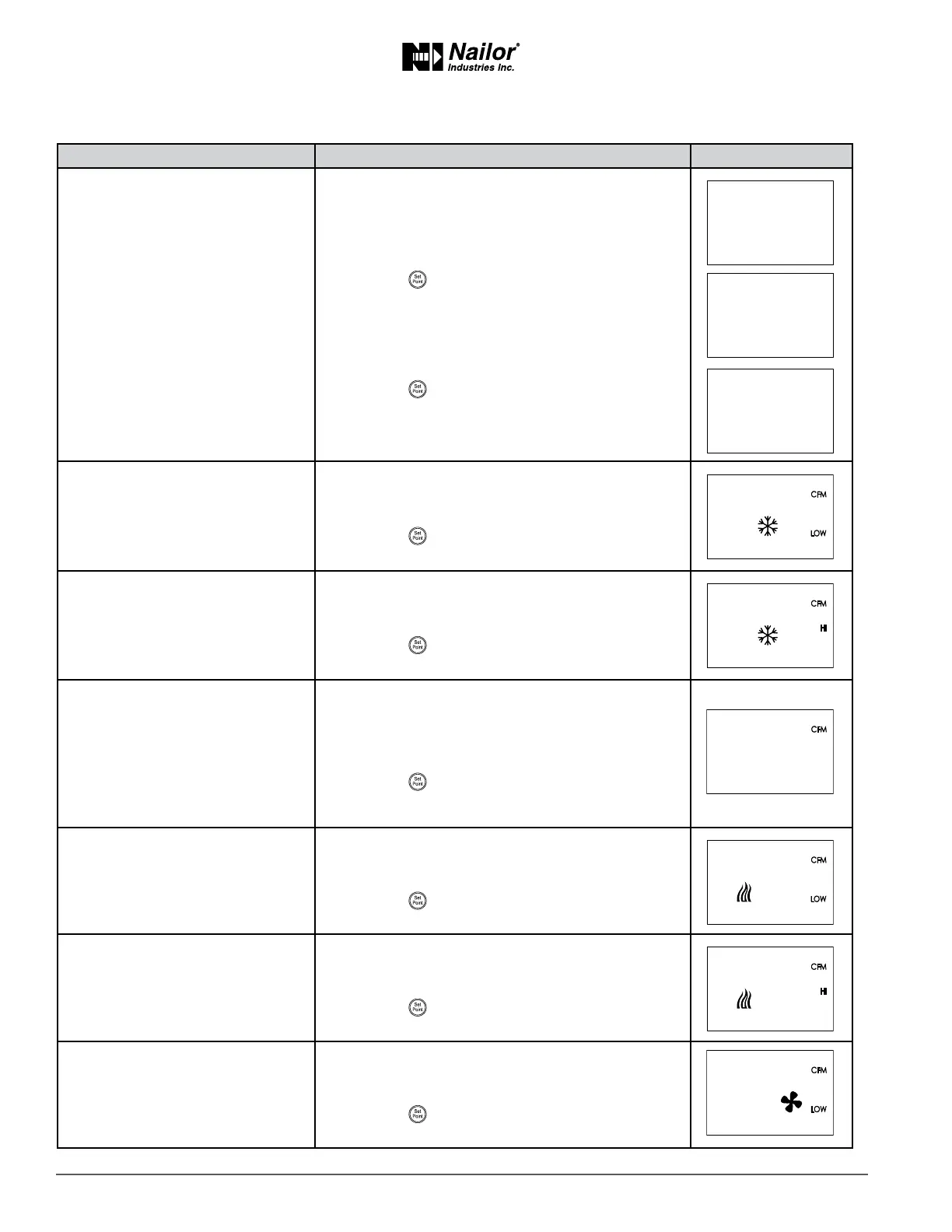
PROCEDURE STEPS STEDISPLAY
2 Select the set point sengs
display.
1. From the CNFG display, press the
∆
or buons
to show the CNFG display.
2. Press the
buon to select the CNFG opons.
The display changes to STPT.
3. Press the
∆
or buons to change the display to
FLOW.
4. Press the
buon to select FLOW. The display
changes to MNCL.
3 Set the cooling minimum airow
limit.
1. Press the
∆
or buons to set the minimum limit
for cooling airow. The set point changes in 1 CFM
increments.
2. Press the
buon to save the set point and
advance to the next funcon.
4 Set the cooling maximum airow
limit.
1. Press the
∆
or buons to set the maximum limit
for cooling airow. The set point changes in 1 CFM
increments.
2. Press the
buon to save the set point and
advance to the next funcon.
5 Set the auxiliary airow set point.
Not used in all models.
Tip: Set value to match Min.
Cooling airow if not required.
This set point sets the airow for when reheat is acve.
1. Press the
∆
or buons to set a value for the
auxiliary airow. The set point changes in 1 CFM
increments.
2. Press the
buon to save the set point and
advance to the next funcon.
6 Set the heang minimum airow
limit.
1. Press the
∆
or buons to set the minimum limit
for heang airow. The set point will change in 1
CFM increments.
2. Press the
buon to save the set point and
advance to the next funcon.
7 Set the heang maximum airow
limit.
1. Press the
∆
or buons to set the maximum limit
for heang airow. The set point will change in 1
CFM increments.
2. Press the
buon to save the set point and
advance to the next funcon.
8 Set the minimum limit for fan
speed.
Not used in all models.
1. Press the
∆
or buons to set the minimum limit
for the fan speed. The set point will change in 1%
increments.
2. Press the
buon to save the set point and
advance to the next funcon.
∆
∆
∆
∆
∆
∆
∆
∆



 To Next Page