VS1 Operations and Maintenance Manual Operating the transmitter
Issue 3.1 2013-10-01 Page 2-169
Managing an Orban Audio Processor Preset
Orban presets contain many audio processing settings, including stereo enhancement, AGC, EQ,
final clipping and distortion. From the remote AUI (not available from the front panel UI), you can
create Orban presets, manage their various settings and save the preset settings to a text file.
When the Orban Inside feature is enabled (see Enabling the Orban Audio Processor for Preset
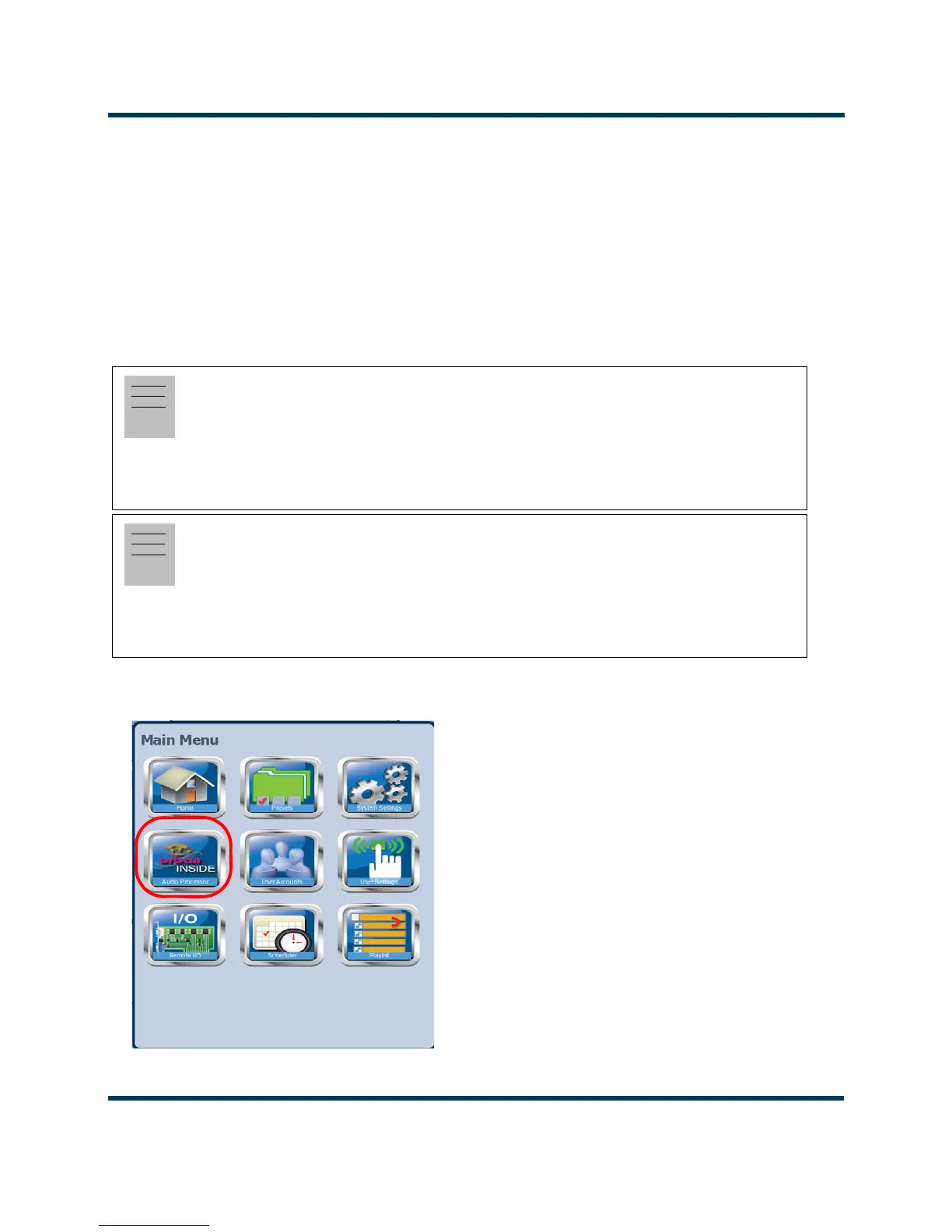
Selection - see page 2-165), an Audio Processor icon appears on the AUI's Main Menu window (see
Figure 2.152). Click this icon to enter the Audio Processor menu (see Figure 2.153 on page 2-170).
Figure 2.152: AUI Main Menu - with Audio Processor icon
WARNING:
When you open the Audio Processor page while the transmitter is on and
Orban is enabled, the active preset in the Orban audio processor is loaded
by default. Loading another Orban preset causes that preset to become
active, Make sure you understand the impct that a preset change will have
on your broadcast.
Note:
The Audio Processor page contains nine tabbed sections that allow managing of Orban presets.
These tabbed pages (see Figure 2.153 on page 2-170 through Figure 2.161 on page 2-175)
illustrate the many parameters associated with an Orban preset. Detailed descriptions are not
included in this document. Refer to the Orban Optimod 5500 manual for more information on
setting these parameters.


 To Next Page