VS1 Operations and Maintenance Manual Operating the transmitter
Page 2-170 Issue 3.1 2013-10-01
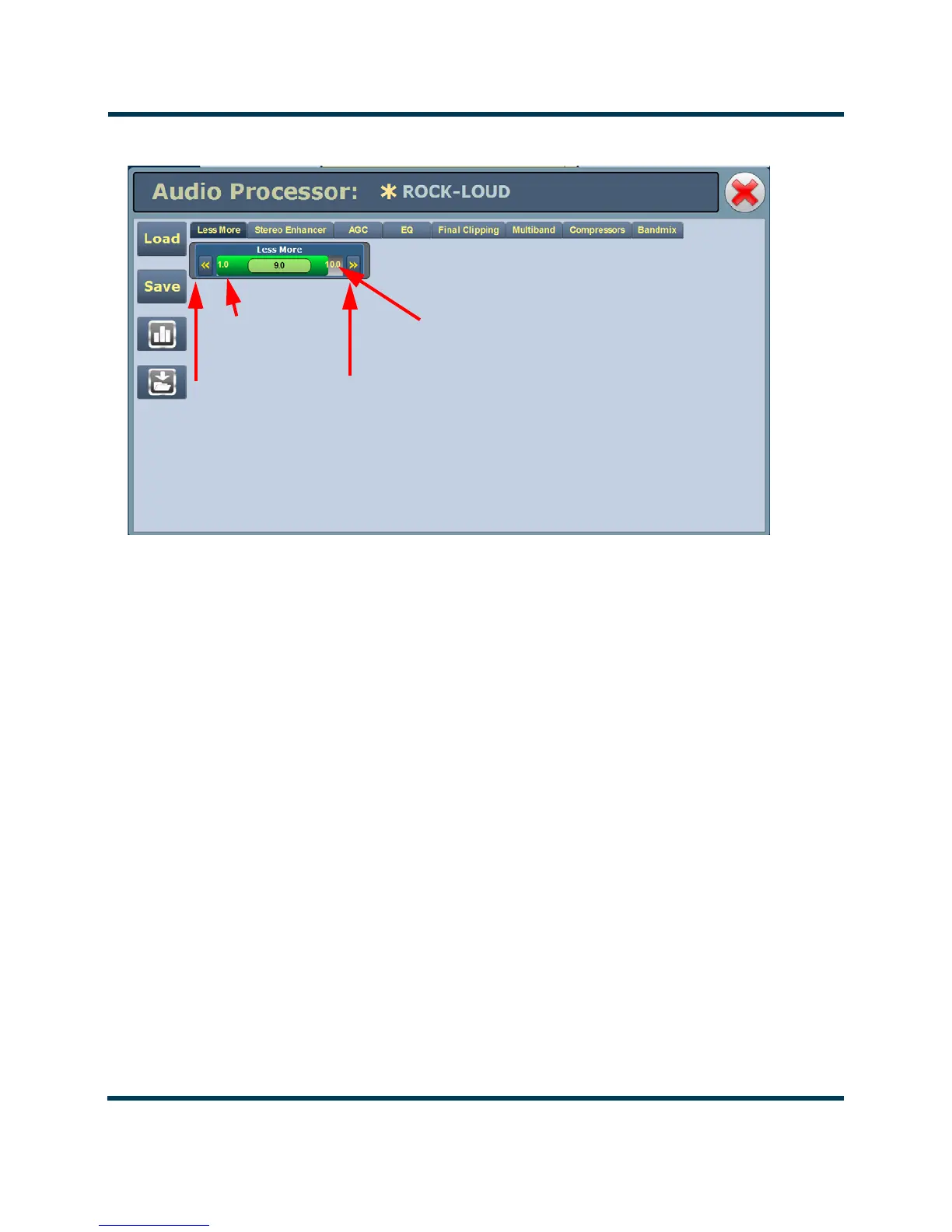
Figure 2.153: Audio Processor Menu - Less More Tab Shown
Loading and Saving Orban Presets
The left-hand side of the Audio Processor pages has four buttons (see below).
When you first enter the Audio Processor page, the current preset is displayed. If the current preset is
not the preset you want to work with, click the Load button to call up a window containing a list of
alternate presets. Presets that display an 'F' are factory presets that cannot be modified. Presets that
display a 'U' are user presets that can be modified.
To activate any change in the
Audio Processor page, click the Save button and then click the Save
Preset
window's Save As button [Save As and Delete buttons not available for factory (F) presets].
When creating a new preset, you can also enter a new name in the Save Preset window before
clicking the Save As button. Click Cancel to discard changes and return to the Audio Processor page.
Clicking this button opens an Audio Processor meter window (see Figure 2.154 on page 2-171) that
displays various meters that indicate levels for inputs, AGC, gain reduction, multiplex (MPX) power
and composite. Refer to the Operation section of the Orban Optimod 5500 manual for detailed
information on these meters.
Clicking this button opens a window that allows downloading a text version of the preset to a folder
on your PC or laptop.
Current Setting
Adjustment Buttons
Slider bar
(green section)


 To Next Page