VS1 Operations and Maintenance Manual Operating the transmitter
Issue 3.1 2013-10-01 Page 2-67
Managing Presets - Using the front panel
Selecting the active preset
When you choose
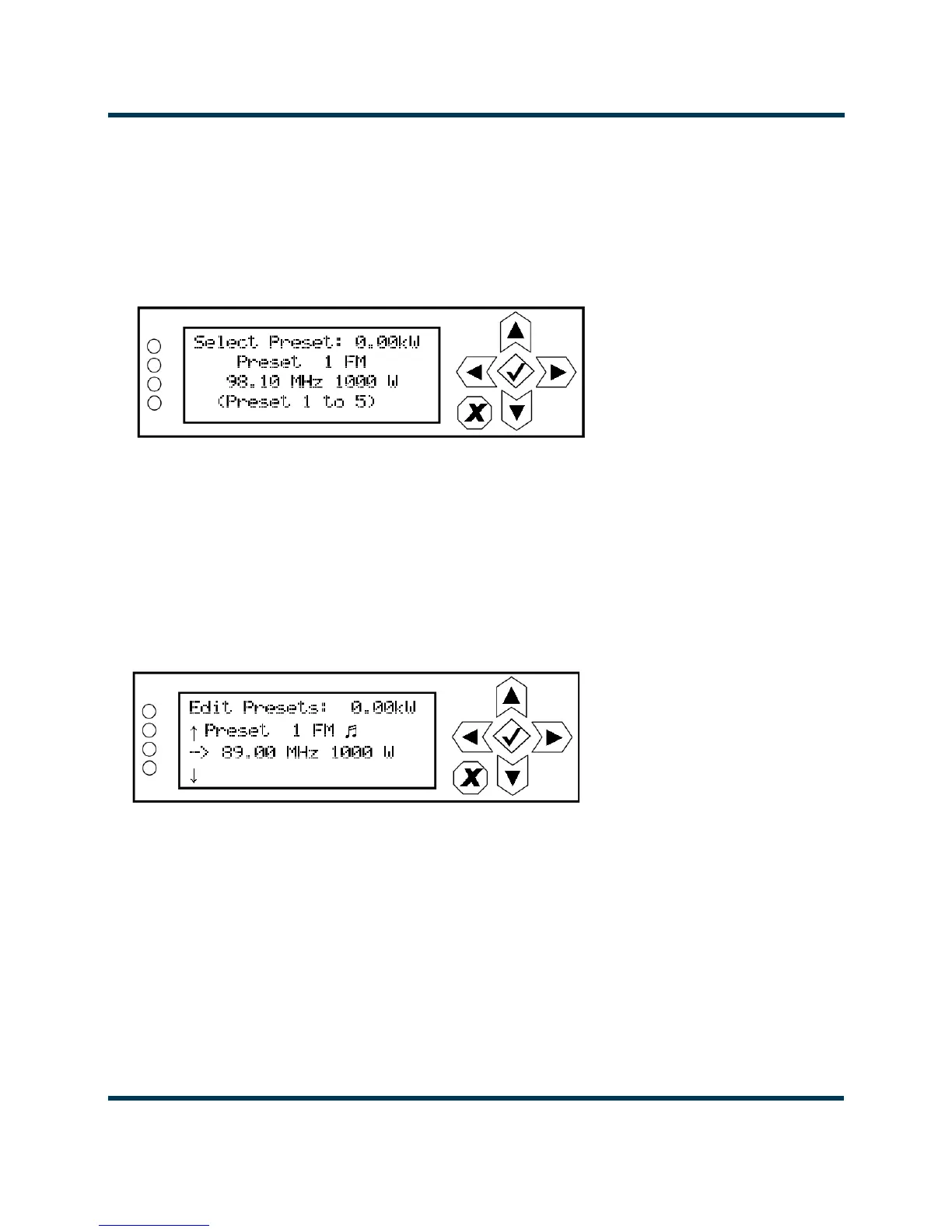
Select Preset from the Main Menu (see Figure 2.46) you can select the active
preset for transmitter operation.
Figure 2.46: Select Preset screen
Use the up and down buttons to scroll through the existing presets. Press the accept (checkmark) but-
ton to enable the preset as the transmitter’s active preset. Press the cancel (X) button to return to the
previous menu.
Editing or creating presets
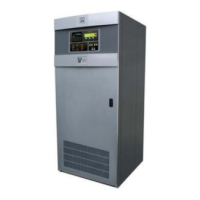
When you select User Settings -> Edit Presets from the Main Menu (see Figure 2.47) you can create
up to 63 operating presets or edit existing presets.
Figure 2.47: Edit Preset screen
Use the up and down buttons to scroll through the existing presets, or scroll to the bottom of the list
to Create New Preset (see Figure 2.48 on page 2-68). Press the accept (checkmark) button to enter
the editing menu for that preset (see Figure 2.49 on page 2-68). Press the cancel (
X) button to return
to the previous menu. When you create a new preset, the next available preset number is assigned
(e.g., Preset 5).


 To Next Page