5. Click and drag the rectangle in the red transparent area.
6. Pan the image outside the current viewing area to select a larger size.
7. Alternatively, enter a Width and Height number by:
a. Entering the desired width in the New Dimensions: Width scroll box (Must be
multiple of 8).
b. Entering the desired height in the New Dimensions: Height scroll box.
8. Click the Apply button in the lower right corner of the Dimensions section.
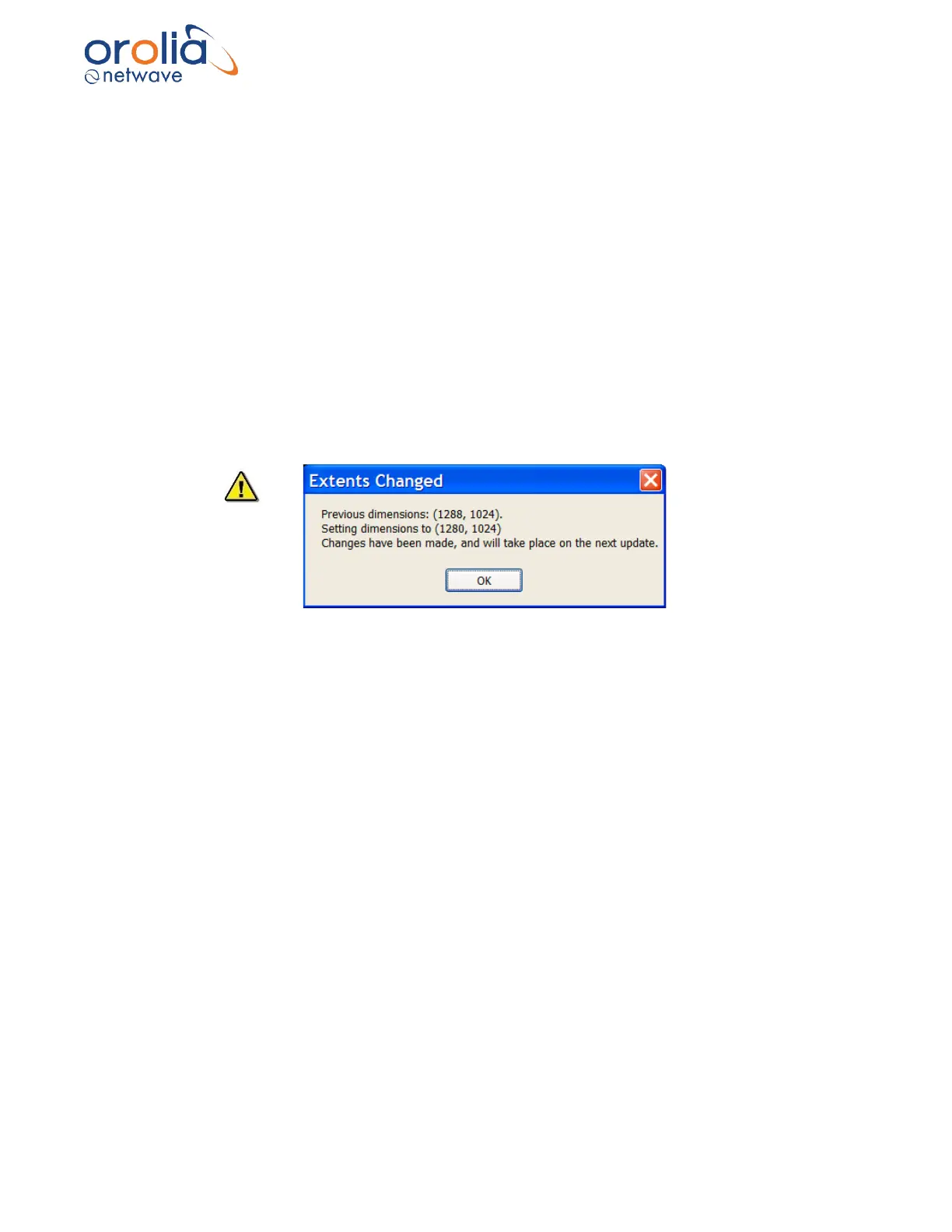
9. The “Extents Changed” dialogue box confirms that the image size is adjusted.
10. Click “OK”.
Figure 10.17.3 - Image Dimensions Adjustment confirmation



 To Next Page