15
English
X-COM2
5.4 Bluetooth GPS Navigation Pairing
5.4.1 GPS Pairing
1. Turn on the headset and press the Center Button for 12 seconds
until you hear high-toned double beeps. You will hear a voice
prompt saying “Conguration menu”.
2. Within 2 seconds, tap the (+) Button 3 times, then the LED turns
togreenashingandthebeepsturntomultiplemid-tonedbeeps.
You will hear the voice prompt, “GPS pairing”.
3. Search for Bluetooth devices on the GPS navigation screen.
Select the X-COM2 in the list of the devices detected on the GPS.
4. Enter 0000 for the PIN.
5. TheGPS conrmsthat pairing has completedand theX-COM2
is ready to use. You will hear a voice prompt from the X-COM2
saying “Your headset is paired”.
6. If the pairing process is not completed within three minutes, the
X-COM2 will return to stand-by mode.
Note:
If you pair your GPS device via GPS Pairing, its instructions will not interrupt
your intercom conversations, but overlay with them.
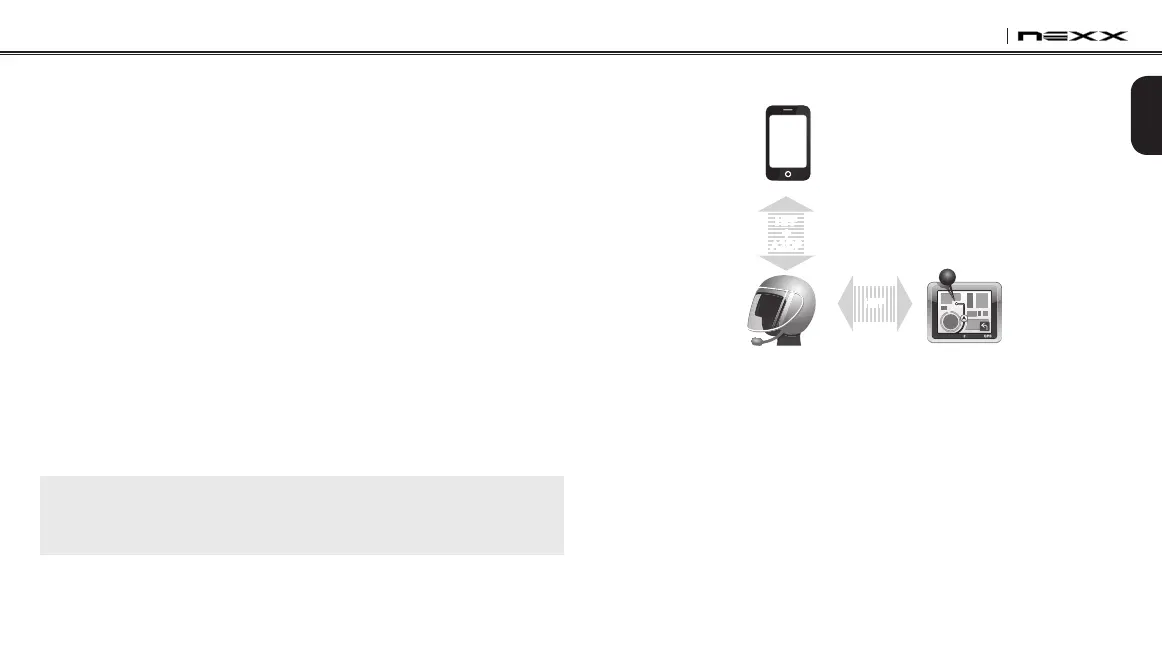
ThepairingdiagramforGPSpairingisshowninthegurebelow.
Smart Phone
X-COM2
GPS
HFP
+
A2DP
Mobile Phone
Pairing
GPS Pairing
HFP
GPS Pairing


 To Next Page