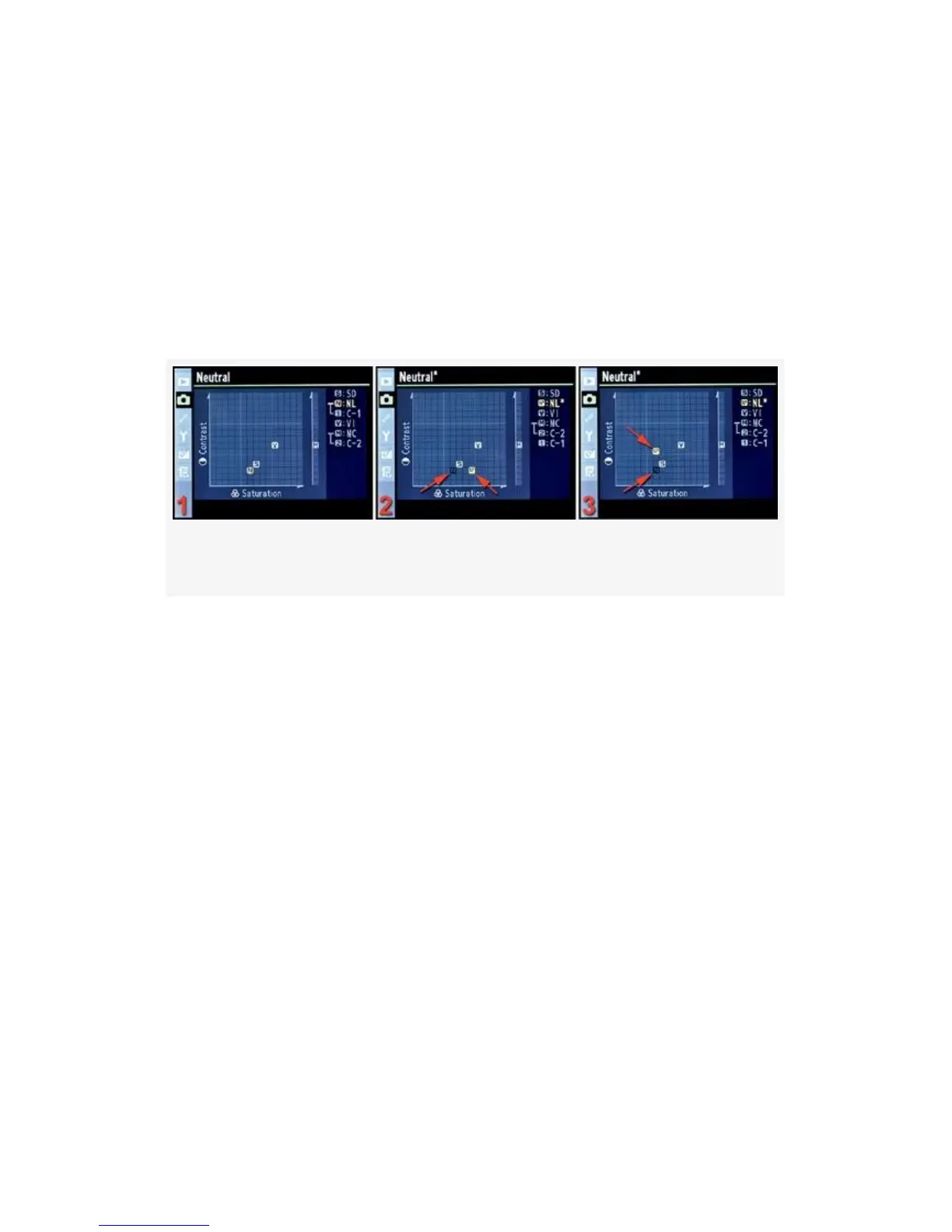
Picture Control Grid Screen
Each Picture Control has a Picture Control Grid that allows
you to compare the selected control to the other Nikon Picture
Controls (see Figure 3-25). You access the Grid by scrolling
to the screen shown in Figure 3-22 and then holding down the
Thumbnail/playback zoom out button.
Figure 3-25. Picture Control Grid
When you make a modification to the Saturation or Contrast
of a particular control, you’ll see the position of that control
change on the Picture Control Grid. Figure 3-25, image 1,
shows a Picture Control Grid in its unchanged condition, with
all controls set to factory default.
In Figure 3-25, image 2, I changed the Saturation. You can
see how the N*—representing the modified Neutral
setting—has moved from its starting location (red arrow on
left) to its new location (red arrow on right). In Figure 3-25,
image 3, you can see that I’ve changed the Contrast. The N*
moved from the location at the bottom red arrow to its new
location at the top red arrow.
The Picture Control Grid allows you to see how each control
compares to the others, before and after you’ve made a
change. Once a change has been made, you’ll see a black
170



 To Next Page