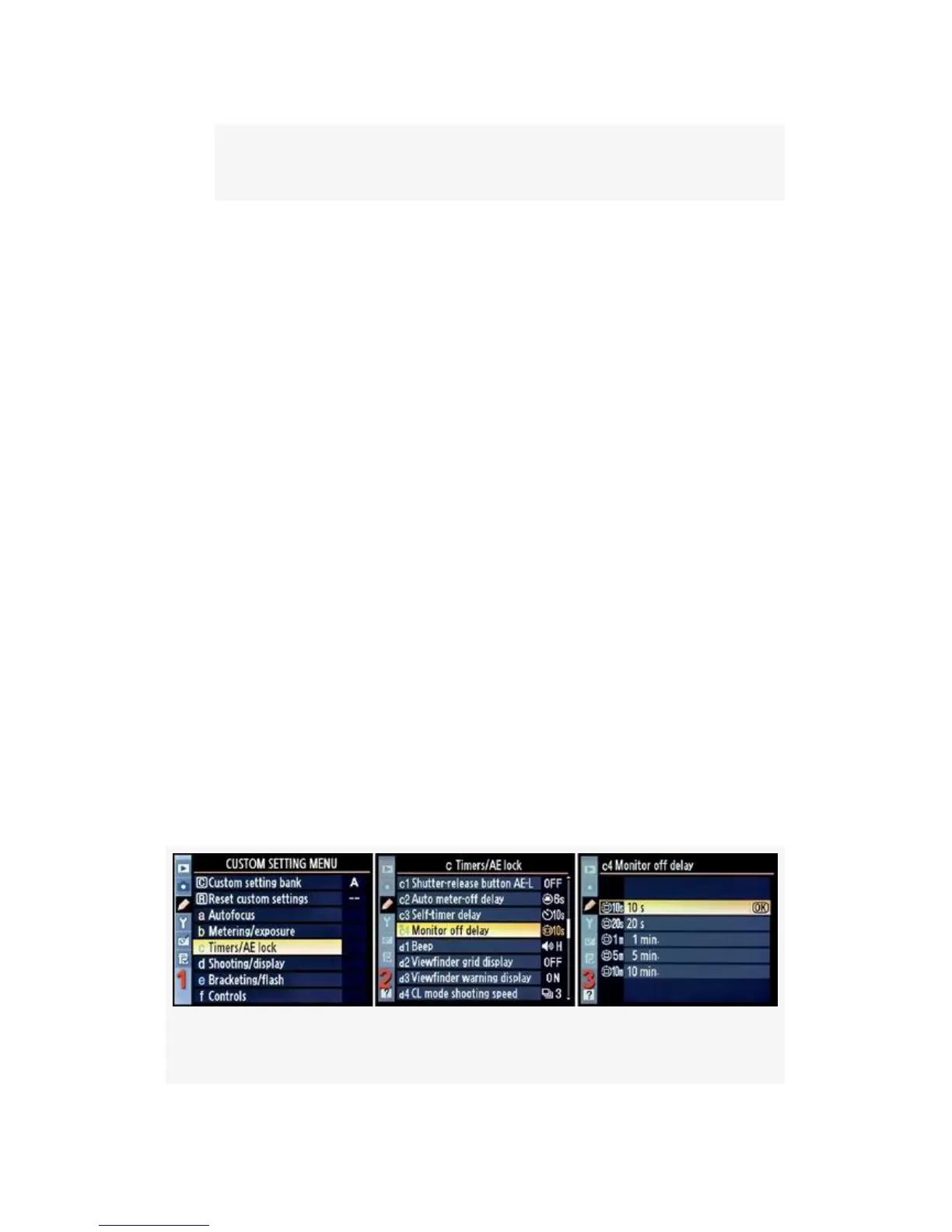
Figure 4-29. Monitor off delay – D300S only
3. Choose one of the four choices on the menu, as shown in
Figure 4-29, image 3. Each of these lets you set the
Monitor off delay for that specific display. They all have
the same delay time-outs available, and they all work
exactly the same. Scroll to the right.
4. Figure 4-29, image 4, shows the actual delay times for
the display selected in Figure 4-29, image 3 (Playback).
Choose from 4 seconds to 10 minutes delay time.
5. Press the OK button to lock in the setting.
Now, let’s see how Monitor off delay works for the D300. It’s
actually simpler since the camera doesn’t let you control the
four display time-outs individually, but instead lumps them
all under one time-out.
D300 Only – Monitor Off Delay
The D300 uses the same Monitor off delay time-outs for all
displays that use the Monitor. Here are the screens and steps
to set Monitor off delay (see Figure 4-30):
Figure 4-30. Monitor off delay – D300 only
313



 To Next Page