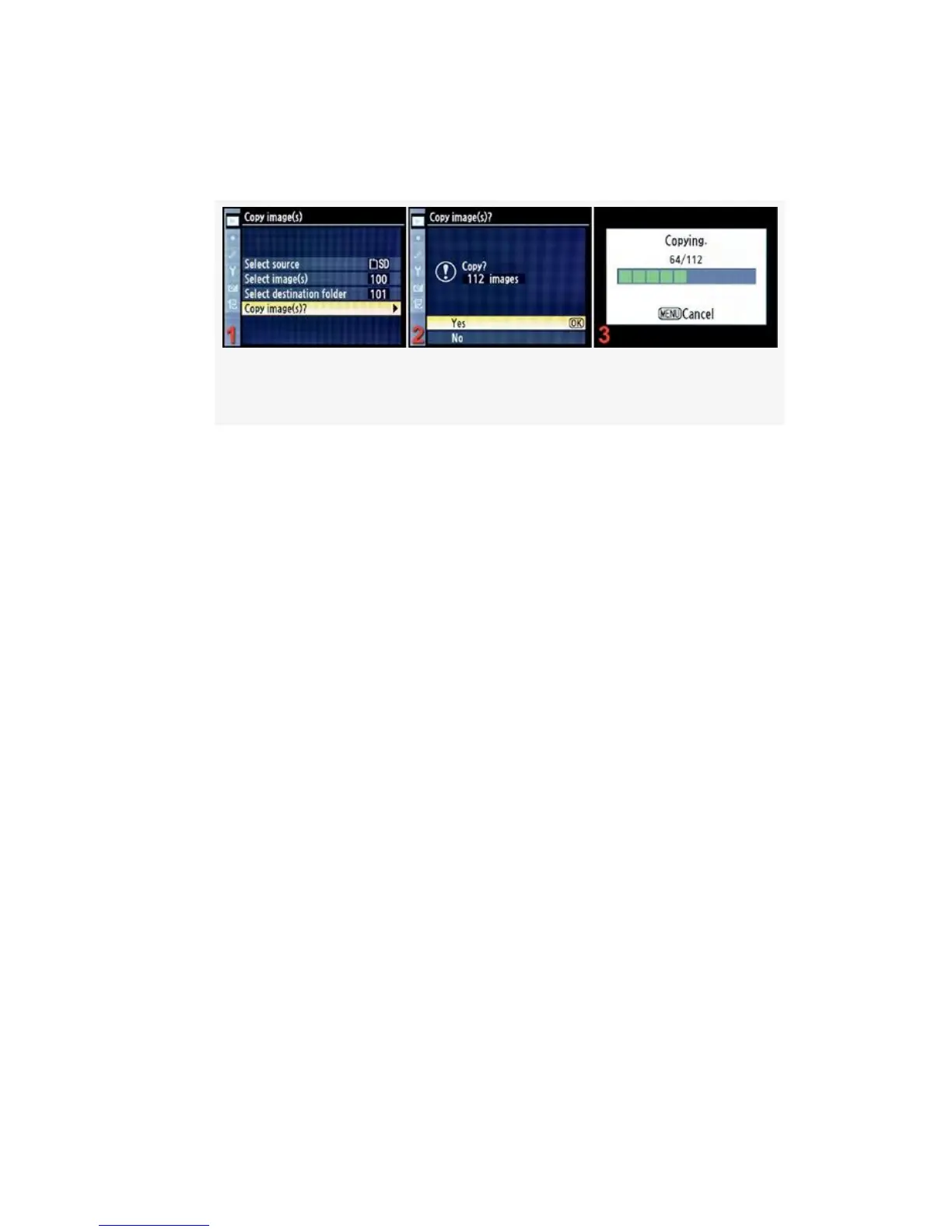
All that’s left is selecting Copy image(s)? and scrolling
to the right (see Figure 2-23).
Figure 2-23. Copying images
2. Figure 2-23 show the screens for steps 7 and 8. Once
you’ve selected Copy image(s)?, you’ll see a screen
asking for verification. Mine says Copy? 112 images
(see Figure 2-23, image 2). Select Yes and press the OK
button. Figure 2-23, images 2 and 3 show that I have
selected Yes and that the camera is copying 112 pictures
from the source card to the destination memory card.
Notice how the Copying screen shows the progress of
the copy action with a green progress bar (see
Figure 2-23, image 3). This will take several minutes to
complete if you are copying a large number of images.
3. Once the copying is finished, you will see a small white
box that says, Copy complete. You must press the OK
button to return to the Copy image(s) screen. That
completes the process.
There’s one more screen that I want you to see, in case you
try to copy images into a folder where they already exist. If an
identical file name already exists in the destination folder, you
may or may not want to overwrite it. The camera will warn
you with the screen shown in Figure 2-24, helpfully showing
you thumbnails of both images. You can view the two
69



 To Next Page