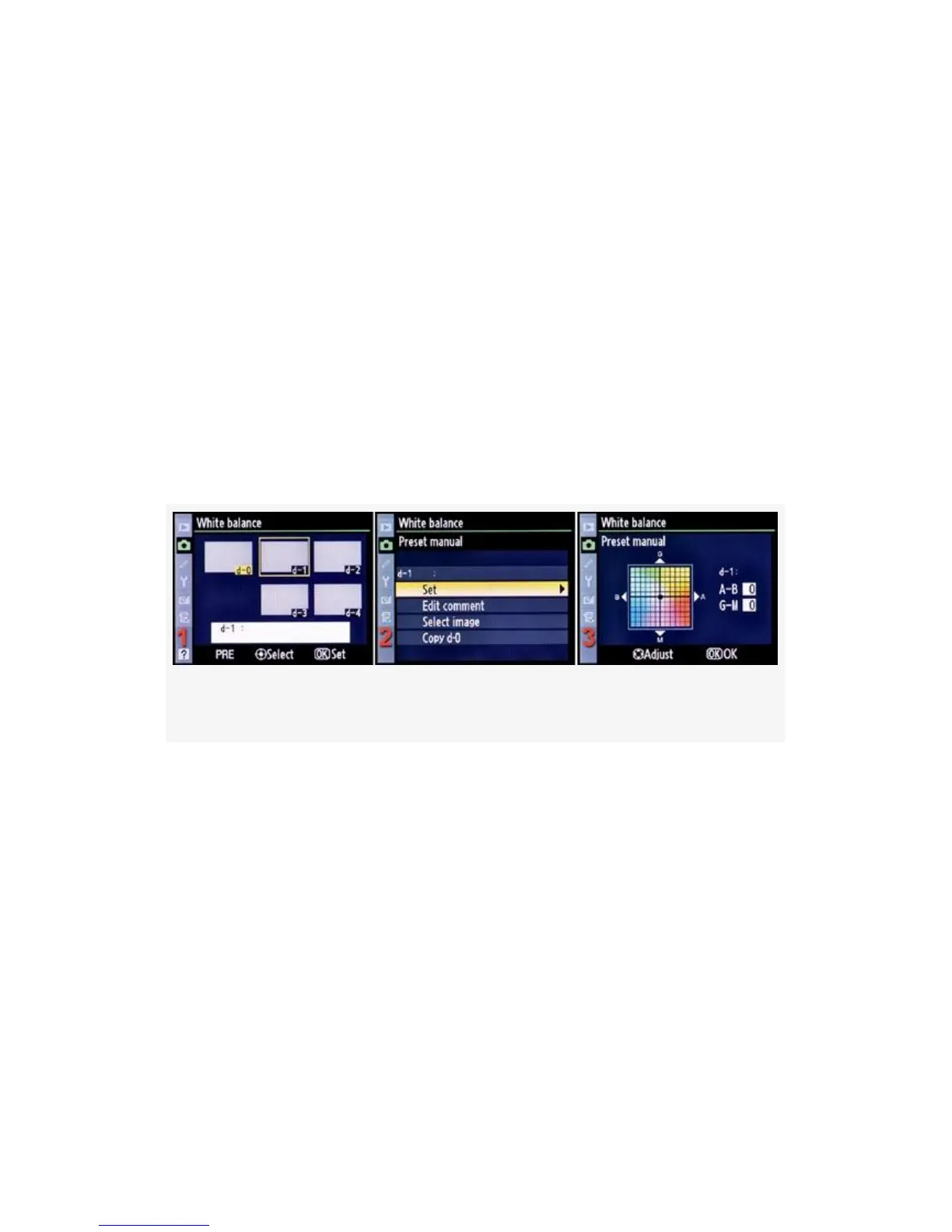
Adjusting a Saved White Balance’s
Color Values
If you want to fine-tune a previously saved White balance
value, you can do it with the Set function. The value in any of
the d-0 to d-4 memory locations can be manually changed.
The color balance can be moved toward G-Green, A-Amber,
M-Magenta, or B-Blue, or toward intermediate combinations
of those colors. Here are the screens and steps to Set a new
color balance (see Figure 10-10).
Figure 10-10. Set or adjust an existing White balance value
1. Use the Shooting Menu screens shown in Figure 10-6 to
get to the d-0-d-4 memory location screen.
2. Use the Multi Selector to scroll to the memory location
you want to adjust (see Figure 10-10, image 1). Press the
Multi selector center button to select it.
3. Choose Set from the menu and scroll to the right (see
Figure 10-10, image 2).
4. Use the Multi Selector to Adjust the color balance (see
Figure 10-10, image 3). You’ll scroll around in the color
box toward whatever color combination you want to add
693



 To Next Page