Preparations
Preparations
28 29
If Your SD Card is Full...
Using SD Cards
Using SD Cards
Using SD Cards
Nintendo 2DS supports SD memory cards up to 2 GB, and SDHC memory cards
between 4 GB and 32 GB.
The included SDHC card comes pre-inserted into the SD card slot on your Nintendo 2DS system. You can use an SD card to back up photo data
or to store music to play back (the type of data you can save varies between software titles).
Note: With the exception of Nintendo DSiWare (page 7), all downloaded software is stored on the SD card. Downloaded software
(including its save data) cannot be moved or copied individually between SD cards.
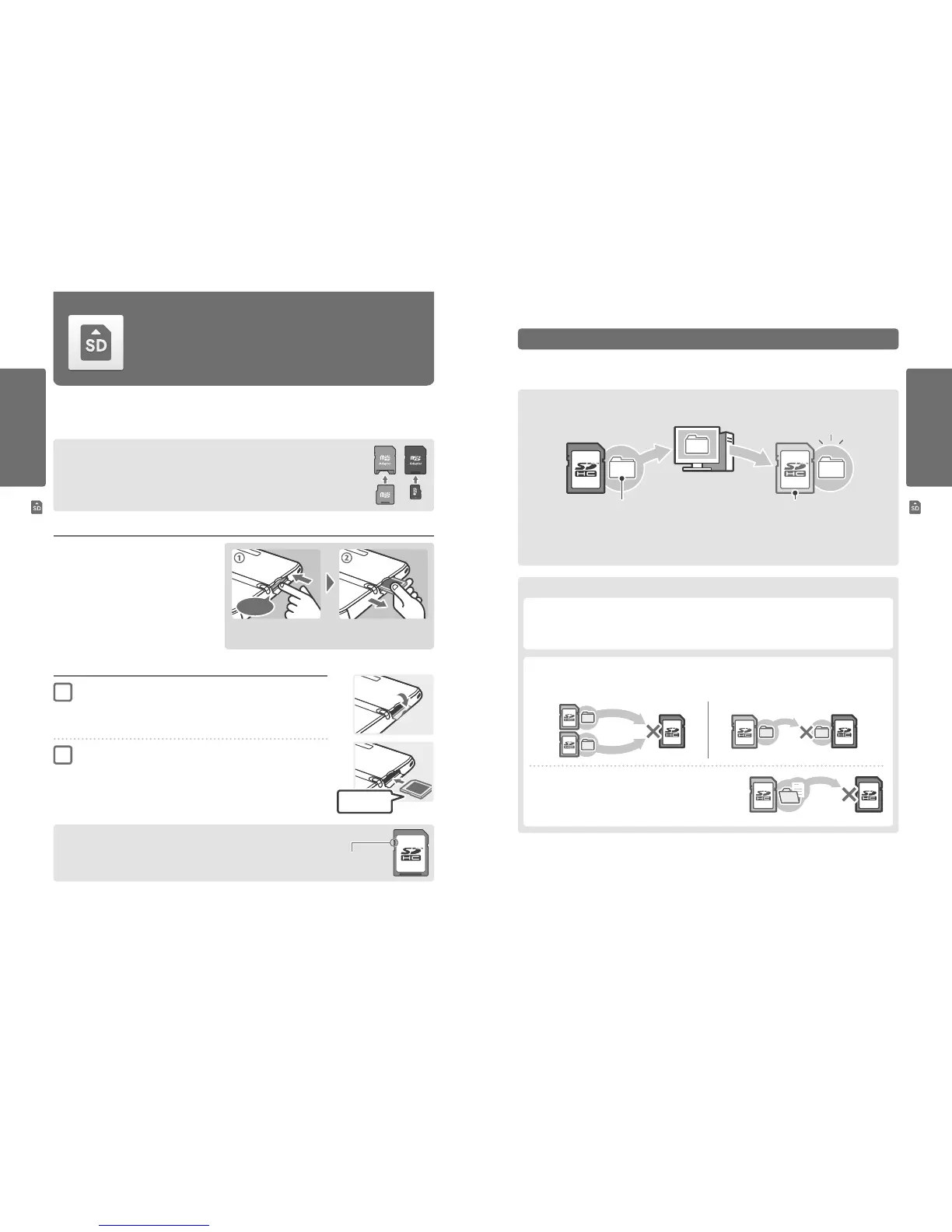
Using MiniSD / MicroSD Cards
An SD card adapter is required to use miniSD or microSD cards.
When using an SD card adapter, be sure to remove the entire adapter (not just the card) from the system after use.
Leaving the adapter in the system could result in damage or malfunction.
How to Remove
Turn the power o before attempting to insert or
remove an SD card. Failure to observe this step could
damage the system or the SD card and destroy data.
Note: If prompted during a game to remove the SD card, there is
no need to turn o the power.
To free up space on a full SD card, delete photo, video or sound les you no longer need via Data Management in the System Settings (page 63).
Alternatively, transfer all of the data from your current SD card to one with a larger capacity. You can save software to another SD card, but cannot
later combine the contents of multiple SD cards.
In order to transfer data, you will need a computer and a commercially-available SD card reader/writer and should transfer the entire
“Nintendo 3DS” folder to the target SD card.
“Nintendo 3DS” folder Target SD card (larger capacity)
Note:
•
Always copy the folder to the root of the SD card.
•
Download software (including save data) is stored inside the “Nintendo 3DS” folder. Photo data is not stored in this folder.
Do not modify, move, delete or change the names of les in this folder.
Precautions for Copying Software
Always copy the entire ”Nintendo 3DS“ folder.
If updated data is saved on the new SD card, you may not be able to use the same software with the original SD card.
You should only use one SD card with a software title at a time; the same software cannot be copied to multiple SD cards
for use as backups of your progress. Ensure that you only use the new SD card.
You cannot copy data using the following methods
Download software saved on multiple SD cards cannot be consolidated onto a single SD card.
Copying new data over existing data will render the target data unusable.
If the contents of the ”Nintendo 3DS“ folder are modied or if individual les
are copied from one ”Nintendo 3DS“ folder to another, they will be rendered
unusable.
The entire “Nintendo 3DS” folder must be copied without any
modication in order to use the data.
How to Insert
Open the SD card slot cover
Insert the SD card into the SD card slot
Push it gently but rmly until it clicks into place, then replace the slot cover.
The label should
face up.
SD Card Write-Protection Switch
When the SD card’s write-protection switch is in the lower position, it is locked and data
cannot be written to it or erased. To enable these functions, the switch should be in the
upper position.
Write-protection
switch
Press on the SD card until it makes a clicking sound
and pops out, then remove it.
PC
1
2
Click



 To Next Page