Using Software
Using Software
38 39
HOME Menu
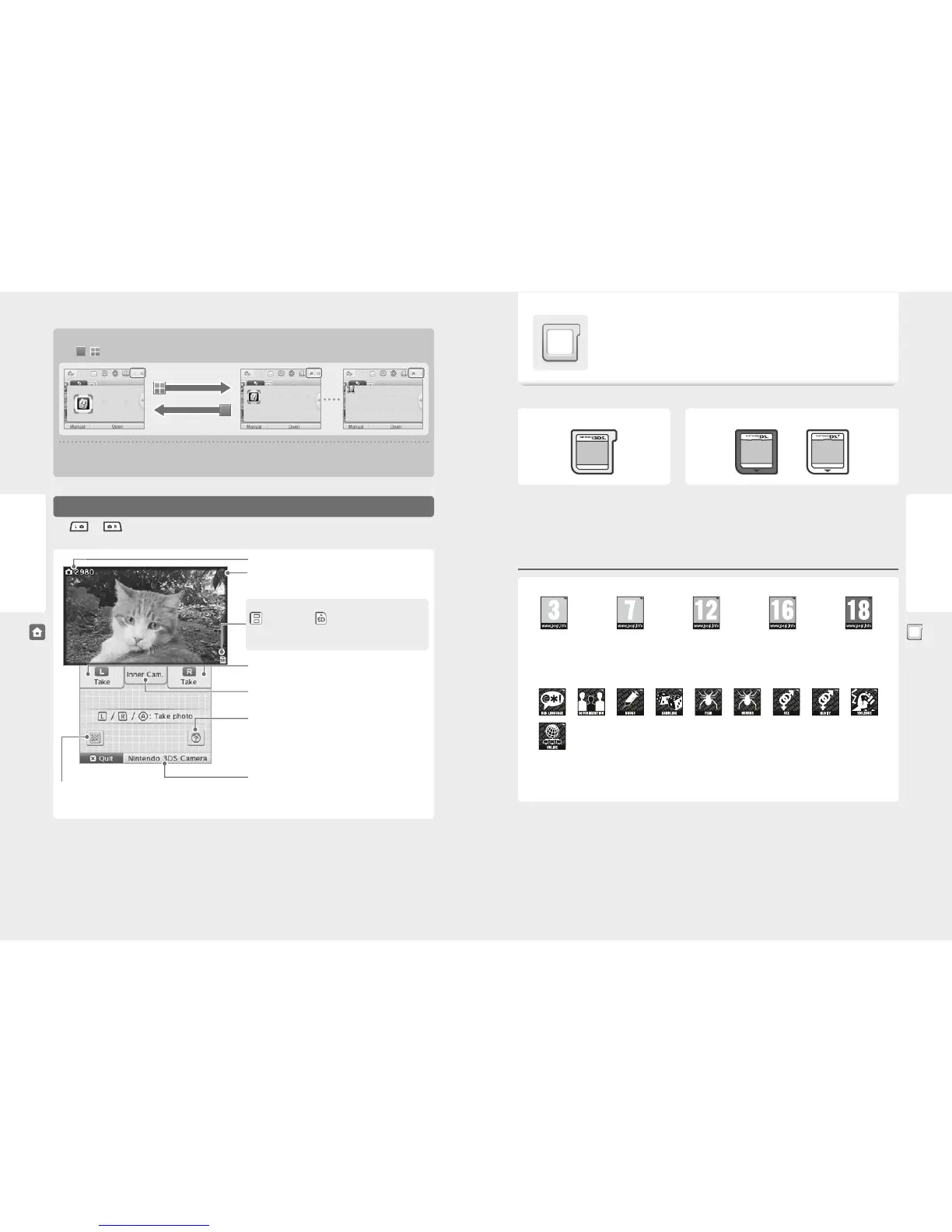
Taking Photos/Reading QR Code Patterns
Press and at the same time while on the HOME Menu to switch to camera mode. The outer cameras can take 3D photos,
but 3D visuals cannot be viewed on the Nintendo 2DS.
Photos remaining
3D Icon
Indicates the outer cameras are in use
Storage Location
System memory SD card
Note: Choose the save destination in the Settings for
Nintendo 3DS Camera.
Take photo
(or press L Button / R Button / A Button)
Switch between inner / outer cameras
Only the outer cameras can take 3D photos
Merge
Use the inner and outer cameras simultaneously to take photos of two
faces and merge them together into one. For more details, refer to the
Nintendo 3DS Camera electronic manual.
Open Nintendo 3DS Camera
Read QR Code
If you point the camera at a QR Code for Nintendo eShop or a QR Code with a website URL, you can go directly to the relevant page in Nintendo eShop
or the internet browser (page 51).
Note: Photos you’ve taken can be viewed in Nintendo 3DS Camera (page 32).
Adjusting software icon display
Touch / to change the layout of the software icons shown on screen.
Note regarding folders
You cannot move a Game Card icon into a folder, nor can you place a folder inside another folder.
Nintendo 3DS Game Card Nintendo DS / Nintendo DSi Game Card
Card-Based Software
How to use Game Cards with your Nintendo 2DS.
Note: If the system language is set to Dutch, Portuguese or Russian, non-Nintendo 3DS titles will default to
English. In some cases, this may be adjustable within the software.
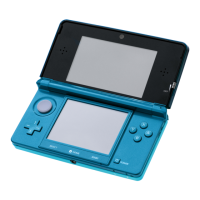
Nintendo 3DS, Nintendo DS, Nintendo DSi and Nintendo DSi enhanced software can be used on Nintendo 2DS systems.
Note:
•
The Nintendo 2DS system cannot display 3D visuals even if the software contains 3D content.
•
SpotPass, StreetPass and the HOME Menu cannot be used while Nintendo DS / Nintendo DSi software is in use.
•
Only Nintendo 3DS and Nintendo DSi software titles matching the region of the system will work. Software titles from dierent regions may not function.
•
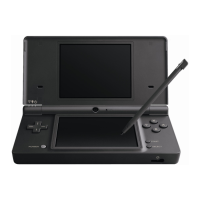
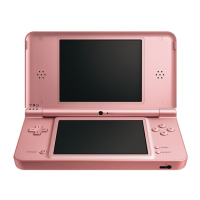
Nintendo 3DS software titles cannot be used with Nintendo DS, Nintendo DS Lite, Nintendo DSi or Nintendo DSi XL systems.
Pan European Game Information (PEGI) age rating system
Age rating categories
Titles rated 3 are
suitable for ages 3
and older
Titles rated 7 are
suitable for ages 7
and older
Titles rated 12 are
suitable for ages 12
and older
Titles rated 16 are
suitable for ages 16
and older
Titles rated 18 are
suitable for ages 18
and older
Content descriptors
Content descriptors are shown on the game packaging where applicable. These icons indicate the main reasons for a game’s age rating.
The ’Online’ logo indicates that a game allows the player to have access to
online game play with other players.
The PEGI system was established to help parents and guardians make informed decisions when buying computer and video games. It
replaced a number of national age rating systems with a single system now used throughout most of Europe. For further information
about PEGI visit http://www.pegi.info.
Note: The PEGI rating does not indicate diculty of a game; it provides information about the age suitability of a game based on its content.
[1113/UKV]
Card-Based Software



 To Next Page