Using Software
Using Software
34 35
Close manual Change the font size
HOME Menu
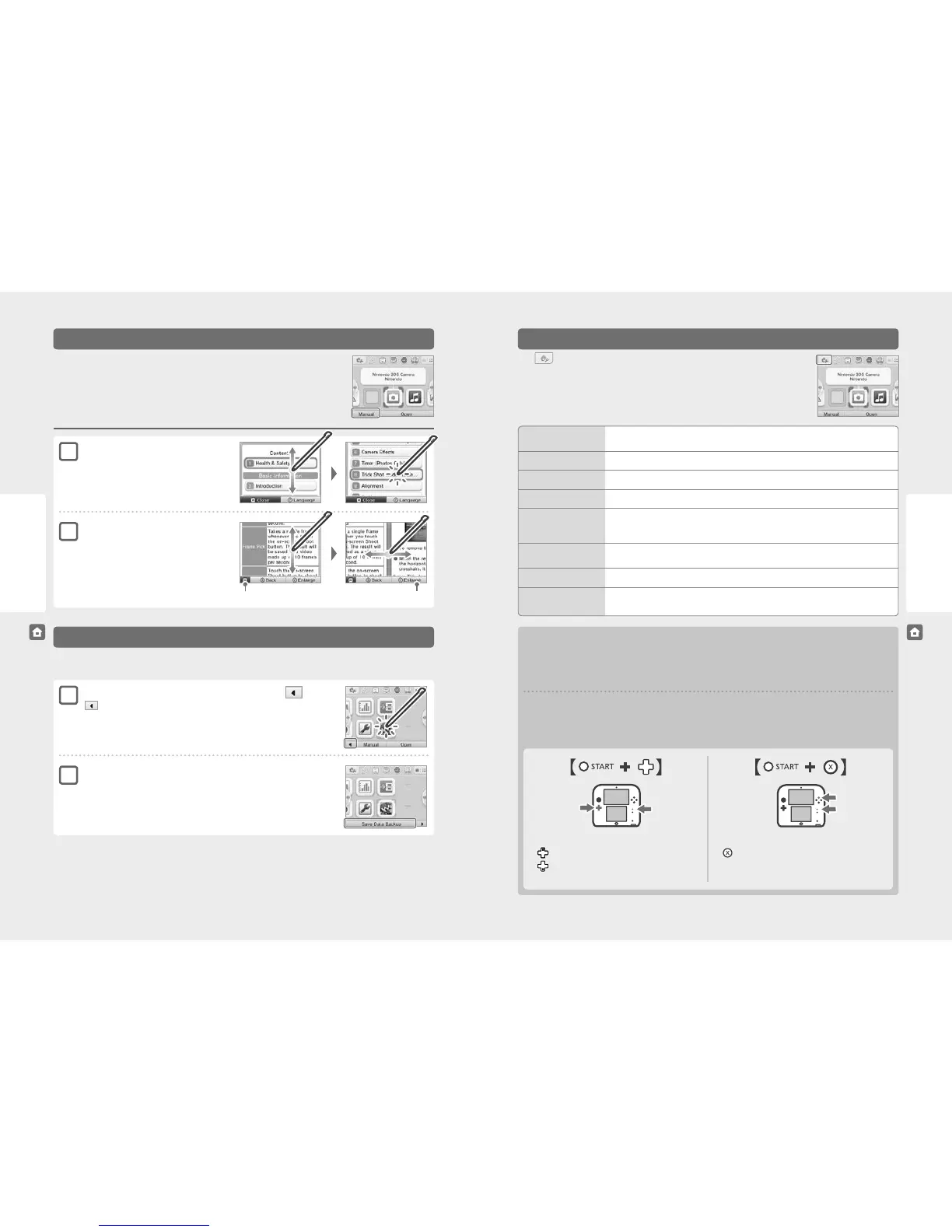
If a software title includes an electronic manual, the MANUAL option will be displayed when you
select its icon. Touch this to view the manual. Manuals can be viewed while a software title is
suspended.
Touch
on the HOME Menu to congure the following settings.
You can create backups of download software save data. Once a backup is made, you can restore it at any time from Data Management in the
System Settings (page 63).
Choose an item from the contents
Slide up and down to scroll through the contents of the
manual and touch the page you want to view.
Note: Press the Y Button to change the language of the
manual.
Touch the software you wish to back up, and touch
will not appear if a software title doesn’t support save data backups.
View the page
Slide up and down to scroll through the contents of the
page. Slide left and right to switch pages.
Touch SAVE DATA BACKUP
Follow the on-screen instructions.
Electronic Manuals
Backing Up Software Save Data
1
1
2
2
Viewing manuals
HOME Menu
Change Theme
Change the design of the HOME Menu by selecting from various themes, or visit the Theme Shop to add
more themes (page 36).
Save / Load Layout
Save the layouts for themes and software icons on the HOME Menu, and swap between them.
Screen Brightness
Choose between ve levels of brightness.
Wireless Communication
Enable / disable wireless communication.
Nintendo 3DS
Image Share
Open the internet browser and access Nintendo 3DS Image Share to post screenshots of the HOME Menu to
social networking sites like Twitter and Facebook. Further explanation can be found within Nintendo 3DS
Image Share.
amiibo™ Settings
Congure amiibo settings when using a Nintendo 3DS NFC Reader/Writer (sold separately). For more
information on amiibo, please refer to amiibo.nintendo.eu
Nintendo eShop
Launch Nintendo eShop (page 6).
System Settings
Open the System Settings (page 53).
Note: This will close any suspended software. Please save your progress before opening the System Settings.
HOME Menu Settings
Press and hold START, then press the following:
Up: Increase brightness
Down: Decrease brightness
Press and hold START, then press the following:
Disable wireless communication
Note: If wireless communication is disabled, it cannot be enabled
while Nintendo DS/Nintendo DSi software titles are in use.
Brightness levels and battery life
Increasing screen brightness will decrease battery life, and vice versa. Please bear this in mind when you adjust your brightness settings
(page 27).
Note: Because brighter screen settings require more power, the power LED may change from blue to red. If the battery is nearly empty, the system
may turn o suddenly.
Brightness settings and wireless communication with Nintendo DS / Nintendo DSi
software titles
Nintendo DS / Nintendo DSi software titles cannot access the HOME Menu. Press the HOME Button to pause the software, then use the
following commands to adjust brightness and wireless communication settings.



 To Next Page