Using Software
Using Software
30 31
HOME Menu
HOME Menu
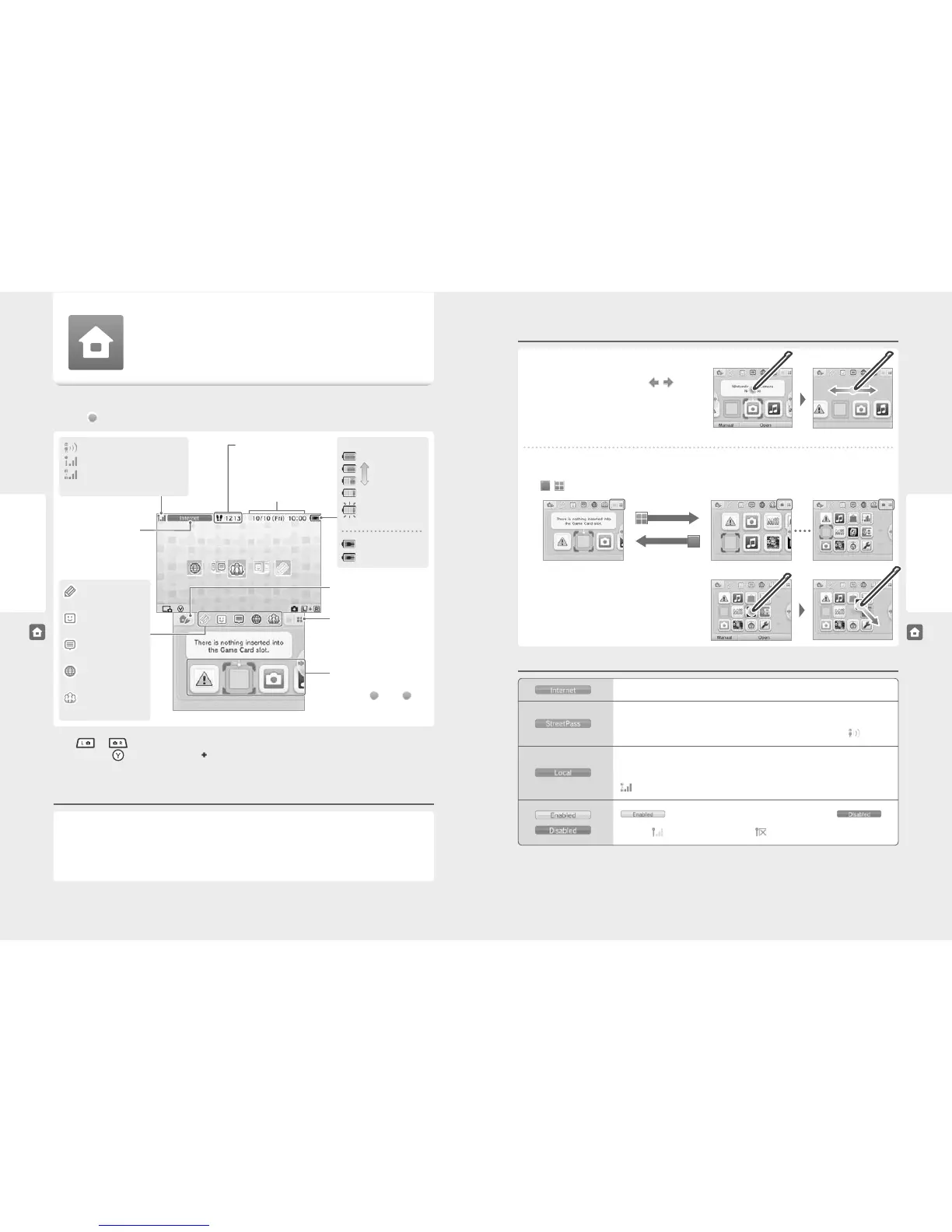
The HOME Menu is displayed when you turn on the power.
Everything on the Nintendo 2DS system can be accessed from here.
Software titles can be launched from the HOME Menu by touching the icon that corresponds to the title you want to play. The HOME Menu also
shows the time and date, current wireless communication mode and the number of steps you’ve taken that day.
Look out for
on a software icon to instantly tell when a title has received new information or an update via SpotPass.
Wireless communication
mode (page 31)
Play Coins / Today’s steps
Date and time
Adjust software icon display
(page 31)
Software icons (page 32)
New notications for software titles are
indicated with
(green) / (blue)
on the software icon (page 49).
Note:
•
Press and at the same time to activate the cameras and take photos (page 38).
•
While holding down , press up, down or right on the Control Pad to take a screenshot of the HOME Menu (page 37).
•
Content displayed on the upper screen diers according to the software being used. The display moves in various ways when the microphone
picks up noise.
Play Coins / Today’s steps
If you walk around with your Nintendo 2DS system, it will count your steps. Every 100 steps you take, you earn a Play Coin. You can earn up
to 10 Play Coins per day, and a maximum of 300 in total. These can then be used in compatible software titles.
Note:
•
Steps are counted when the system is in Sleep Mode.
•
A maximum of seven days’ worth of step data can be recorded while Nintendo DS / Nintendo DSi software titles are left running. You will have to
turn the software o once before you can record more.
StreetPass (page 31)
Signal strength (internet)
Signal strength (local wireless)
(page 31)
Battery charge
Full
Low
Almost empty
(ashing)
Recharging (ashing)
Recharging complete
HOME Menu
Scrolling / Adjusting and Moving Software Icons
Scrolling
Touch an icon, then slide the stylus to the left or right to scroll
through the available software icons. Touching
/ on the
sides of the screen has the same function.
Adjusting the Display and Moving Software Icons
Adjusting software icon display
Touch / to change the layout of the software icons shown on screen.
Moving software icons
To move an icon, touch and hold the stylus over the icon until it
detaches, then drag it to where you want to place it and release
the stylus.
Dragging an icon on top of another icon will swap the two icons.
Wireless communication modes
Touch Slide
This indicates that an internet connection has been established (page 56).
This indicates that the system is searching for other users who have StreetPass activated (page 7).
Registering Nintendo 3DS software for use with StreetPass allows the system to automatically search
for other users to exchange information with. This status will be shown together with
.
This indicates that the system is communicating with other Nintendo 3DS / Nintendo 3DS XL / Nintendo 2DS
systems in your vicinity. Features such as local friend registration (page 45) and Download Play options
make use of the local wireless function. During wireless communication mode, the signal-strength icon
is displayed. Stronger signal strength means better data transmissions.
will be displayed when wireless communication is enabled, and
when it is disabled. You can enable / disable wireless communication in the HOME Menu Settings
(page 35).
will be shown when enabled, and when disabled.
Game Notes
(page 43)
Friend list
(page 44)
Notications
(page 49)
Internet browser
(page 51)
Miiverse
(page 52)
HOME Menu Settings
(page 35)



 To Next Page