30
nVISION Software
nVISION Software
Nonin’s nVISION software (version 6.3 or greater) works with Microsoft Windows
®
2000/
XP/Vista/7 operating systems. It allows users to transfer recorded patient data from the
device to a PC and then analyze, report, and archive the data. The software is required to
access the device’s additional modes of operation and advanced features.
nVISION Settings
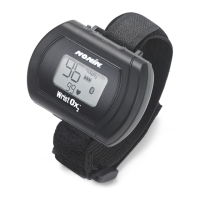
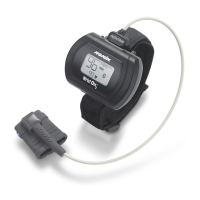
The following WristOx
2
, Model 3150, settings are programmed using nVISION:
• Date and time – 24-hour clock format
• Display options – allows clinicians to choose the best display option for each patient:
• Full display shows %SpO
2
and pulse rate data
• Partial display shows pulse strength indicator, but not %SpO
2
and pulse rate data
• Patient data storage (sample) rate – 1, 2, or 4 seconds
• Operation Modes – Sensor Activation, Spot Checking, and Programmed (see
“Activation Options”)
• Patient ID – up to 50 alphanumeric characters
• Bluetooth Radio – disable at startup
• Synchronize device time/date to the PC time/date
• Download and save patient data to a PC
• Clear device memory
To access nVISION settings, connect the device to a PC using either the PC USB interface
cable or a Bluetooth connection.
Accessing nVISION Settings
1. Connect the device to a PC using the USB interface cable (see “Cable Connection”)
or Bluetooth (see “Bluetooth Connection”).
2. Open nVISION.
3. Click the Data Capture icon, or select New Data Capture from the File drop down
menu.
4. Select 3150 from the list of oximeters.
5. Click Settings.
6. “Enter Wrist Oximeter Settings” window opens (figure 22). Update or change settings
as needed.
7. Click OK.
8. For more information, see nViSION Help.


 To Next Page