26
X.ControlPadSetup
Factory-newInstallation
GrandConcertoV.X.XX
ZoneSelection
ZoneSelection
OK
ReprogrammingtheZoneAddress
Setup AdvancedSettings
ZoneNumber
None
ThesystemshouldbeprogrammedwiththeConfigurator
priortosettinguptheControlPadsforthefirsttime.The
GrandConcertoamplifiershouldbeplacedinitspermanent
location,pluggedin,andturnedon.WhenaControlPadis
pluggedinforthefirsttime,thefollowingsequencewill
occur:
1.Whenfirstpluggedin, where
Xreferstothecurrentfirmwareversionnumber
loadedintheGrandConcertomainamplifierunit.
TheControlPadwillthengotothe
menu.
2. WhiletheControlPadisinthe mode,
alltheconfiguredzonenameswillappearstarting
withthefirst.Settingtheappropriatezoneaddress
issimplydonebyusingthearrowbuttonstoscroll
upordowntotheappropriatezoneandwhenthe
desiredzoneishighlighted,pressthe button.
3. TheControlPadwillflashtheversion-number
screenonemoretimeandimmediatelyturnoff.
Whenpoweredon,theaddressedControlPadwill
thengotothefirstestablishedsource.
Atthispoint,thezonemaybeoperatedbytheparameters
setintheconfiguration.Zonesettingsmaybemodified
usingtheMENUkey.
ThisprocedureallowsanaddressedControlPadtobemoved
toanewlocation.Withinthemainmenuofeachzone,goto
.WithintheSetupoptions,scrollto
andto .Alltheusedaddresseswillbegrayed
out.Anyavailableaddresseswillbeaccessible.Scrollingto
willerasethecurrentaddressofthatControlPad’s
zone.Inthismenuselection,theControlPadcanberesetto
anyavailablezone.
XI.UsingtheControlPad'sMENUButton
MAINMENU:
Favorites,Sources,Advanced
ZoneControl Setup,
Menugivesaccesstospecificmusicselectionandcontrolfor
eachsource,aswellaszoneandsystemsettingcapability.
WhentheMENUbuttonispushed,thedisplaygoestoan
eight-linescreenlabeledMainMenu.
TherearefourMainMenuitemsthatare
consistenttoallsourceselectionsandpertaintogeneral
systemandzonecontrol.Theyare
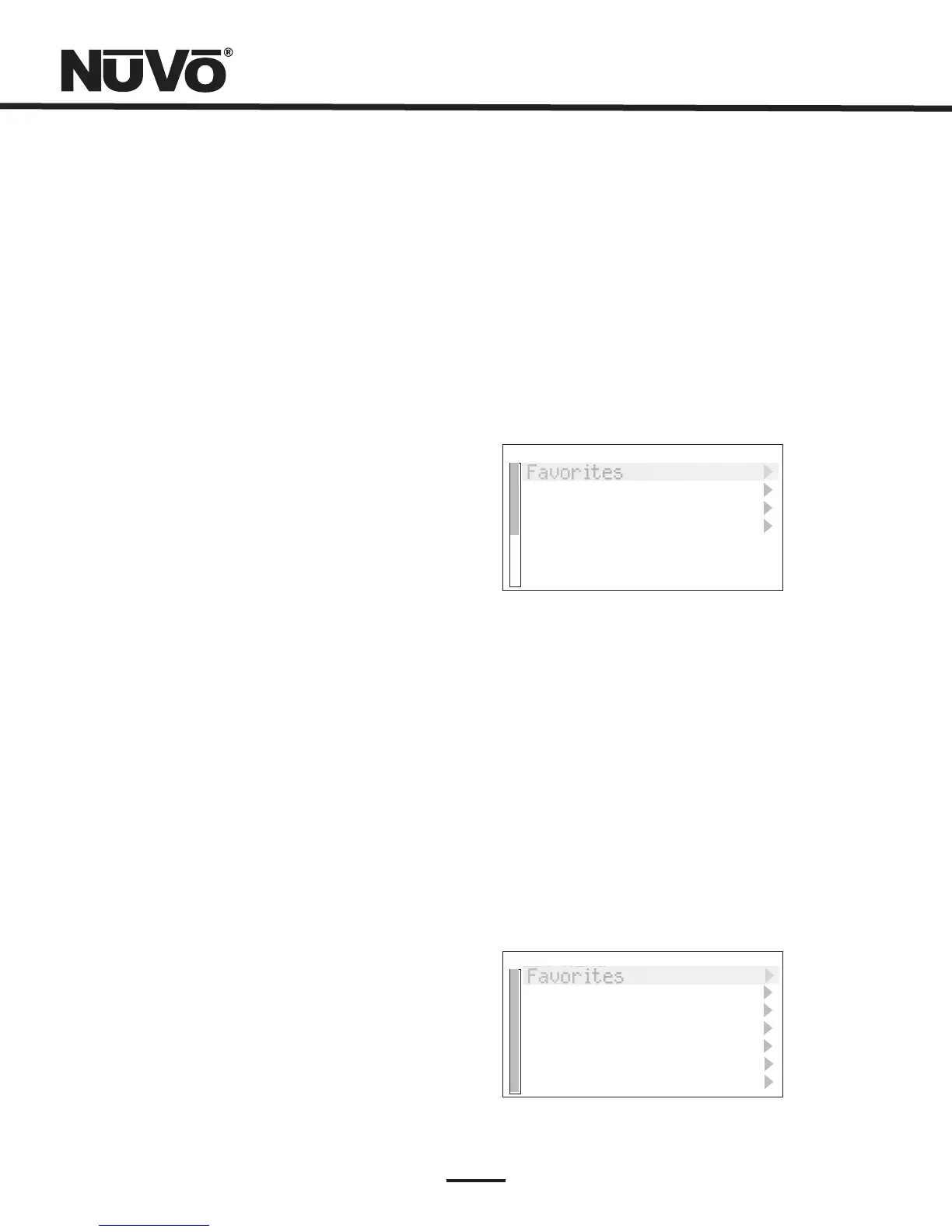
and Fig.32.
MainMenu
Favorites
Sources
Adv.ZoneControl
Fig.32
Favorites:
Actions
Actions
Top-linefavoritesareglobal.Favoritesorplay
listssetupwithinWindowsMediaPlayerandsyncedwith
theNuVoM3ServerorwithinaniPodcanbeaddedtothe
Favoriteslist.Potentialmembersofthislistcanalsoinclude
stationpresetsfortheNuVoT2Gorothersourcessuchas
satelliteorcable.WhenT2GorIRMacroPresetsare
assigned,thefirsttwentyareplacedintheFavoritesmenu.
AssigningplaylistswithintheMusicPortoriPodtoglobal
favoritesisdoneinthe menu,Fig.33.Thismenu
itemautomaticallyresideswiththeMusicPortoriPodasa
sourcechoice.Onceinthe menu,youwillhavethe
choicetoaddyourselectiontoFavorites,Fig.34.
Fig.33
Setup
MainMenu
Favorites
Actions
Radio
Songs
Artist
Album
Genre



 To Next Page