23
Do-Not-Disturb:
NoMute:
NoPage:
NoParty:
EnabledZoneSources:
DisplaySettings:
Dimmest,Dim,NotSoBright,Normal,Bright,Brighter,
Brightest
AutoDimDisabled,15Sec
upto1Hour AutoDimlevel.
AutoDimBrightnessOffremovesalldisplayandbacklighting.
UsingAutoDimBrightnessLow,AutoDimBrightnessMedium,
AutoDimBrightnessHigh
SlaveTo:
ThisSectionisusedtolockoutsystem-
widecommandsfromaspecificzone.
TheGrandConcertoSystemhasasmall
accessorycalledtheMi1,MuteInterruptwhichis
designedtomuteallzoneswhenthephoneordoorbell
rings.Thisisdefeatedonazonebyzonebasisby
checkingtheNoMutebox.
TheGrandConcertoSystemiscapableofpaging
throughaudiosourceinput6.Thisinvolvesaphone
systemthathasapagingaudiooutputandameansto
provideavoltagetrigger.Thisiscontrolledusingthe
SystemSettingstabtosetthevoltagetriggerand
utilizingtheMuteInterrupt,seeMuteInterfacepage,31.
Settingthesystem’sMuteinputforpagingortheMi1
mutefunctioniscoveredinthenexttab.
MasterandPartyModerefertotheabilityto
turnallzonesonsimultaneously.Insomezonesyoumay
notwantthisfunction.
Theseallowindividualsourcestobe
turnedoffforspecificzones.Asourcethatisturnedoffwill
notdisplayinthatzone.Thisisparticularlyusefulin
preventingchildaccesstoasourcededicatedtoadult
listening.
TheoverallbrightnessandAutoDim
featureforeachControlPadaresetusingthesedrop-down
menus.Thefirstmenuisthedisplaybrightness.Thechoices
are
.Thesecondmenusetsthedurationforthe
AutoDimfeature.Theserangefrom
.Thenextmenusetsaspecific
or reducesthelevelofbrightness,
butdoesnotmaketheControlPadcompletelydark.
Thisdrop-downmenuisusedtoassignadditional
“slave” ControlPadstoazone.Upto20ControlPadscanbe
usedinaninstallation.TheEZPorthubisequippedwith20
RJ45portstoaccommodateallthesystem'sControlPads.
Thisisausefulfeatureforlargeroomswheremorethanone
ControlPadisdesired.IfslaveControlPadsareused,we
suggestthatyoudisabletheIRpass-throughonthoseto
preventcross-communication.TheSlaveTofunctioncan
alsobeusedtotietwoormorezonestogetherunderthe
controlofasingleControlPad.
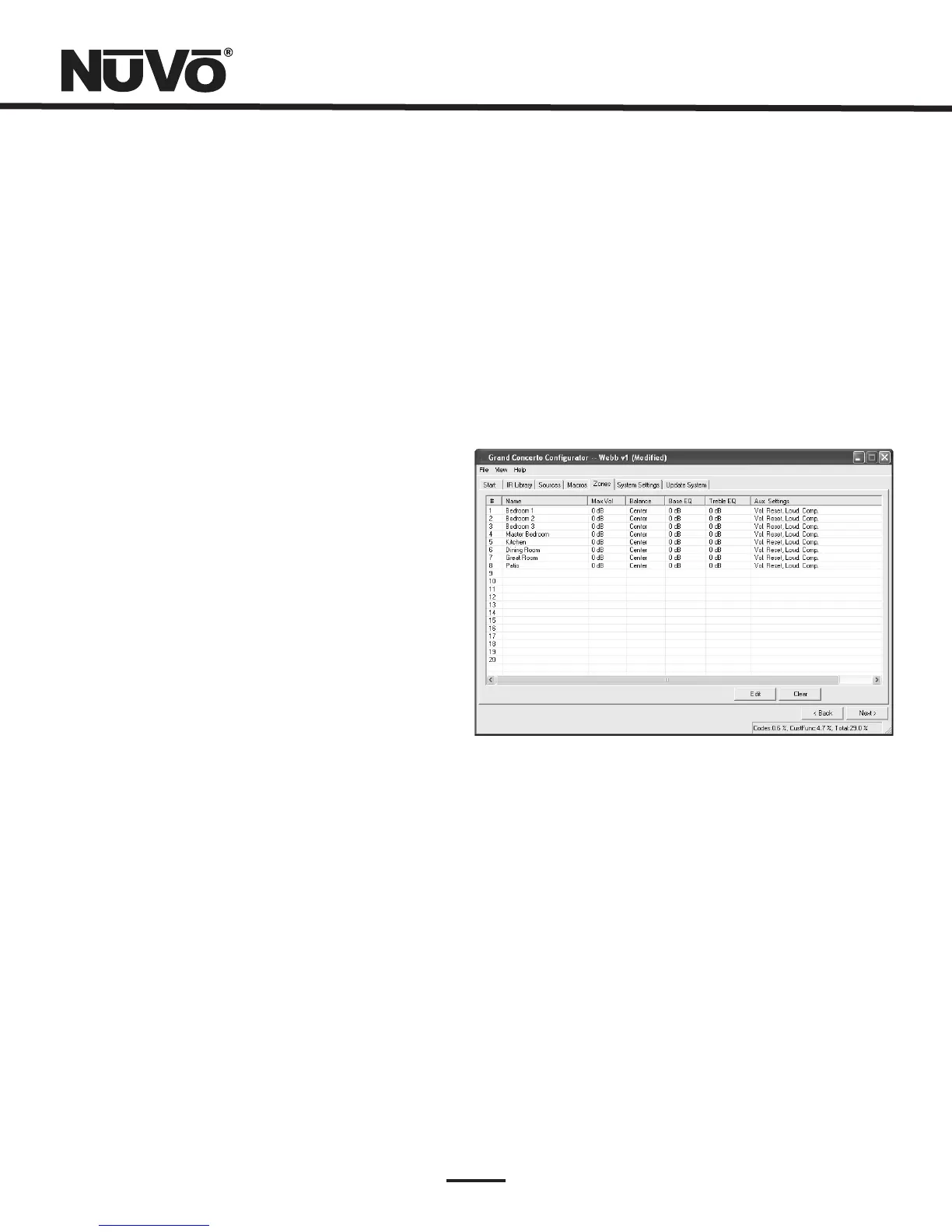
Fig.26
6.SystemSettings
ThistabisusedtodefinethewayinwhichtheExternalMute
inputfunctions,forsettingthezonelockoutsecuritycode,
settheclockfor24hourdisplayandifnecessarytoseta
serialcommunicationdisplay.
6.1ExternalMute:SystemMuteTrigger(Fig.27)
TheGrandConcertoSystemhasanaccessory,theNV-MI1
MuteInterface,whichisdesignedtomuteanymusicplaying
throughthesystemwhenadoorbellorphonerings,seeMI1
MuteInterface.WhensettingtheSystemMuteTrigger,set
themuteinputtorespondtothecontactclosureprovidedby
theMI1.
5.2Zones(updated)(Fig.26)
Whenthedesiredpropertiesforeachzoneareset,clickon
OK.ThiswillreturnyoutotheZonestab.Thereyouwillsee
anupdatedlistofthezonesbythenumbertheyare
assigned,aswellasthespecificparametersdefinedinthe
ZoneEditwindow.
Double-clickingonthezoneswillreopentheeditwindow,
whereanyofthedefinitionpropertiescanbemodified.



 To Next Page