Setting up the Océ 3050 Microfilm Scanner 73
\
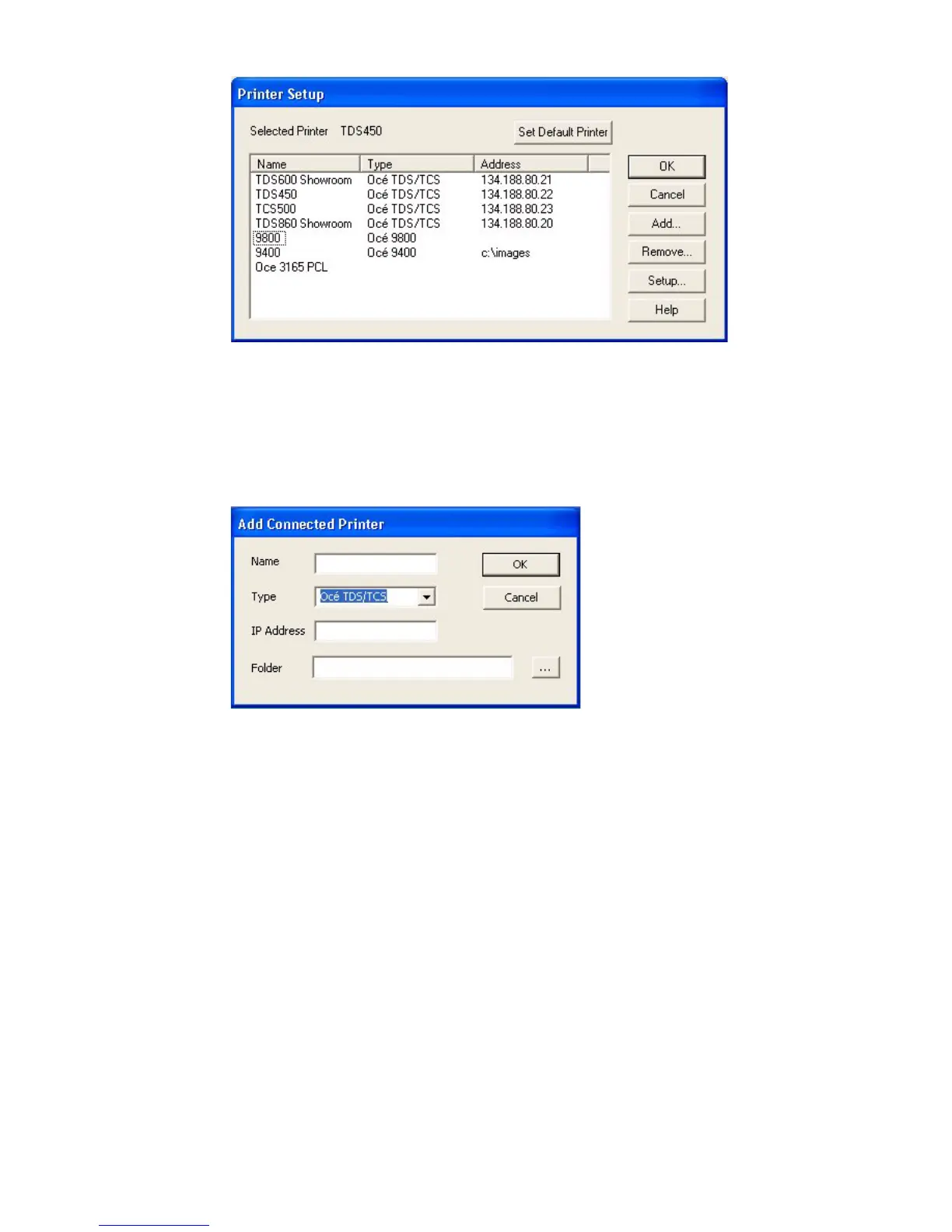
[50] Printer Setup
Note: Local installed Windows Printers are always displayed in the "Printer
Setup Dialog"
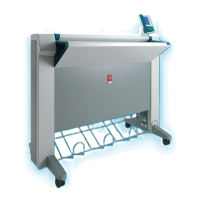
ADD:
■ Press on Add to add a printer
[51] Add Connected Printer
■ Type in the "Name"-field a (free) name, which will be displayed in your
"Printer Setup Dialog"
■ Select from the Pulldown-"Type"-field the printer type belonging to the by
Printer-name.
■ Enter in the "IP-Address"-field the IP-adress where the printer is connected.
When no IP-Address is entered the "Folder"-field will be used as
output-destination.
■ Enter in the "Folder"-field a local folder destination when you would like to
store the scanned image to disk.
■ Press Ok to confirm or Cancel to cancel Add-Printer.
REMOVE:
■ Click the name of the printer in the list of installed printers your would like
to delete.
■ Press Remove and the printer will be removed.


 To Next Page