2-10 Print Controller User’s Guide
Chapter 2 Printer Driver Setup
■ Test Page Print
You can check whether the printer driver functions properly by performing a test page after
the printer driver has been installed.
To print the test page, perform the following steps.
1. Click the [Start] button of the task bar. Then, select [Settings] from the Start
menu and click [Printers] in the sub menu.
The [Printers] window will open.
Opening from [My Computer]
To open the [Printers] window, double-click the [Printers] folder (or [Control
Panel] - [Printers]) after double-clicking the [My Computer] icon on the desktop.
2. Right-click [Océ 3275/750 PCL] icon and click [Properties].
[Océ IP-601PCL Properties] will appear.
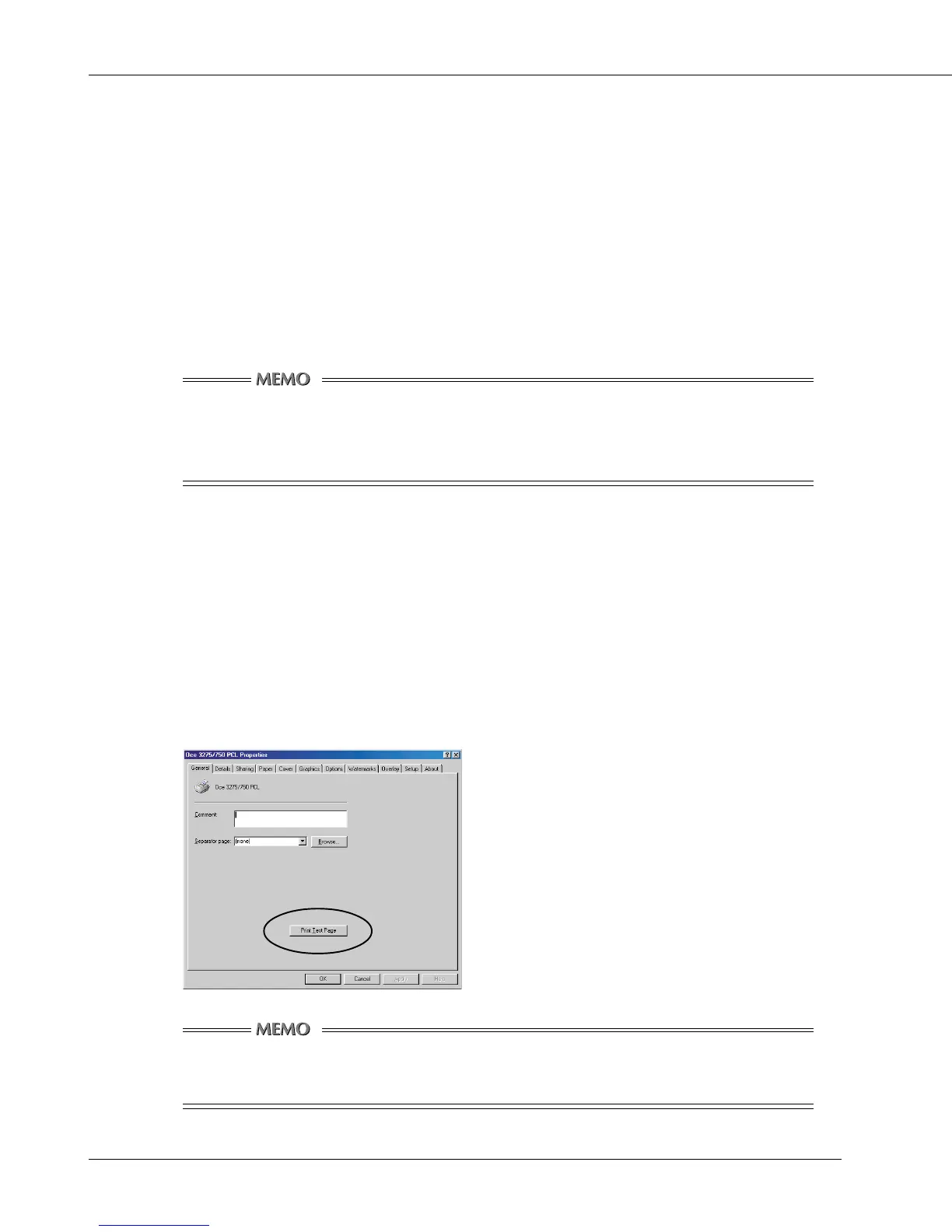
3. Select [General] of [Océ 3275/750 PCL Properties] and click the [Print Test
Page] button.
A test page print will start and a screen to confirm print end will appear.
4. Click the [Yes] button.
A test page print will end.
Windows 95/98/Me
In case of Windows NT/2000, the [General] tabs is displayed differently, but you
can find and click the same [Print Test Page] button.



 To Next Page