5-4 Print Controller User’s Guide
Chapter 5 Scanner Operation
■ Scanning from the Copier
Document images scanned by the copier can be stored on the print controller’s hard disk as
a TIFF file. To do this, you have to specify a 4-digit box number.
In addition, there are two ways that you can scan the original using the copier. In either way,
you can specify IMAGE ENHANCE, SCAN MODE, SCAN DENSITY, LENS MODE, SCAN
SIZE, QUALITY, SPECIAL ORIGINAL and others before getting the original read in.
● To Scan Documents in Real Mode
The scanned data is sent to the print controller every time one sheet is scanned in this
mode.
1. Set the original document to be scanned (that is, to be read) on the RADF or
platen glass of the copier.
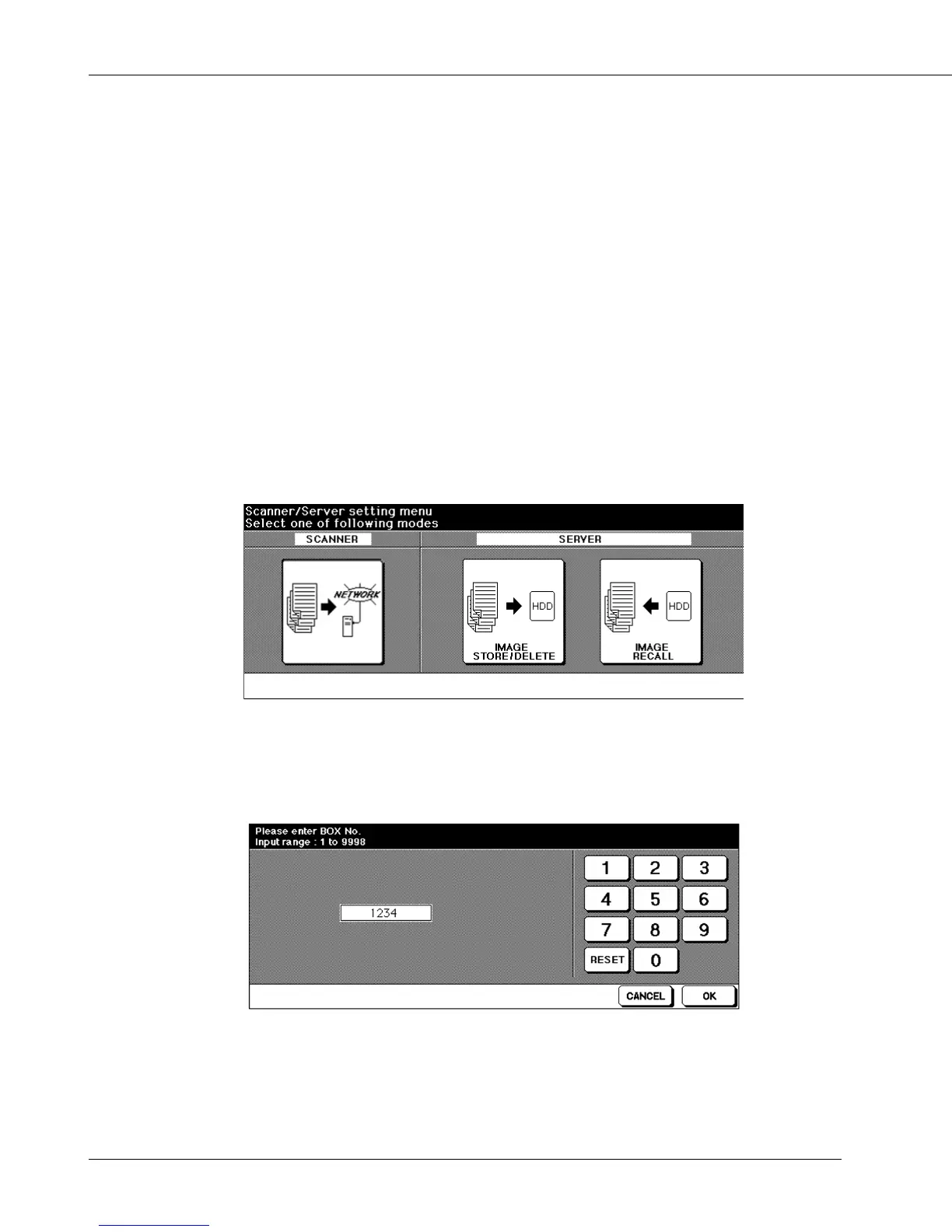
2. Press the [MODE] button on the operation panel to display the SCANNER/
SERVER basic screen.
3. Press the [SCANNER] key in the SCANNER/SERVER basic screen.
A BOX-No. Input window appears.



 To Next Page