4-8 Print Controller User’s Guide
Chapter 4 Control Panel Setup
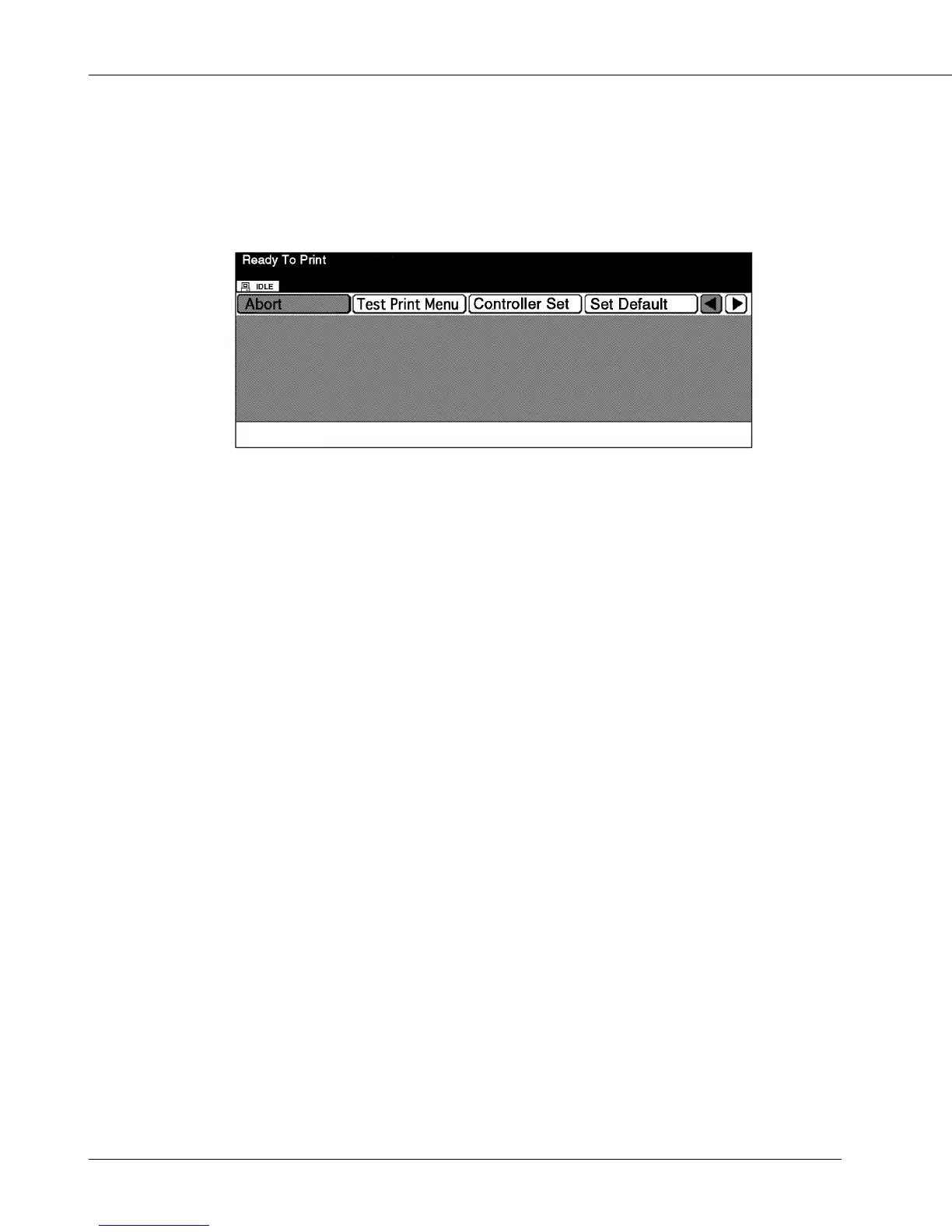
● Printer Mode Basic Screen
When the printing system starts properly, the Printer Mode Basic Screen (main menu
screen) is displayed on the LCD by pressing the [MODE] button.
When the [MODE] button is pressed again, the LCD is changed to the Copy Mode Basic
Screen, and the normal copy settings becomes available.
The following settings can be selected from the Printer Mode Basic Screen.
[Test Print Menu]
Display the Test Print Setup Screen. You can print the test print by selecting the item.
[Controller Set]
Display the Controller Set Screen. You can perform various settings related to the Print
Controller.
[Set Default]
Display the Set Default Screen. You can return various settings to the factory default by
selecting the item.
[PCL Setup]
Display the PCL Setup Screen. You can perform various settings related to PCL.
[Password Print]
Display the Password Print Screen. The password print job to be set up from the printer
driver is printed after entering the password from the LCD touch screen.
[Controller Time]
Display the Time Change Screen. You can change the Printer’s current time setting.
See “■ Configuration of Printer Setting Menu”
(p. 4-10)
or “■ Functions of the Printer Set-
ting”
(p. 4-11)
on printer setting.
For details on the password print, refer to “■ Print Job ● Password Print (Confidential
Output)” (p. 4-21).



 To Next Page