Print Controller User’s Guide 4-9
Chapter 4 Control Panel Setup
Procedures of the Printer Setting
You can select or change settings from the LCD by touching a key on the LCD touch screen.
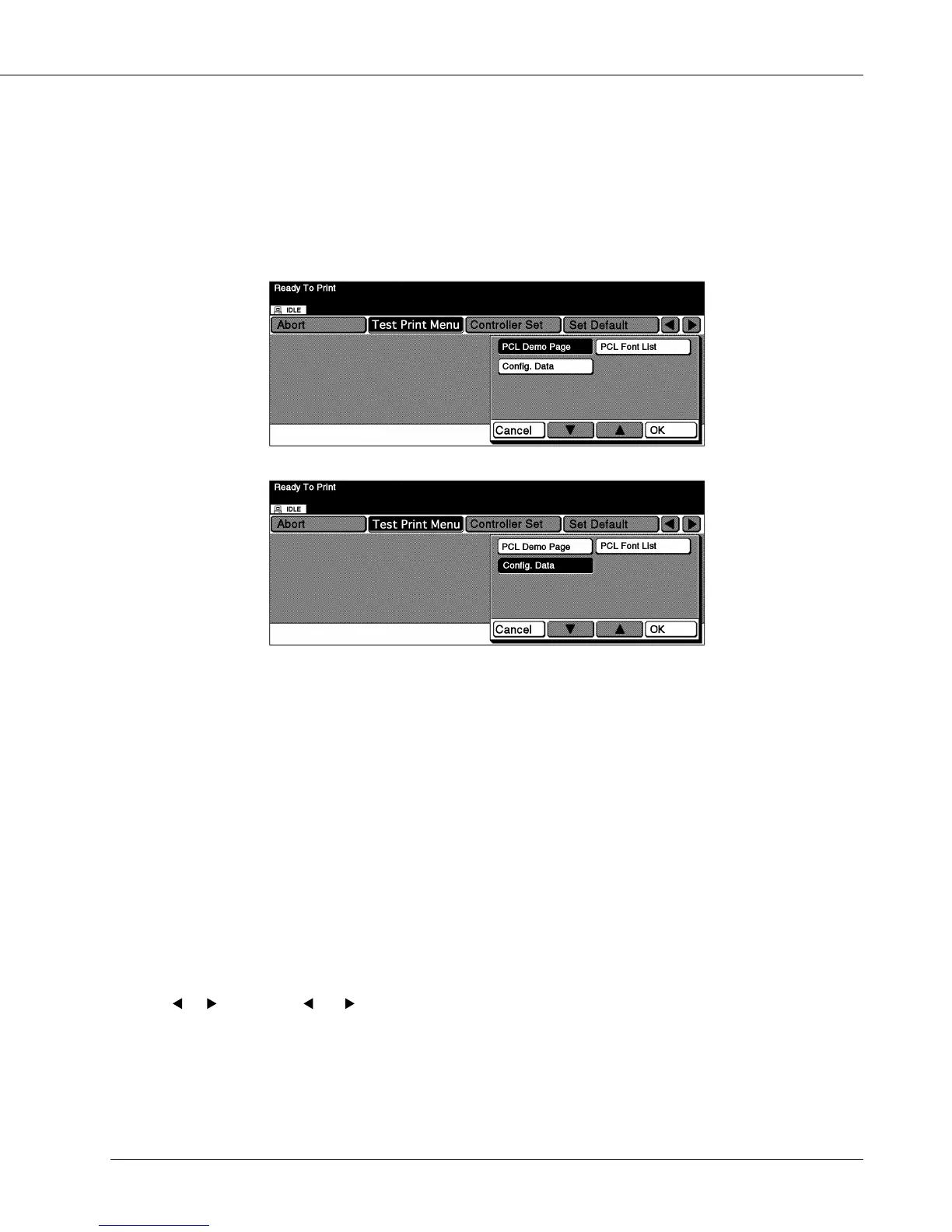
Item Selection and Appearance of Selected Items
Various settings are performed by touching a icon of the item you would like to select on
the LCD. Currently selected items are displayed with reverse color.
As a result of selecting [PCL Demo Page] of [Test Print Menu]
As a result of selecting [Config. Data] of [Test Print Menu]
How to set the Banner Page On
1. Press the [MODE] key to show the [Printer Mode Basic Screen].
The [Copy Mode Basic Screen] is switched to the [Printer Mode Basic Screen].
2. Touch the [Controller Set] key.
The [Printer Mode Basic Screen] is switched to the [Controller Set Screen].
3. Touch the [Banner Page] key.
4. Touch the [OK] key.
The setting screen of the selected item is displayed.
5. Touch the [ON] icon.
6. Touch the [OK] icon.
[Controller Set] - [Banner Page] - [ON] is configured.
Key Operation
[ ] [ ] Touch the [ ] / [ ]key to display the main menu item.
[▲] [▼] Touch the [▲] / [▼] key to display the sub menu item or setting item.
[Cancel]
Touch the [
Cancel
] key to cancel the current setting and to return to the upper menu screen.



 To Next Page