Print Controller User’s Guide 5-13
Chapter 5 Scanner Operation
■ Reading in Scanned Data on a Computer
TWAIN-equipped applications can be used to read in scanned data. Select a TWAIN driver
(the Océ Scanner Driver) from your application, select a scanner (copier having scanned
original) using the TWAIN driver, then enter the box number corresponding to the scanned
data so that the scanned data can be read in from the print controller’s hard disk.
There are several TWAIN-capable applications on the market. In this manual, Adobe
Acrobat 4.0 is used to illustrate how to read in scanned data.
● To import scanned data
1. Run the Application that conforms to TWAIN (Adobe Acrobat 4.0).
2. Select [File] - [Import] - [Scan].
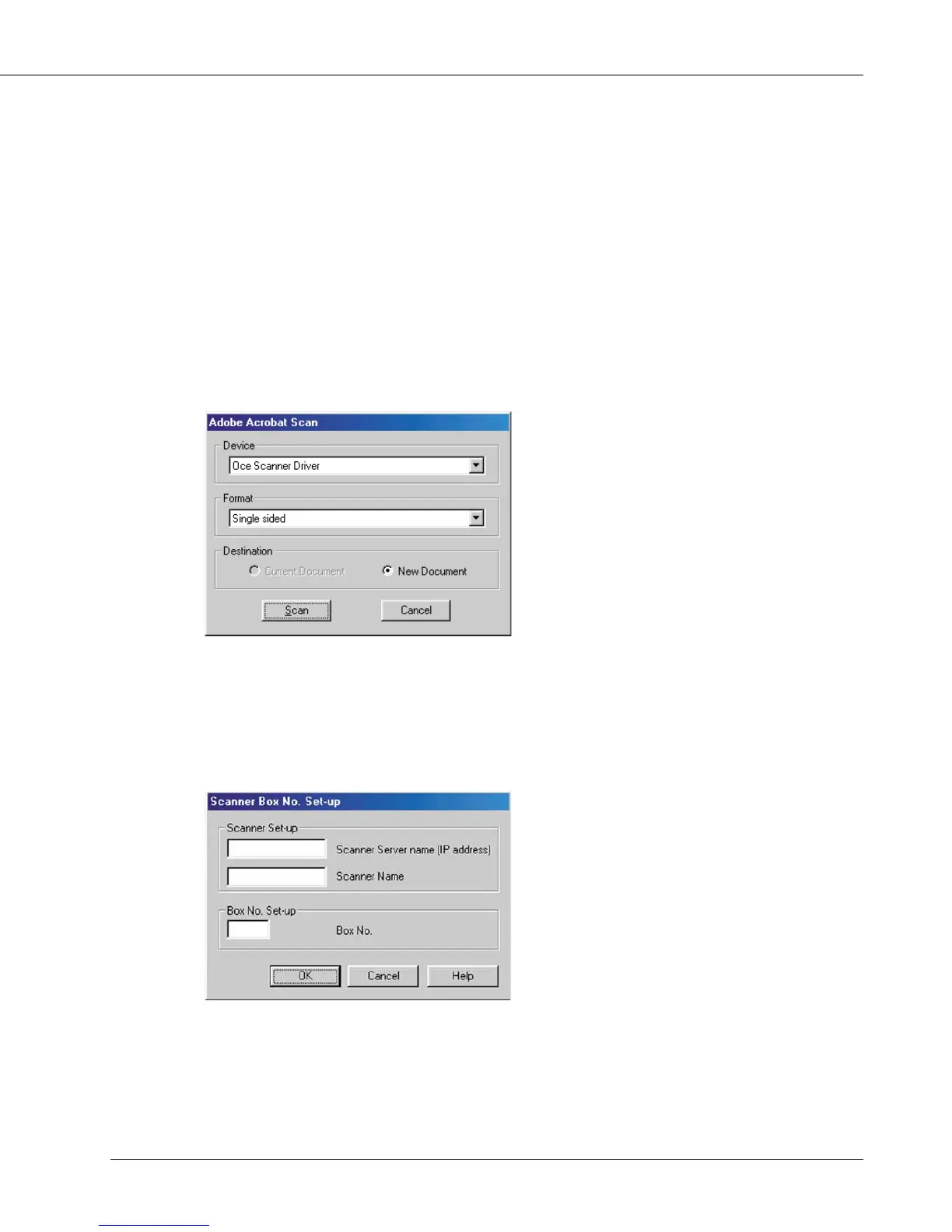
[Adobe Acrobat Scan] dialog box will appear.
3. Select [Océ Scanner Driver] in the [Device], then click [Scan] button.
[Scanner Box No. Set-up] dialog box will appear.
4. In the Scanner Box No. Set-up dialog box, enter the server name (IP address) of
the scanner you want to connect to, the scanner name for the driver to identify
the scanner, and the box number you entered when scanning the document.
Then click [OK].
Once the Scanner setting has been set, this dialog box is not displayed the next time you
perform a scanning task. To display this dialog and select another scanner, click the [Scanner
Selection] button on the Océ Scanner Driver’s Main Screen. Then click the [Add] button on the
Scanner Box No. Set-up dialog box.



 To Next Page