4-6 Print Controller User’s Guide
Chapter 4 Control Panel Setup
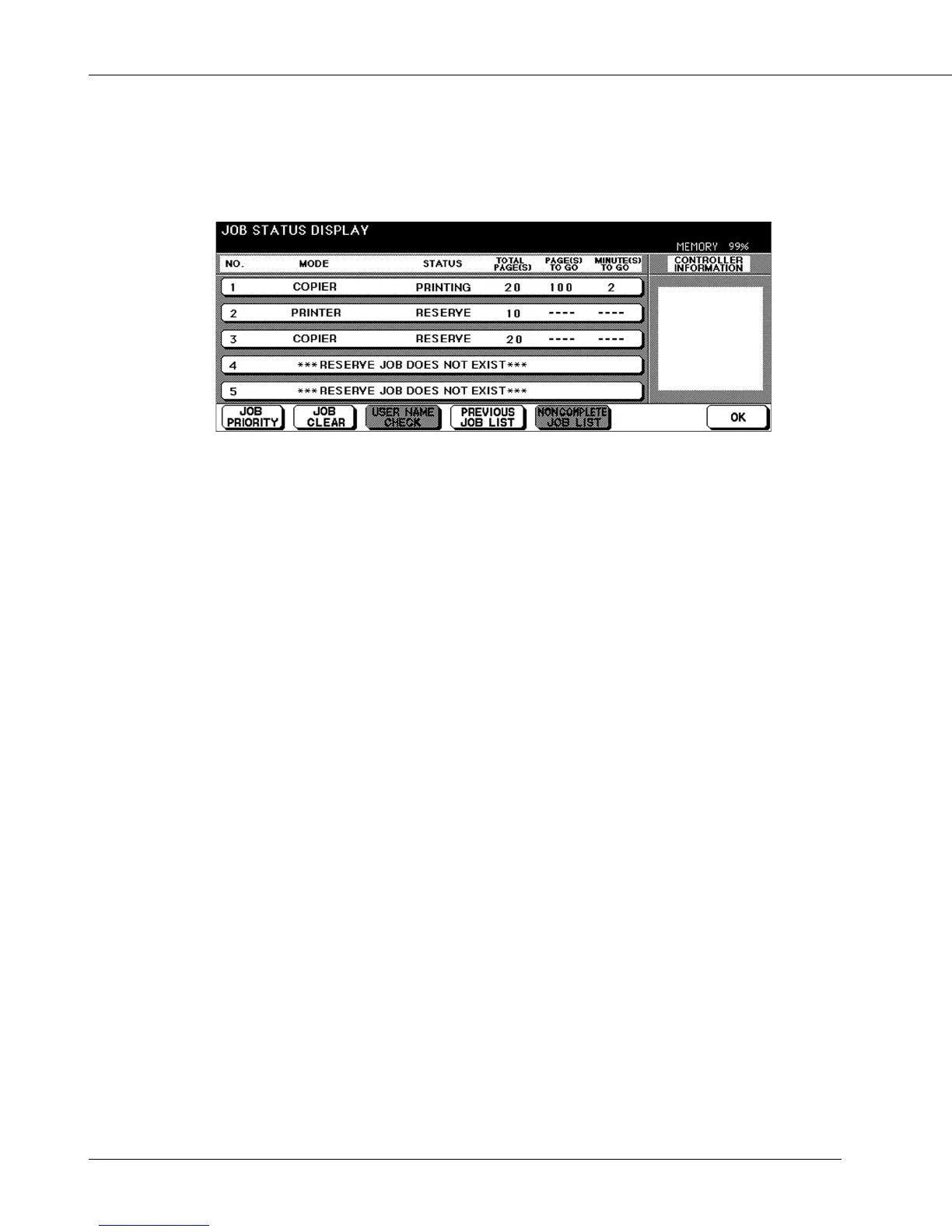
● Job Status Screen
When you touch the [STATUS] key on the Basic Screen, the [Job Status Screen] will be
displayed and you can confirm the status of a print job.
Contents of the Job Status Screen are as follows:
NO.
Displays the No. (1-99) for each job (print/copy/scan) assigned to the machine.
MODE
Displays the current operation mode of the printing system:
COPIER
PRINTER
SCANNER
STATUS
Displays the current status of the machine for each job:
[Indication] [Meaning]
READY Ready to use in each mode
ERROR Error in each mode
PRINTING Output in each mode
RESERVE Ready to reserve
NO PAPER No paper in paper tray in copy/print mode
STOP Stop in each mode
JAM Jam in each mode
INTERRUPT Interrupting the previous job



 To Next Page