Print Controller User’s Guide 3-5
Chapter 3 Printer Driver Functions
Windows NT4.0/2000
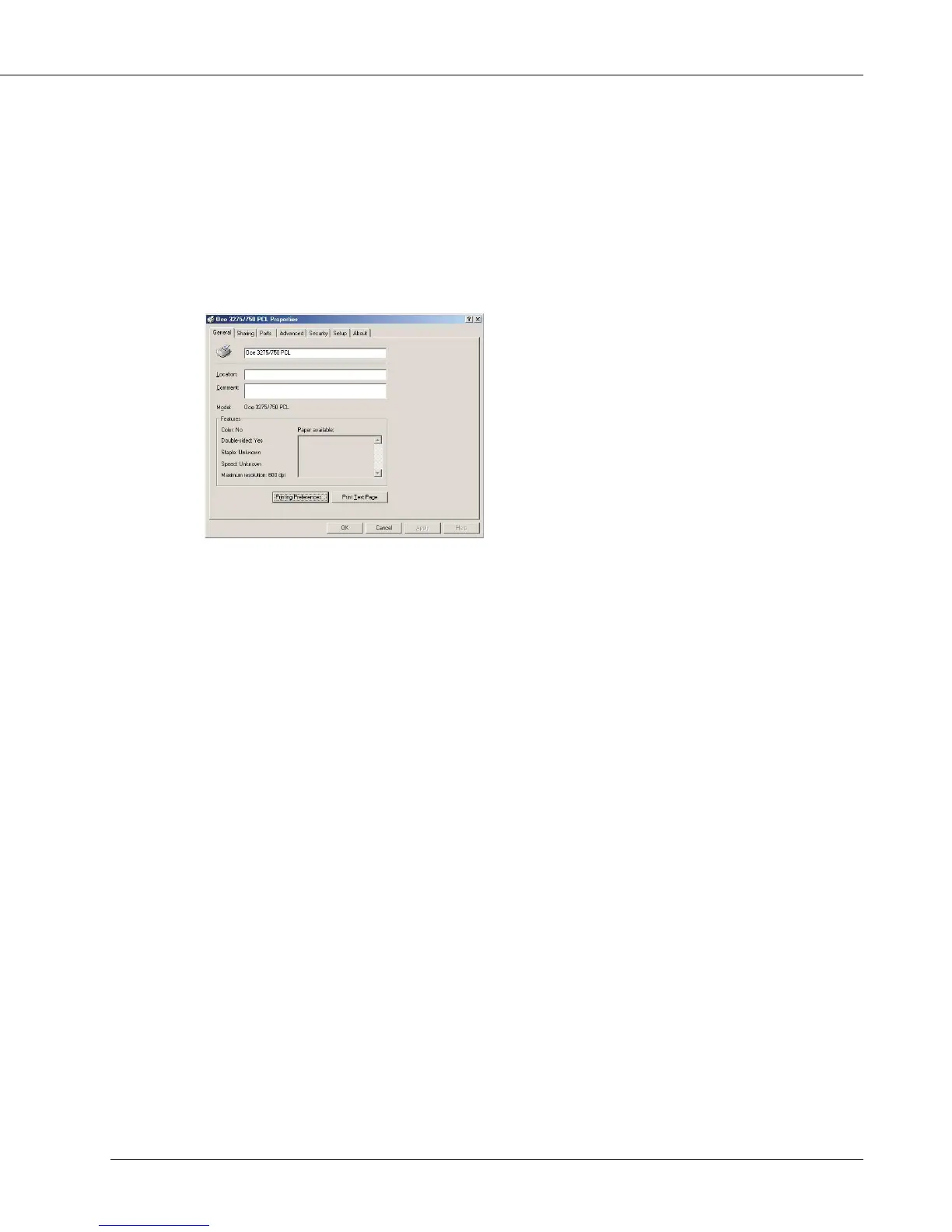
1. Click [Start]-[Settings]-[Printers], right-click the [Océ 3275/750 PCL] icon, and
then click [Properties].
The following tabs will appear, then settings of the printer ports and options should be
made:
[General], [Ports], [Scheduling], [Sharing], [Security], [Paper], [Cover], [Graphics], [Options],
[Setup] and [About].
2. Click [Start]-[Settings]-[Printers], right-click the [Océ 3275/750 PCL] icon, and
then click [Document Defaults] or [Printing Preferences].
The following tabs will appear:
[Paper], [Graphics], [Options], and [About].
[OK]
When the [OK] button is clicked, all tab settings are saved and the properties screen is
closed.
[Cancel]
When the [Cancel] button is clicked, all tab settings are canceled and the properties
screen is closed.
[Apply]
When the [Apply] button is clicked, the present tab settings are saved. This button is
used when settings continue to be performed by using other tabs, and the present tab
settings are registered before using other tabs.
[Help]
When the [Help] button is clicked, Help information will appear. As well, when you click
[Help] button, which appears when right-clicking a desired item, pop-up help for the item
appears.



 To Next Page