3-26 Print Controller User’s Guide
Chapter 3 Printer Driver Functions
[Cover] Tab
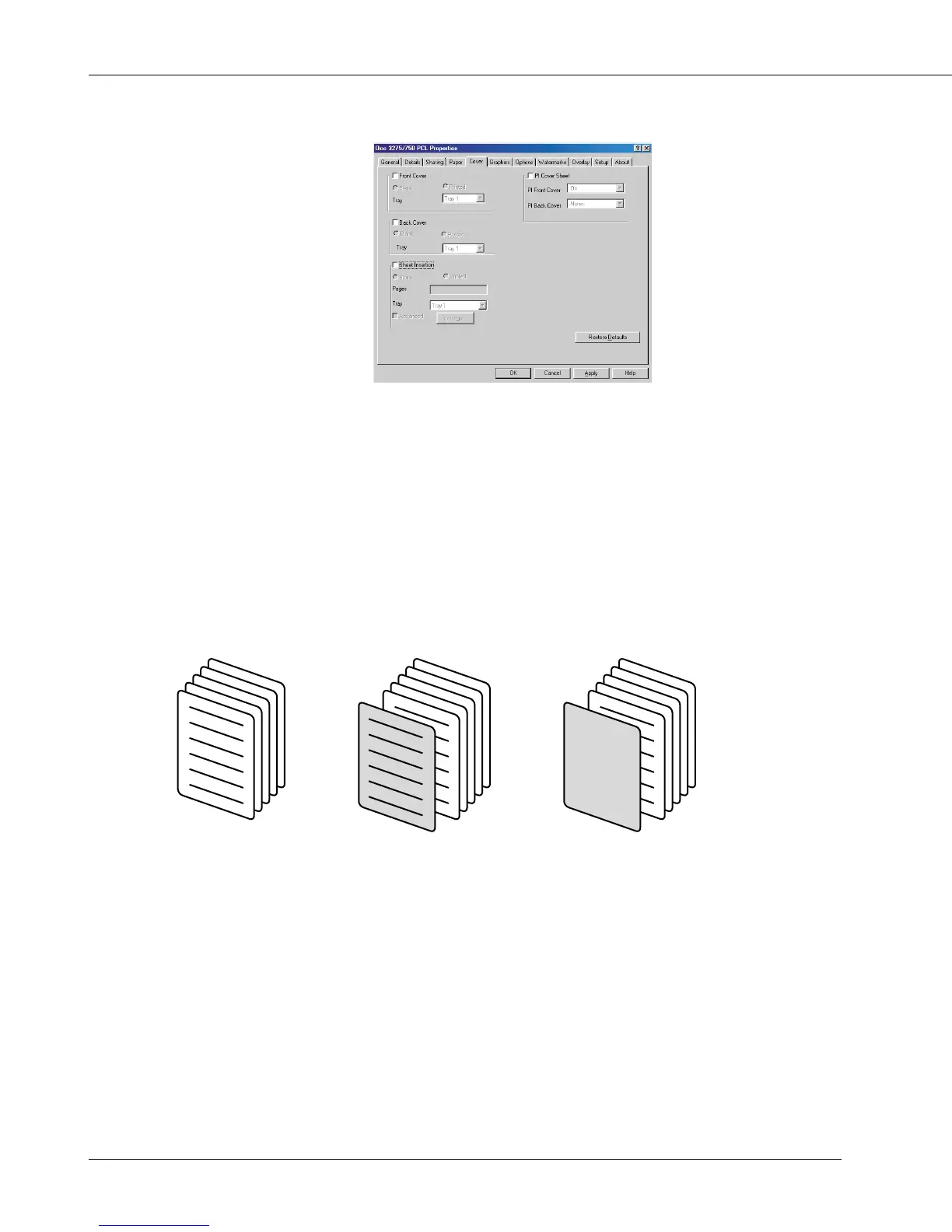
Front Cover
You can select this setting when using for the front covers a different paper from that of
the body of the booklet (colored one, for example). [Front Cover] inserts a sheet to the
top of each set of copies as a Front cover.
When [Front Cover] is checked, you can select [Printed] or [Blank].
• When [Blank] is selected, nothing is printed on the front cover.
• When [Printed] is selected, the first page data is printed on the front cover.
None Printed Blank
[Front Cover] can not be performed in the following cases:
• When [Collate] is not selected in [Copies]
• When [2-in-1] or [2-in-1 Repeat] is selected in [Features] - [Combination]
• When [OHP (Transparency)], [OHP-Interleave (Blank)], [OHP-Interleave (Print)] is
selected in [Media Type]
Front Cover - Tray
Specify the paper tray for the front cover.
The settings you can select are as follows:
[Bypass tray], [Tray 1], [Tray 2], [Tray 3], or [Tray 4]
When [Front Cover] is not selected, [Tray] can not be performed.



 To Next Page