4-22 Print Controller User’s Guide
Chapter 4 Control Panel Setup
● On the control panel:
7. Press the [MODE] button to display the print mode basic screen and display
[Password Print] touch key.
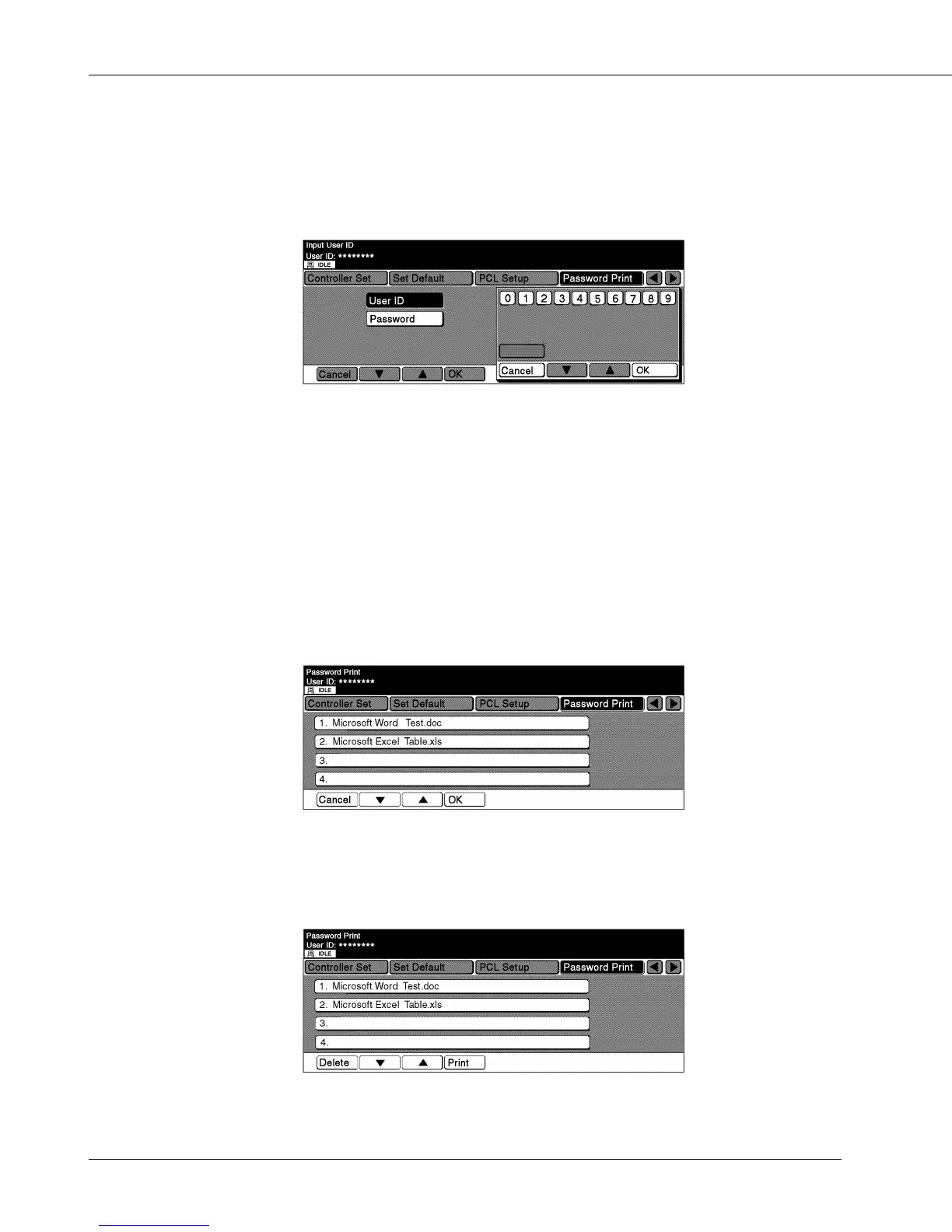
8. Touch the [Password].
[User ID] key, [Password] key and numeric key etc. are displayed.
9. Enter your user ID using the numeric keys, and touch the [OK] key.
The ID is displayed with the [Password] key highlighted.
10. Enter your password using the numeric, uppercase or lowercase keys, and touch
the [OK] key.
If no uppercase letters are displayed, you can touch the [Uppercase] key to get them
displayed.
If no lowercase letters are displayed, you can touch the [Lowercase] key to get them dis-
played.
If no numbers are displayed, you can touch the [Number] key to get them displayed.
When you touch the [OK] key, a list of the corresponding print jobs is displayed.
The list will be blank if there are no corresponding print jobs.
If this is the case, touch the [Cancel] key to terminate the Confidential Output feature.
11. Select the print job you need, and touch the [Print] key.
The print process starts.
You can specify multiple print jobs for them to be printed out at one time.



 To Next Page