Web Based Management
141
10
Changing the Scan to Network configuration using a web
browser 10
Scan to Network allows you to scan documents directly to a shared folder on a CIFS server located on your
local network or the Internet. (For more information on CIFS protocol, see Protocols on page 7.) To enable
the CIFS protocol, check the box for CIFS from the Network Configuration page. (See Chapter 4 in the
Software User’s Guide for more details on Scan to Network.)
Note
Scan to Network supports Kerberos Authentication and NTLMv2 Authentication.
1
1
Available for Windows
®
2000 or greater.
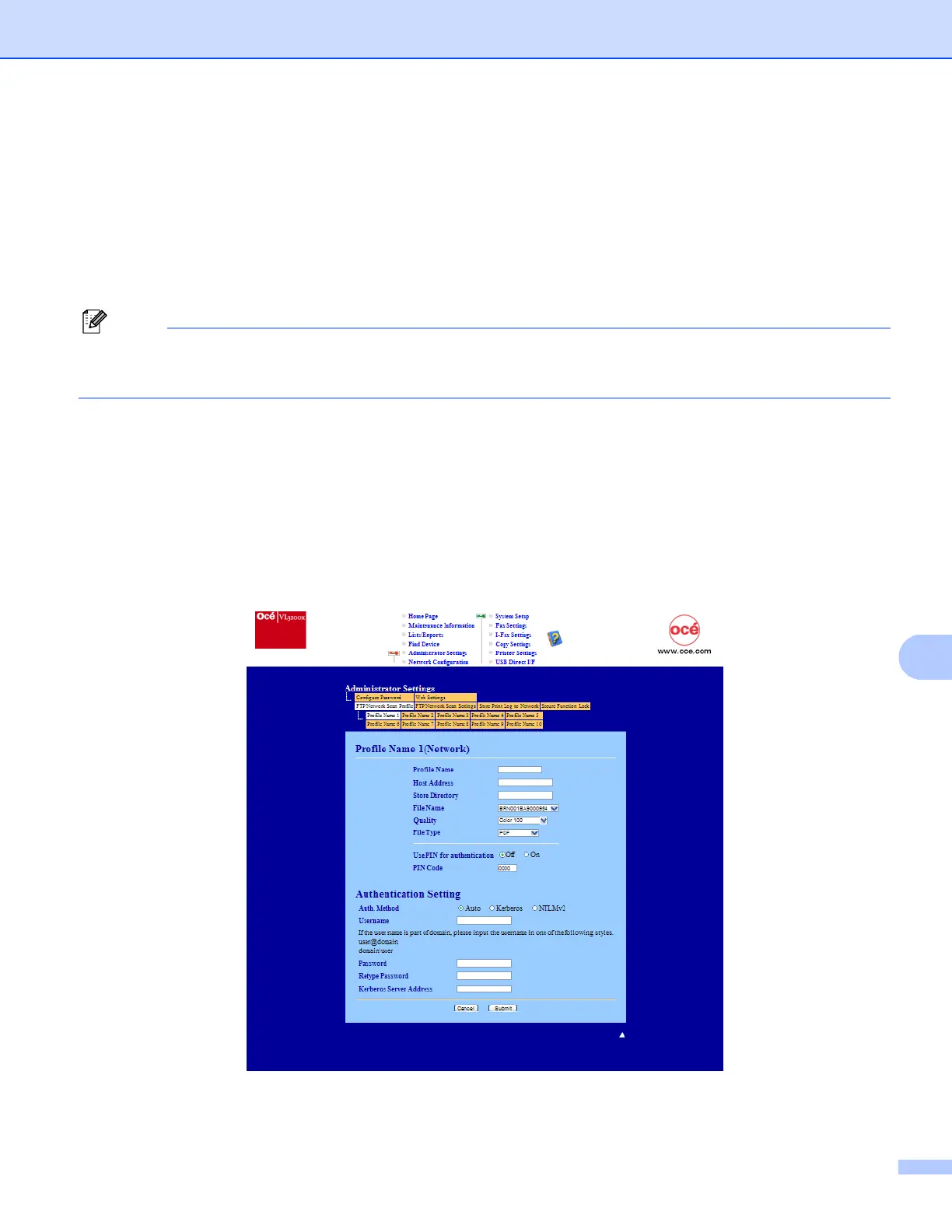
a Click Administrator Settings on the VL3200x web page, and then click FTP/Network Scan Settings.
b You can choose what profile numbers (1 to 10) to use for Scan to Network settings.
You can also store two user defined file names that can be used for creating a Scan to Network Profile
in addition to the seven present file names in Create a User Defined File Name. A maximum of 15
characters can be entered in each of the two fields.
After setting, click Submit.
c Click FTP/Network Scan Profile on Administrator Settings page.
Now you can configure and change the following Scan to Network settings using a web browser.













 To Next Page