Wireless configuration for Windows
®
using the Océ installer application
49
4
l If the LCD shows Connected, the machine has successfully connected to your access point/router. You
can now use your machine in a wireless network.
If the LCD shows Connection Error, a session overlap has been detected. The machine has
detected more than one access point/router on your network with the automatic wireless setup
(SecureEasySetup™, AOSS™, etc.) mode enabled. Make sure that only one access point/router has
the automatic wireless setup (SecureEasySetup™, AOSS™, etc.) mode enabled and try starting from
step i again.
If the LCD shows No Access Point, the machine has not detected your access point/router on your
network with the automatic wireless setup (SecureEasySetup™, AOSS™, etc.) mode enabled. Move the
machine closer to your access point/router and try starting from step i again.
If the LCD shows Connection Fail, the machine has not successfully connected to your access
point/router. Try starting from step i again. If the same message is indicated again, reset the machine
back to the default factory settings and try again. (For resetting, see Restoring the network settings to
factory default on page 119.)
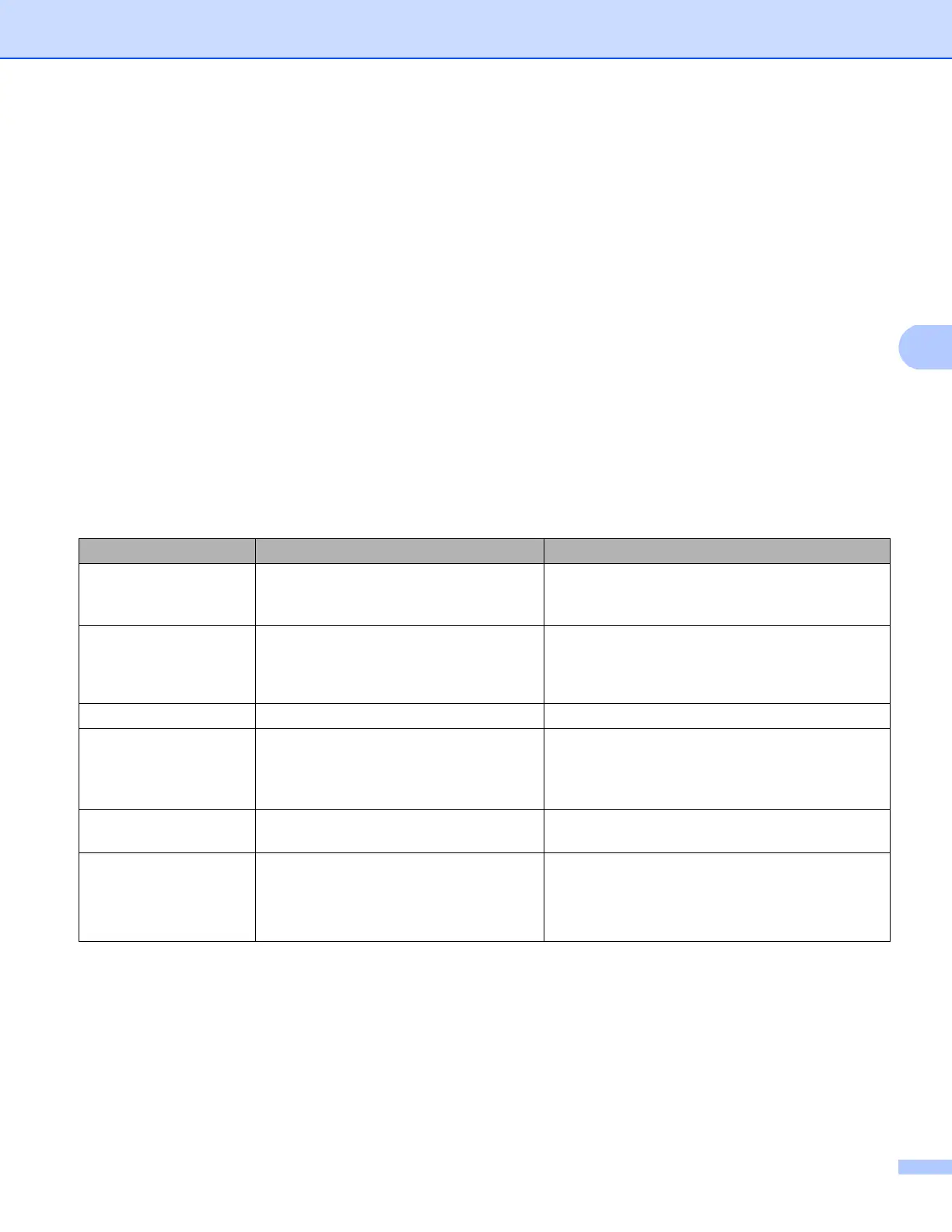
LCD messages when using the SES/WPS/AOSS™ control panel menu
4
LCD shows Connection status Action
Setting WLAN
Searching or accessing the access
point, and downloading settings from the
access point.
—
Connecting SES
Connecting WPS
Connecting AOSS
Connecting the access point. —
Connected Connection succeeded. —
Connection Error Session overlap has been detected.
Check that only one router or access point has
the automatic wireless setup
(SecureEasySetup™, AOSS™, etc.) mode
enabled and try starting from step i again.
No Access Point The access point detection failed.
Move the machine closer to your access
point/router and try starting from step i again.
Connection Fail Connection failed.
1 Try starting from step i again.
2 If the same message continues, reset the
machine back to the factory settings and try
again.













 To Next Page