EXPLORER BALANCES EN-29
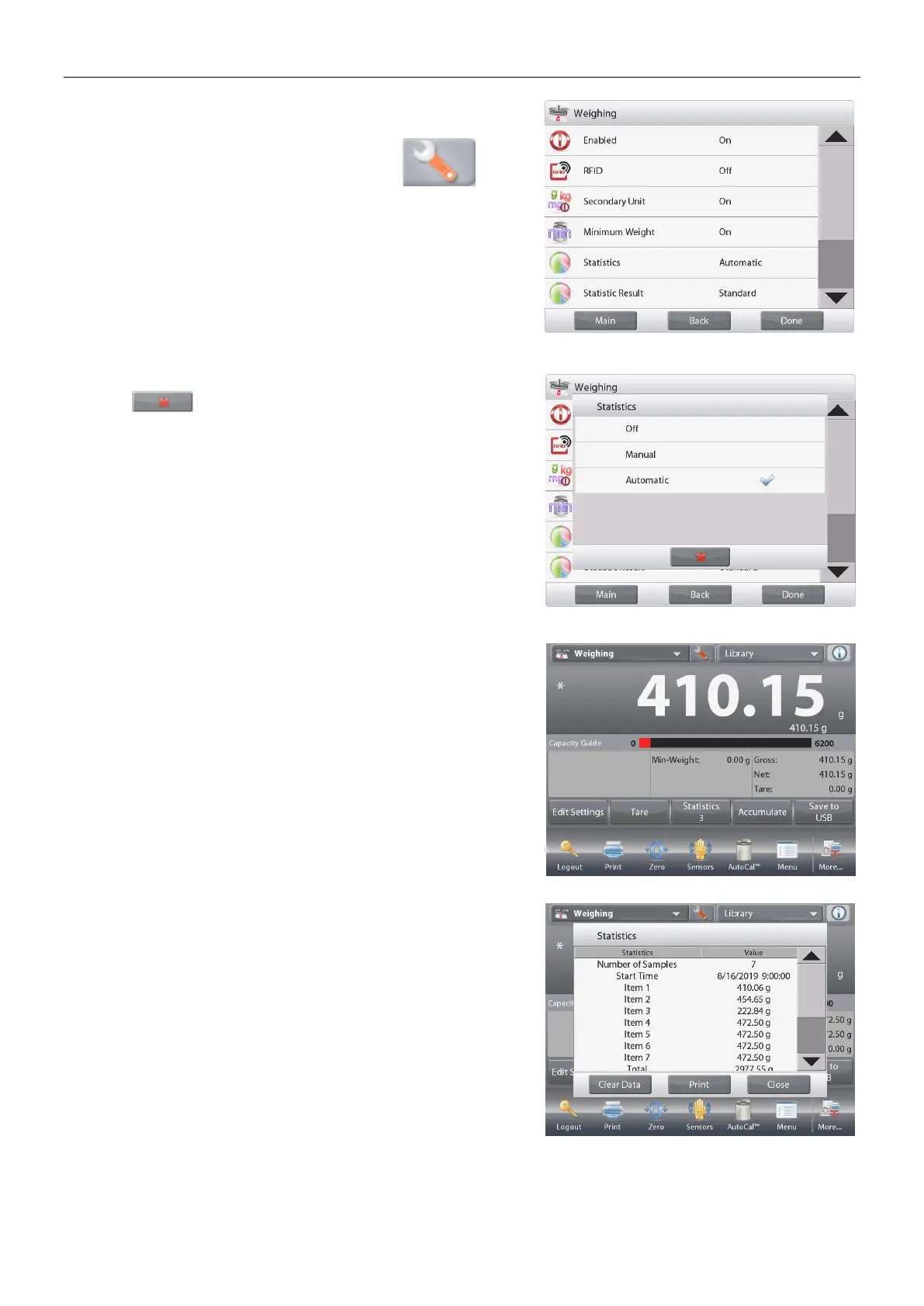
Application Setup: First, enable Statistics
Touch the Setup Icon (wrench) to
enter Setup menu to enable
Statistics.
The Statistics options screen
appears.
Enable the desired mode (Manual, Auto)
Press to return to the Setup menu.
After you click your preference, the window will close
automatically.
Accumulating displayed values & viewing data – Manual
Once Statistics-Manual is enabled, two buttons appear on
the Application screen: Statistics and Accumulate.
Application – Auto Mode
Statistics Auto mode is similar to Manual mode, except the
Accumulate button is not shown. The weight of each sample
is automatically captured. The current sample must be
removed before capturing the next sample.
When stable, the
Statistics
button lights briefly to show the
item is added to the set, and the data set quantity increments
by one.
Continue to add items to build the data set.
Press the Statistics button to view the results, as shown here.
Press Print to send results to the enabled COM port.
Press Close to return to the Application home screen without
clearing the current statistics set.
Press Clear Data to clear results and return to the home
screen.



 To Next Page