EN-28 EXPLORER BALANCES
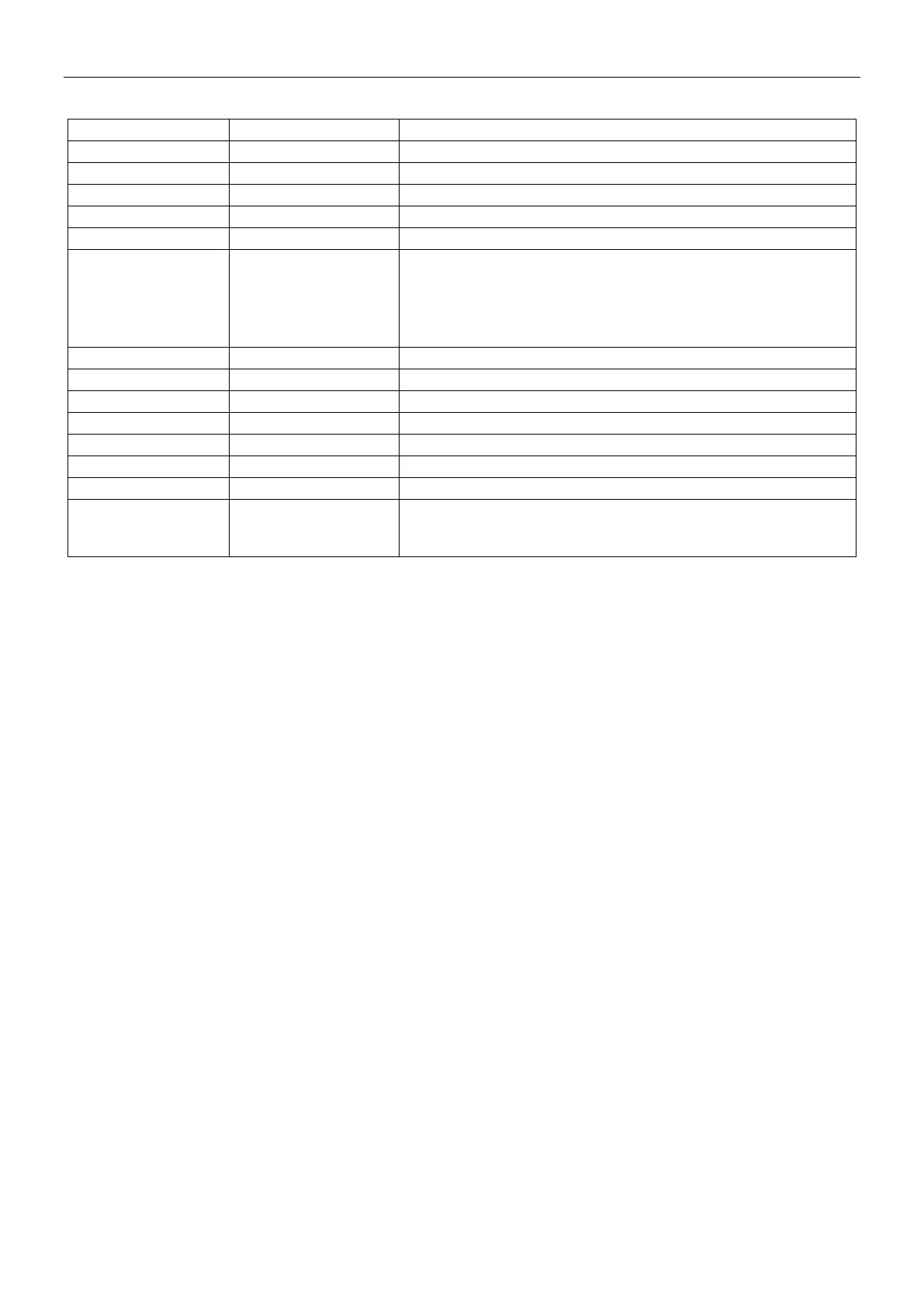
The Weighing Application Setups are below (defaults in Bold)
To read RFID code to get sample name
To show the Second Display line
To select the Statistics print output:
Standard: print all the Statistics result
Continuous: print sample weights without other Statistics data.
Note: this menu will only appear when the Statistics menu is
enabled.
Press to lock the current setting(s) so they cannot be changed.
Gross weight is displayed
On, Off, Below
Minimum Weight
Below Minimum Weight: both the weight value and the text
"Below Minimum Weight" will be printed when weight is below
minimum.
Note: When RFID is turned on, the RS232 printing function will be disabled.
4.1.3 Statistics for Weighing
The Statistics function allows you to compare a number of samples and examine the relative deviation of each
sample from the mean, along with other statistical data. A minimum of three samples is required.
Statistics can be determined manually (requires key press after each step) or automatically (weights are
automatically recorded when stable). To use the Statistics function, enable it in the Application Setup menu.
This feature is available in Weighing, Counting, Check Weighing, Dynamic/Animal Weighing and Filling
applications.



 To Next Page