50 Operating modes
length for areas of prospection may be between 50 and 100 meters; up to 200 m long. Areas of very
rough terrain will certainly be shorter.
This measurement needs to be a single line only!
Mark your starting and stopping points. Pull a line from the beginning point to the ending point to
ensure that you are traveling a STRAIGHT line! Not walking a straight line WILL give you a false
reading.
Enable GPS (external or internal) to get better accuracy of your starting and stopping points.
This is very important for locating the position after the data has been successfully analyzed.
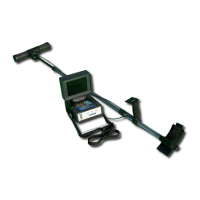
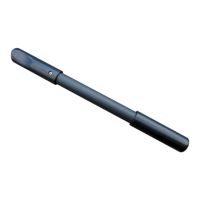
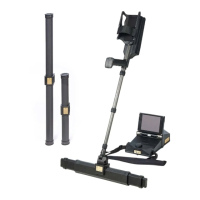
(3) Assemble the eXp 6000 and attach the Super Sensor.
(4) Start the eXp 6000 and select “Mineral Scan” from the main menu (see Figure 6.12).
(5) Select either Automatic or Manual for the Impulse Mode depending on the terrain that is to be
prospected. Push the multi-function control knob.
(6) Ensure that your Super Sensor remains the SAME height above the ground and that it remains
vertical during the duration of the scan. For areas of rough terrain or difficult to pass, be sure to use the
Manual mode. Attempt to maintain the height between 5 cm and 10 cm (2” to 5”) above the ground with
no more than a ± 5 cm (2”) variance during the scan to receive a good measurement (changing the
height of the Super Sensor may give you a false reading).
(7) The dialog window “Do you want to start the scan?” will appear. Click on “Start scan” to begin
scanning. Start moving forward as soon as the button is pushed, do not delay.
(8) At the end of the scan push the multi-function control knob to stop your scan (be careful to not
shake the Super Sensor when pushing the button to start or stop for it can have a negative effect on the
scan).
(9) The dialog window “Do you want to save the scan?” will appear. Select “Yes” to save the scan and
“No” to not save the scan.
Though you will be able to see the scan on the eXp 6000 monitor, it is recommended to complete the
analysis on the PC. The Visualizer 3D software will give you more tools to better identify mineral
deposits.
It is very important to conduct the Control Scans.
OKM GmbH
www.okmmetaldetectors.com


 To Next Page