66 Operating modes
The GPS indicator shows if the file has been conducted with GPS enabled or not.
In the file information you will read the date and time when the scan was conducted and which probe
you have used for scanning.
The marker can be filled with a checkmark (marked) or could be empty (unmarked). You can
mark several files to delete or copy files in one step.
6.8.2 Browse files
After selecting and activating a file entry by pushing the multi-function control knob or by tapping onto
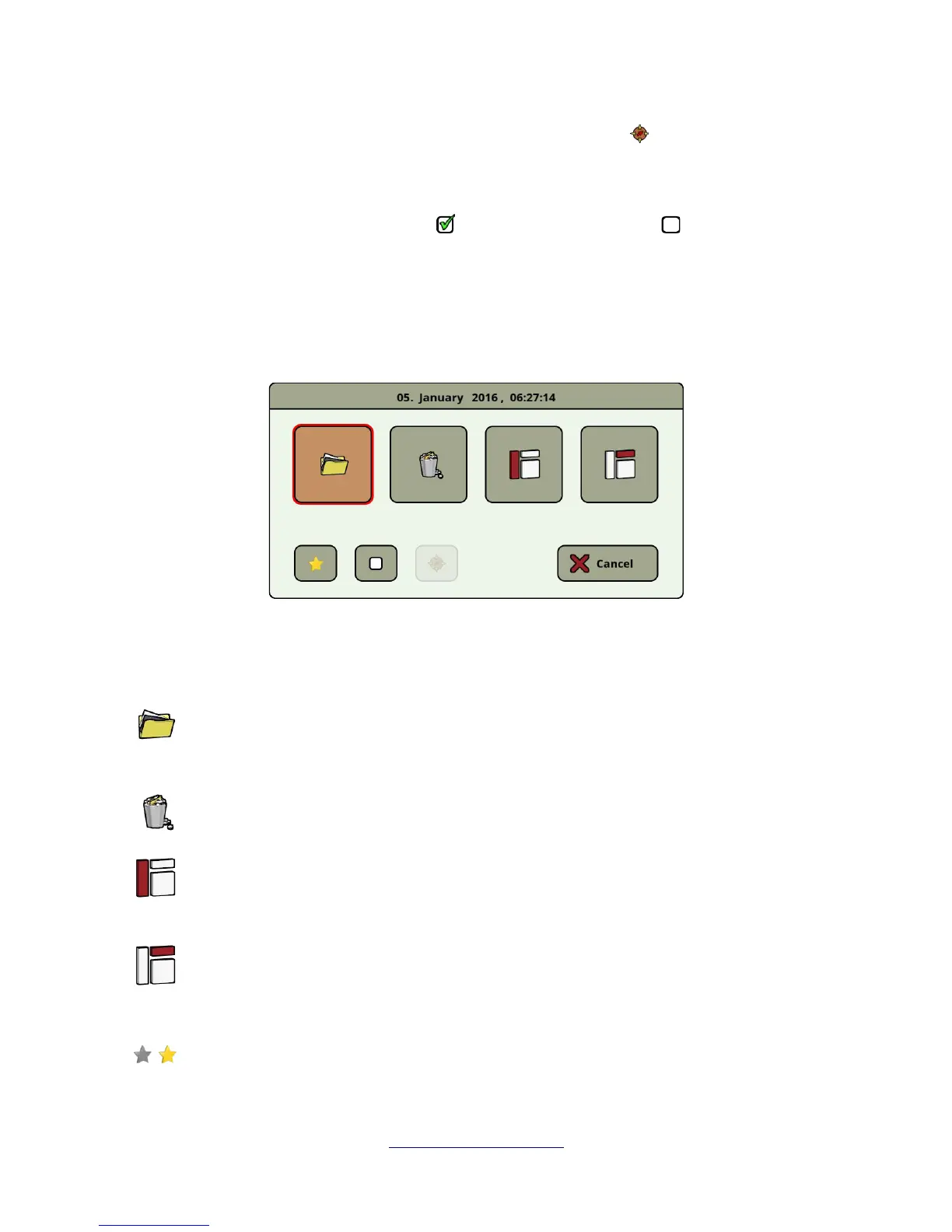
the file list item, the dialog from figure 6.32 appears on screen.
Here you have the choice of several actions of how to proceed with the file. Following actions are
available:
Open file
Select this action to open the file and view its scan data directly on the screen of the eXp 6000
control unit.
Delete file
Select this action to delete the file permanently from the hard disk of the eXp 6000.
Activate sidebar
This action closes the dialog box and activates the sidebar where you may choose another file
category (Ground Scan, Mineral Scan, Tunnel Scan).
Activate toolbar
This action closes the dialog box and activates the top toolbar where you may select further
actions as described in section 6.8.1.1 "Toolbar" on page 64.
Set/Unset as favorite
Use this button to mark or unmark the selected file as a favourite. By using the touch screen
capabilities you can do that also by touching the little star icon left to each file list entry.
OKM GmbH
www.okmmetaldetectors.com


 To Next Page