14
4.1.3 Direct Connection (Method 3) (continued)
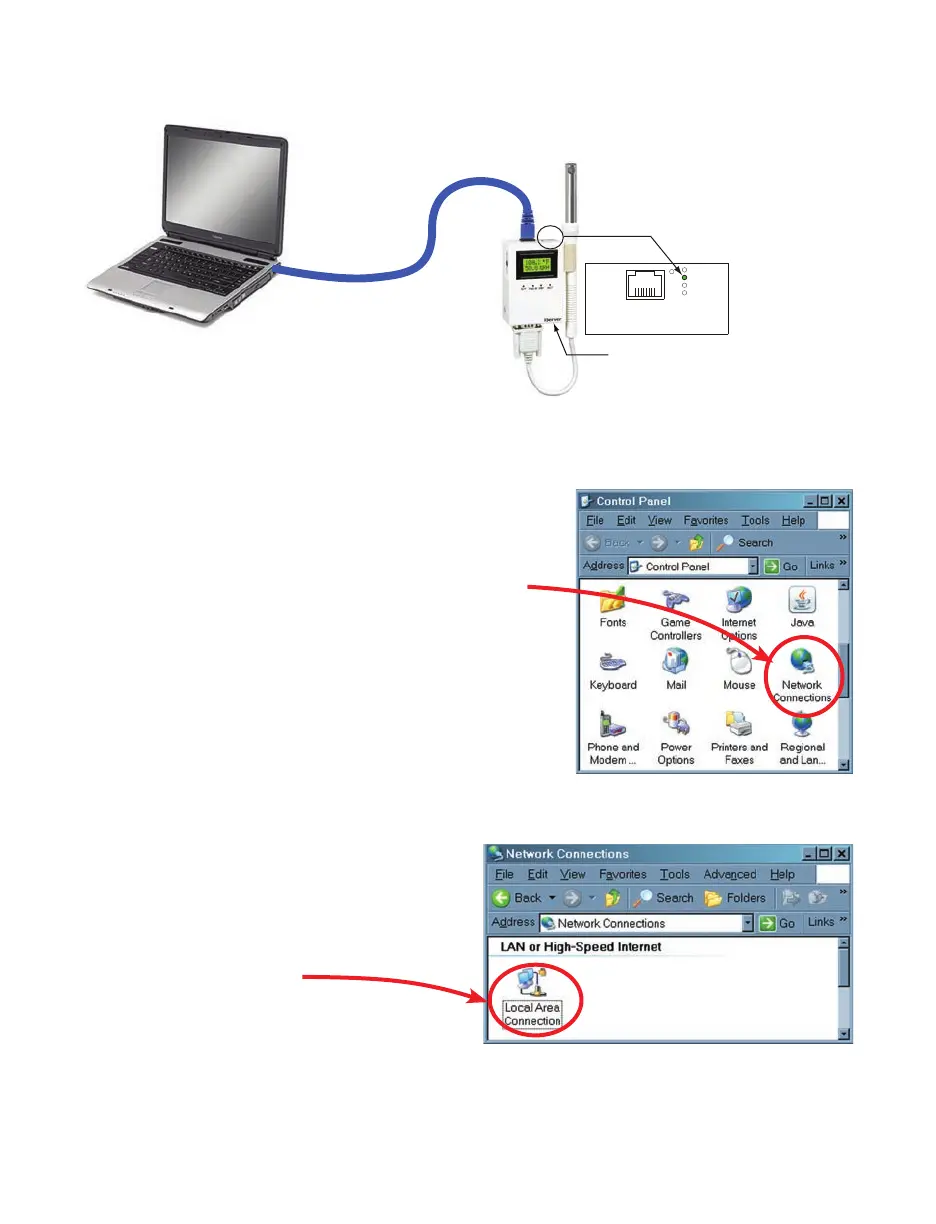
100 BASE-T
LINK / ACT
DHCP
RECORDING
1
8
Ethernet Cable
After connecting the
iServer to computer, power it on
LINK/ACT LED should be
SOLID green
Computer’s
Ethernet Port
(RJ45
connection)
Plug in the
Power Adapter
iServer with
default IP address
of 192.168.1.200
Figure 4.2 Connecting Computer Directly to iServer
Figure 4.3 Network Connections
Figure 4.4 Local Area Connection
1) Click on your Windows “Start” menu and select
“Control Panel” from the list options.
Double click on the “Network Connections” icon
2) You now have “Network Connections”
window opened.
The “Local Area Connection” icon
has all the settings for your ethernet
connection.
Double click on this icon.


 To Next Page