39
4.4.7.2 Defaults
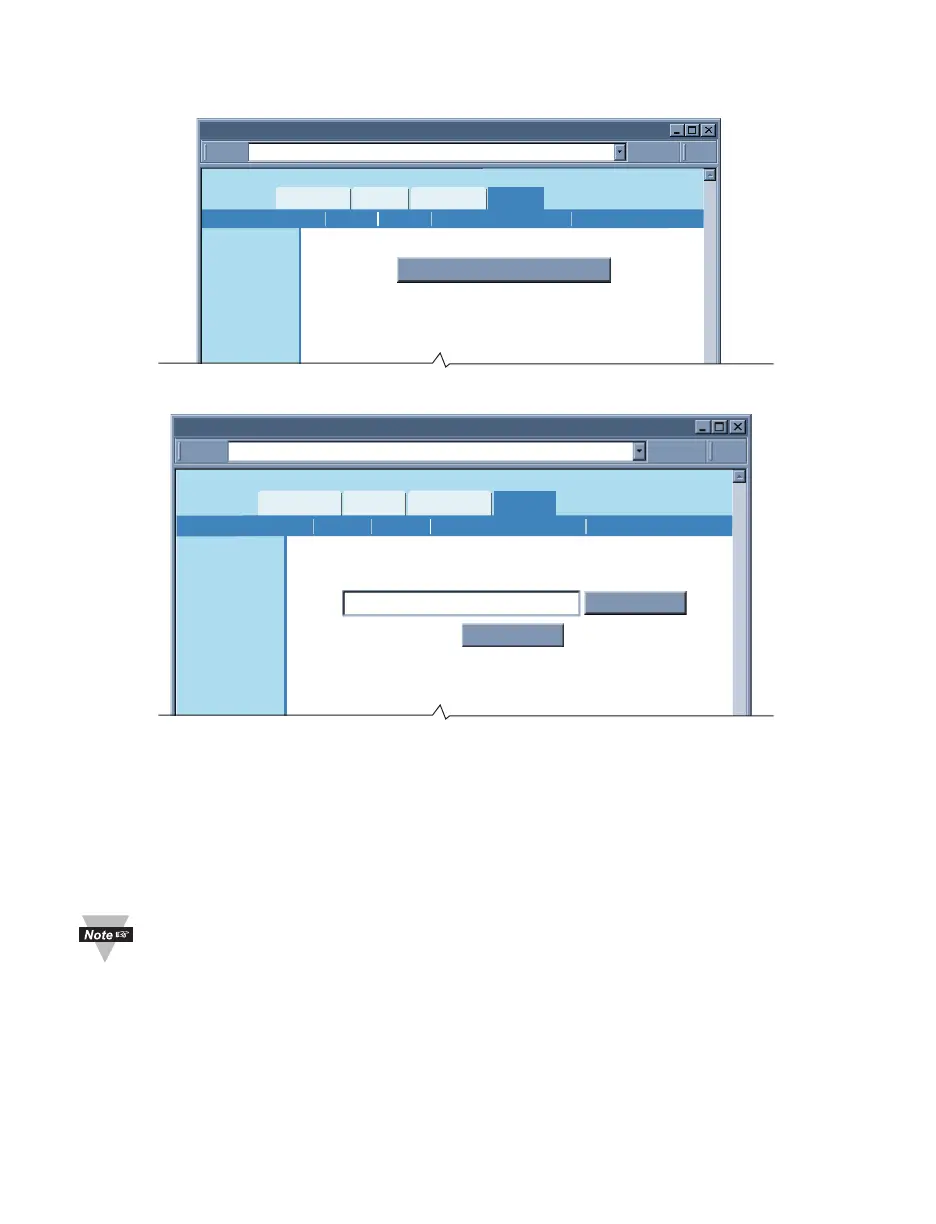
Clicking on this button will put the iServer back to its default settings.
http://192.168.1.200Address
Defaults
Readings
Chart
Web Link Setup
Overview
Network
Configuration
Management
Security
Recording
System
Restore Factory Defaults
DefaultsReboot Download ConfigurationUpgrade Upload Configuration
Figure 4.27 System: Defaults
4.4.7.3 Upgrade
http://192.168.1.200Address
Upgrade Firmware
Readings
Chart
Web Link Setup
Overview
Network
Configuration
Management
Security
Recording
System
Diagnostics
Upgrade
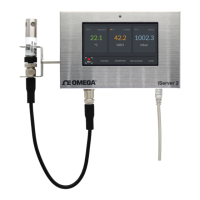
Filename: iTHX-SD*.bin
DefaultsReboot Download ConfigurationUpgrade Upload Configuration
Browse...
Please make sure no other clients are connected to the device.
Consult manual for complete instructions.
Figure 4.28 System: Upgrade
Upgrade – This option loads a new firmware into the iServer over the network. The
firmware is a binary file with .bin extension. This file must be kept on the same PC from
which the iServer is accessed.
If you have an iServer with a firmware version previous to 1.09.0, it is mandatory to set
the iServer to default settings after a firmware upgrade to any version, after 1.09.0.
Once the firmware upload is completed the iServer will power reset itself. This typically
takes about 30 seconds.
When doing firmware upgrade on the iServer, there should be NO other
on-going or new Web server (HTTP) connections made to the device; otherwise,
the iServer will not upgrade the firmware. You can do either of the following to
prevent this from happening:
1. Connect the iServer directly to the PC using a straight or crossed Ethernet cable. This
will also help to have a faster firmware upload.
2. From the “Network” menu, change the Web Server Port, for example, to 500 (default
is 80), save the change, and reset the power on your iServer. The next time you will
access the iServer’s Web server, you must type http://192.168.1.200:500 where
192.168.1.200 is the IP address of the iServer and 500 is the new Web server port
(HTTP port).


 To Next Page