50
Searching for a contact
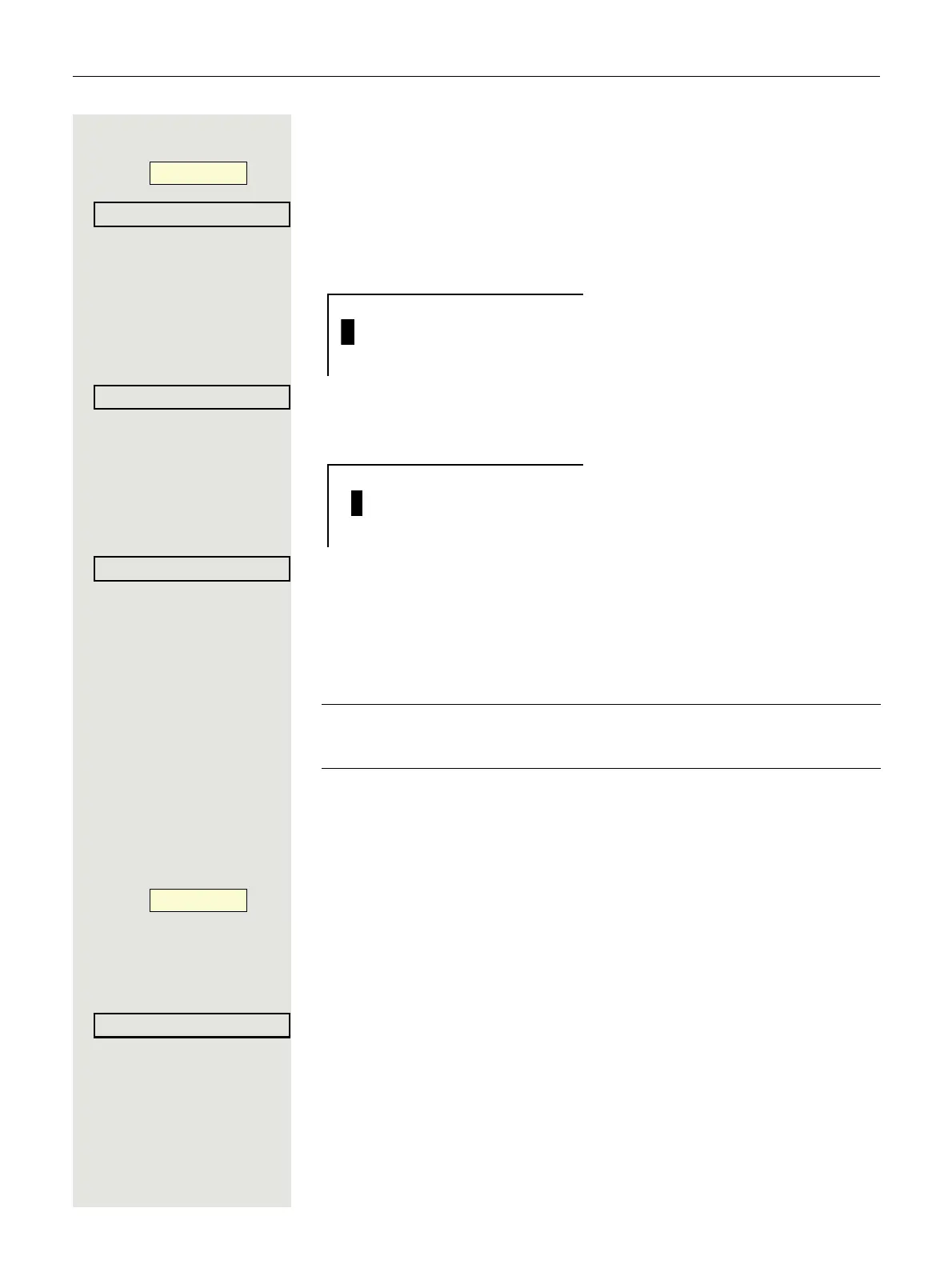
Press the Softkey shown to open the local phonebook.
The last entry used is displayed.
j Enter the first letter of the name you are searching for, e.g. K.
The first name found with the initial letter K is displayed after a short time. If you
are looking for a name that begins with Kr, also enter the second letter in the
search field:
The first name with the initial letters Kr is displayed.
You can also browse the phonebook with the navigation keys until you reach the
required party
page 16.
Corporate directory
You can search for contacts using the name (simple search) or different criteria
for an entry (advanced search), for example job title or address.
Searching for a contact
Press the Softkey shown to open the local phonebook.
^ Press the Delete key to return to the main menu.
Z Press the key shown to open the "Corporate phonebook" Telephone book.
Select and confirm the option shown.
The following 11 search fields can be used:
•Last name
•First name
•Office 1
•Office 2
• Mobile
•Home
• Company
Ý_
The corporate directory is an LDAP database. You can search the data-
base for contact entries if you can access this database over your network
and your access was correctly configured by your administrator.
Ý_



 To Next Page