PULSAR
2
ESP
Installation and Operating Manual
OPTIKON 2000
Cod. 111007EN Rev.E
7-9
NOTE:
The abbreviations used on the unit and its user interface are defined as follows:
CUT RATE = Vitrectomy cutting rate (cuts per minute)
DIATH = Bipolar diathermy
I/A = Irrigation/Aspiration
IRR = Irrigation
LINEAR = Linear control mode (Linear footswitch control).
SLOW = Slow vacuum rise time
MED = Standard vacuum rise time
FAST = Fast vacuum rise time
VIT = Vitrectomy
7.3 USER INTERFACE
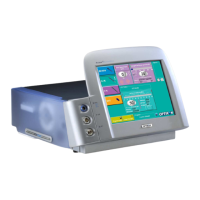
PULSAR
2
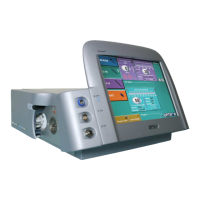
is equipped with an interactive touch-screen LCD (liquid Crystal Display).
The user interface consists of a graphic software running under the Windows CE
platform and simulating the various keys and displays. The user can select the
equipment function and adjust the relevant parameters by touching the screen in
the appropriate areas. Actual and preset values for each parameter are displayed.
If a sterile drape is placed on the monitor the equipment can be operated by a
sterile scrub nurse.
In order to make the interface screen as much readable as possible, the PULSAR
2
user interface has been designed so that function keys, preset and actual
parameters values are always visible on the screen, while setup keys are hidden
during equipment operation. Parameters are logically grouped in parameter
windows. To adjust a certain parameter value, the user has to touch the relevant
display in order to have <UP>/<DOWN> arrows and other setup keys promptly
available in a pop-up setup window. Once the parameter values/modes have been
modified the setup windows automatically shuts down.
The only parameter window providing <UP>/<DOWN> arrow keys always visible is
the irrigation one, in order to allow a prompt I.V. pole height setting.
Equipment warnings and error messages pop-up on the screen. Once the user has
acknowledged the warning/error message, the same is moved onto the
warnings/errors messages board, at the right upper side of the screen. If you touch
that board, a window will appear that lists all the active error messages and/or
warnings as well as their meaning.


 To Next Page