Control central and
paging desk
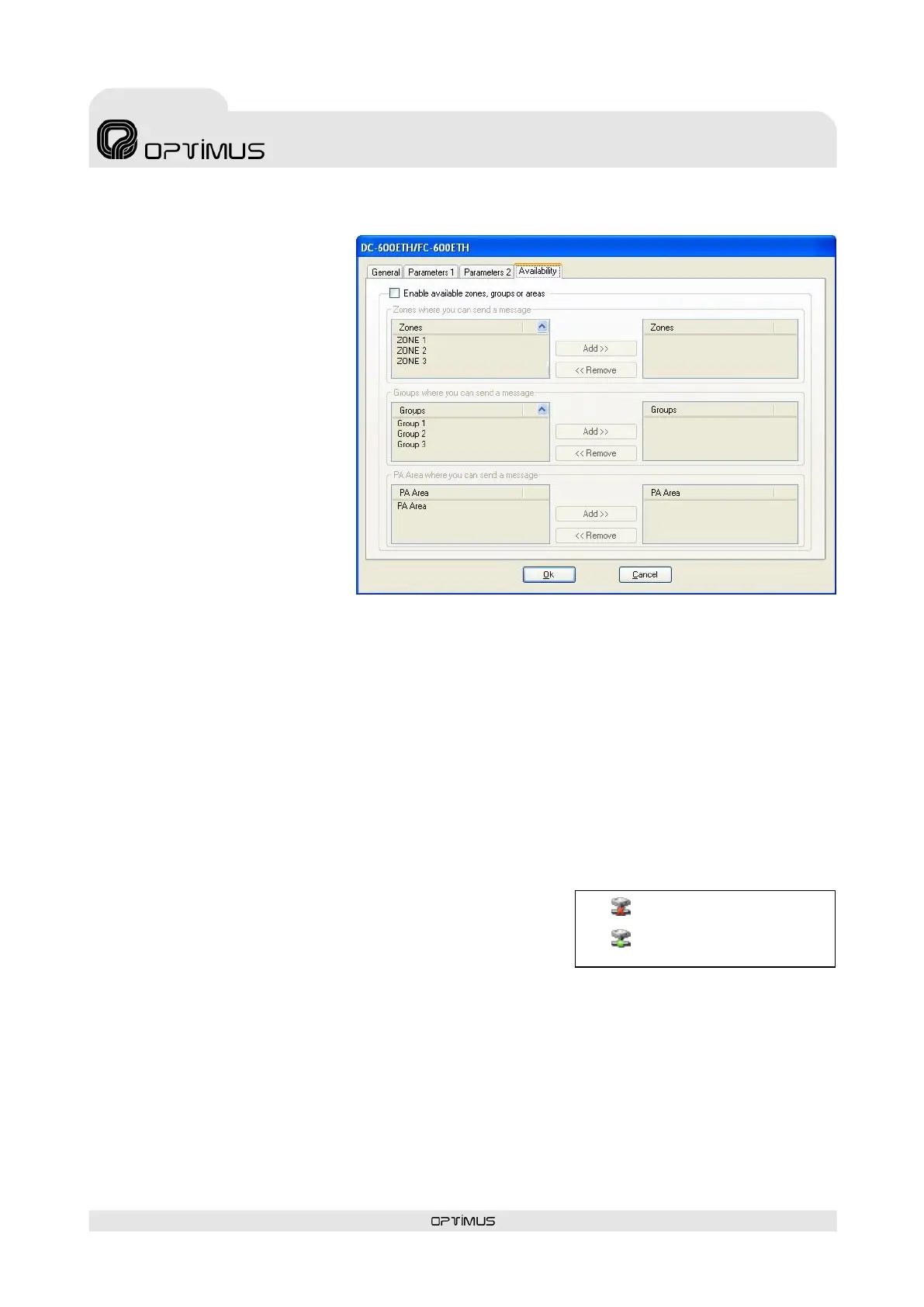
7.2.4. Availability tab
By clicking on this tab, it is possible
to restrict or enable the access of a
desk to specific zones, groups or PA
Areas in the installation.
If this is not configured, the desk
has access to all the zones in its
own PA Area. Click on this tab if you
wish to modify the default
accessibility of the desk.
(1) Enable available zones,
groups or areas
Tick this box if you wish to modify
the default accessibility of the desk.
When this option is activated, the
desk will ONLY have access to the
zones, groups and PA Areas that
appear in the windows on the right.
(2) Add and Remove buttons
Click on these to add or delete
access to zones, groups and PA Areas.
From the windows on the left, select the elements to which you wish to allow messages to be sent and
click on the button Add to add them to the list on the right.
7.3. Connecting the equipment in the installation structure
When equipment units are added to the installation, they appear in the structure with their name in red,
preceded by the “disconnection” icon. While their status is shown as disconnected, these equipment units
are not operative.
To connect the equipment, proceed as follows:
1. In the installation structure, right click with the mouse on the
disconnected equipment unit.
2. Click on Connect Equipment. The connection icon appears
and the name of the equipment is shown in green.
= Unit disconnected
= Unit connected



 To Next Page