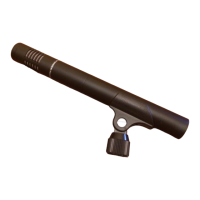
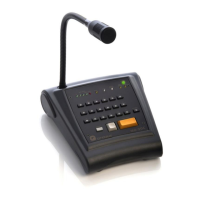
Control central and
paging desk
Remember that in installations with a Server PC, when the DC-600ETH is restarted, this will download the configurations from
the PC, so all the changes in configuration made from the desk keypad will be lost.
11.4. Advanced operations
11.4.1. Changing the ADMINISTRATOR
password
(Requires Administrator user level).
1. Press OK to access the main menu.
2. Select ADVANCED and press OK.
3. Select OPTIONS and press OK.
4. Select CHANGE CODE ADMINISTRATOR
and press OK.
5. Enter the new administrator password and
press OK.
6. Repeat the new password and press OK.
11.4.2. Changing the OPERATOR
password
(Requires Administrator user level).
1. Press OK to access the main menu.
2. Select ADVANCED and press OK.
3. Select OPTIONS and press OK.
4. Select CHANGE CODE OPERATOR and press
OK.
5. Enter the new operator password and press
OK.
6. Repeat the new password and press OK.
11.4.3. Modifying the volume of a zone
(Requires Administrator user level)
Only the volume of zones that correspond to
digital amplifiers can be modified.
1. Press OK to access the main menu.
2. Select VOLUMES and press OK.
3. Use the navigation keys / to locate the
zone where you wish to modify the volume
and press OK.
4. Using the navigation keys /, select the
volume channel that you wish to modify
(LOCAL PROGRAM, LOCAL PRIORITY, ETH
PROGRAM and ETH PRIORITY).
5. Modify the volume of the option selected by
means of the navigation keys /.
6. Save the volume configuration by pressing the
OK key or reject the changes by pressing
DEL.
The data with respect to the volume
established are saved in the digital amplifier of
the corresponding zone and in the Server PC,
so the volume level established is maintained
although the unit may be restarted.
7. Press the navigation key to return to the
start screen.
11.4.4. Monitoring pre-recorded MP3
messages
(Requires Administrator user level).
NB: This functionality is not available when the desk is
sending a music program.
1. Press OK to access the main menu.
2. Select MONITOR MP3 and press OK.
3. Use the navigation keys / to locate the
message that you wish to monitor.
4. Press OK to begin monitoring.
5. If you wish to stop the message, press OK
once again.
6. Press the navigation key to return to the
start screen.



 To Next Page