37
Display
(Only for PC signal input)
On the premise that the relative position of both pro-
jector and the screen is set up right,you can move the
image vertical position,if the position of the projected
image on the screen is deviated.
1) Press
button to select [V Position] menu.
2) Press <OK> button.
3) Press
button to adjust image V position.
Adjustment range is from -5 to +5.
V Position
(Only for PC signal input)
You can adjust and reduce the interference caused
by patterns of the projected vertical stripes.The
following projected patterns may cause a circular
pattern (Noise). Adjust the amount of interference
to the minimum. Users can point the clock to adjust
images.
1) Press
button to select [H size] menu.
2) Press <OK> button.
3) Press
button to adjust H size level .
Adjustment range is from -15 to +15.
H size
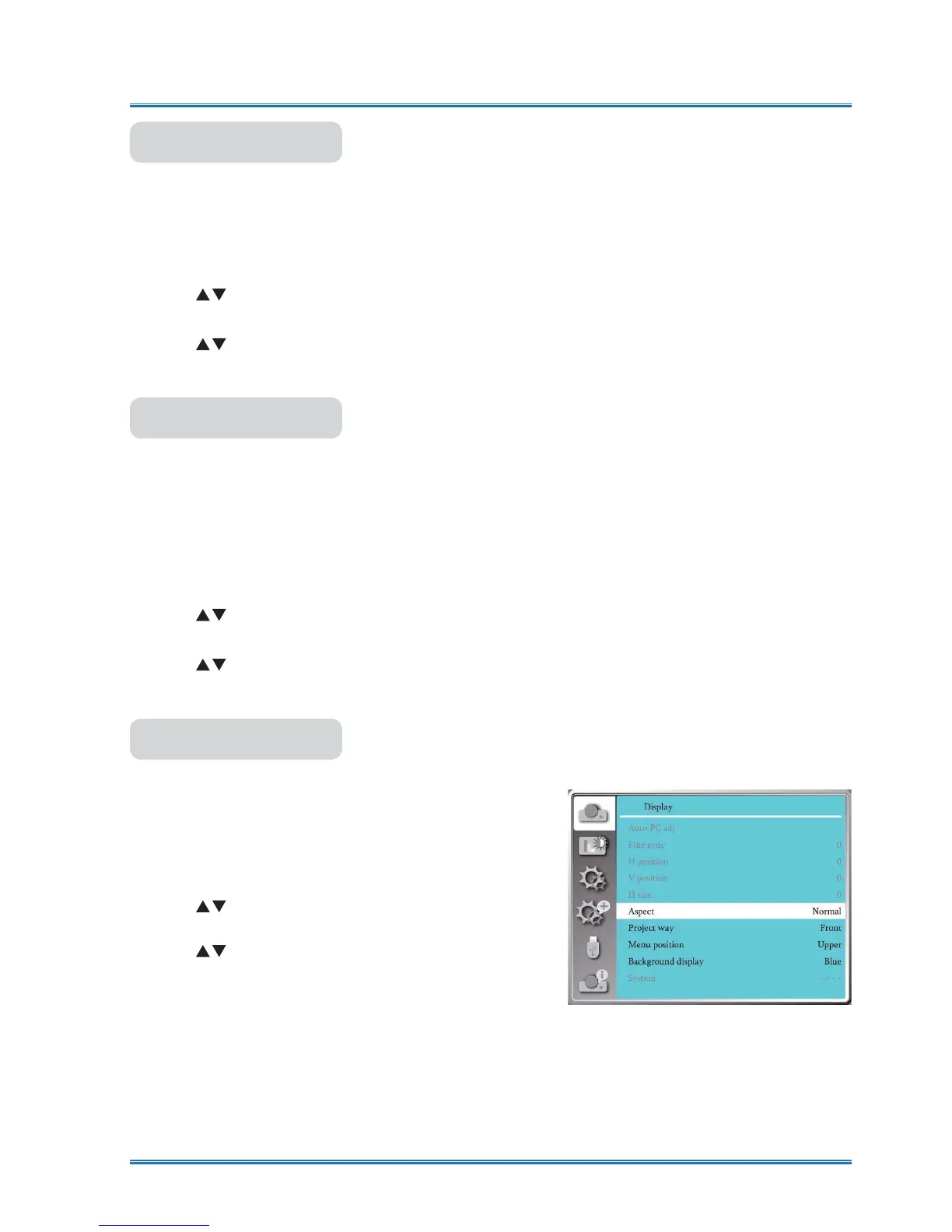
AGMXVWWKHLPDJHWR¿WWKHVFUHHQVL]HZKLOHNHHSLQJ
aspect of input signal's unchanged.
Press < MENU > button on the remote controller or
on the top control panel to display the OSD menu.
Press
ST
button to select the Display menu ,then
Press <OK> or
X
button
.
1) Press
button to select [ Aspect ] menu.
2) press <OK> button.
3) Press
button to select the required item.
Normal....Use the maximum size to roject while
keeping the aspect of input signal's
unchanged.
Wide........Project images at the aspect of 16: 9.
Full...........Project images to the maximum.
Ɣ
Only for PC (VGA1) signal input .
Advanced ...... Splicing screen.
Ɣ
Only for PC (VGA1) signal input .
Aspect
Aspect menu



 To Next Page