34
Basic operation
Input selection
Basic operation
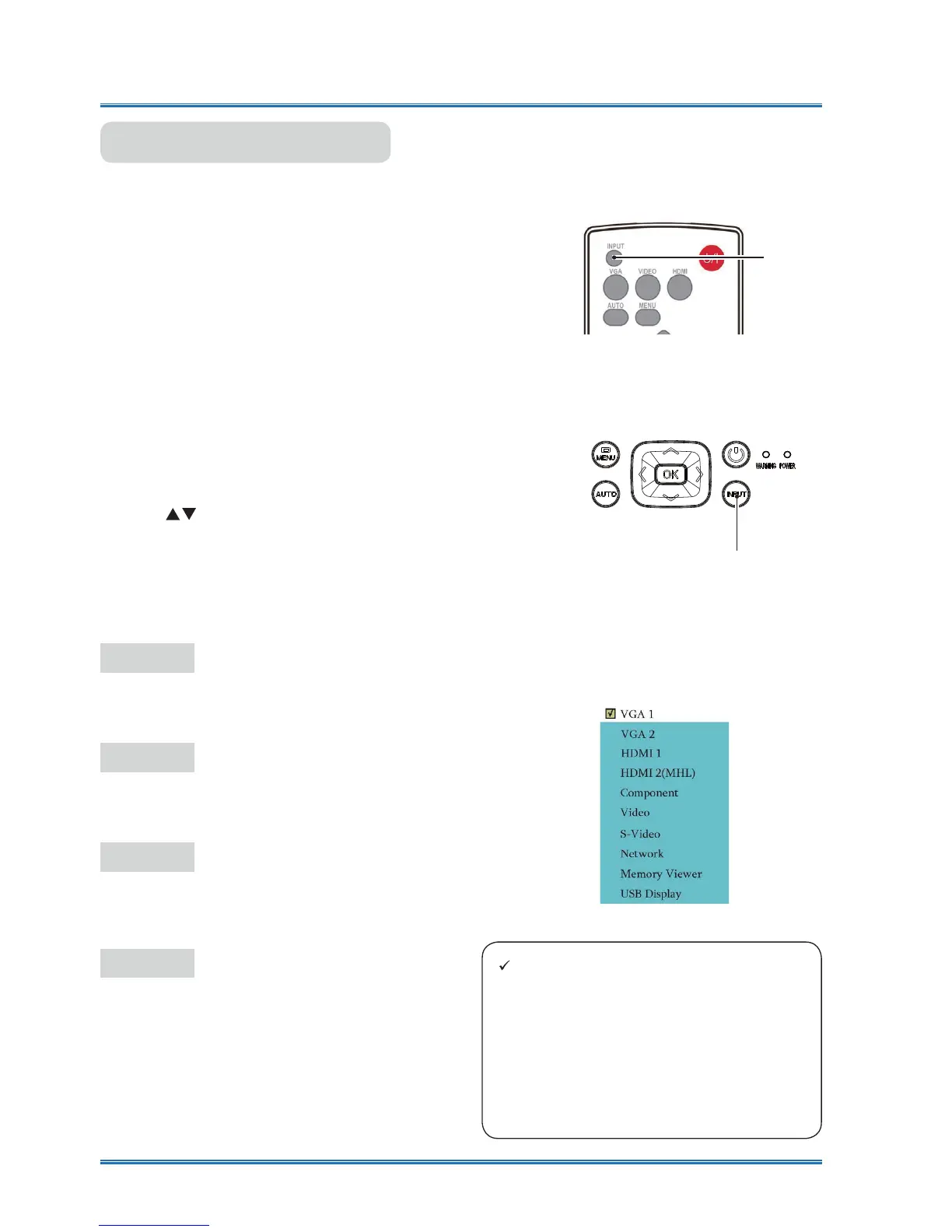
Press the INPUT button on the control panel or
on the romote control to select one of the fol-
lowing input: VGA 1, VGA 2, Component,Video,
S-Video, HDMI 1,HDMI 2(MHL),DVI, Memory
Viewer, Network, USB Display. Alternatively,
you may press the VGA, HDMI VIDEO button
on remote controller to select VGA1,VGA2,HD-
MI,HDMI 2(MHL),VIDEO,COMPNENT,S-VIDEO.
Menu operation
1 Press the INPUT button on remote controller
to enter the Input menu.
2 Press
button to select one of the follow-
ing input: VGA1, VGA 2, Component,Video,
S-Video, HDMI 1,HDMI 2(MHL),DVI, Memory
Viewer, Network, USB Display, and then press
the OK button to select the input source.
Top Control Panel
Input
VGA 1
Select input VGA 1 if a PC is connected to the
VGA IN terminal.
VGA 2
Select input VGA 2 if a PC is connected to the
VGA IN 2 terminal.
HDMI 1
Select input HDMI 1 if a device is connected to
the HDMI terminal.
HDMI 2
Select input HDMI 2(MHL) if a device is con-
nected to the HD MI 2(MHL) terminal.
Note:
Ɣ If the "
Input search" function in the
Auto Setup option is set to "On", once
you press the AUTO button, the projec-
tor will search for input signals automati-
cally.
Ɣ When select VGA 2 / VGA OUT terminal
as output signanl , you cannot select
VGA 2.
Remote controller
Input
Input menu



 To Next Page