59
Expand
Operation steps
1 Power on your projector.
2 Acquire the IP address, with DHCP set to on and
auto IP allocation set to On. (You may set DHCP
to Off and set up IP address manually if you are
somehow familiar with networking.)
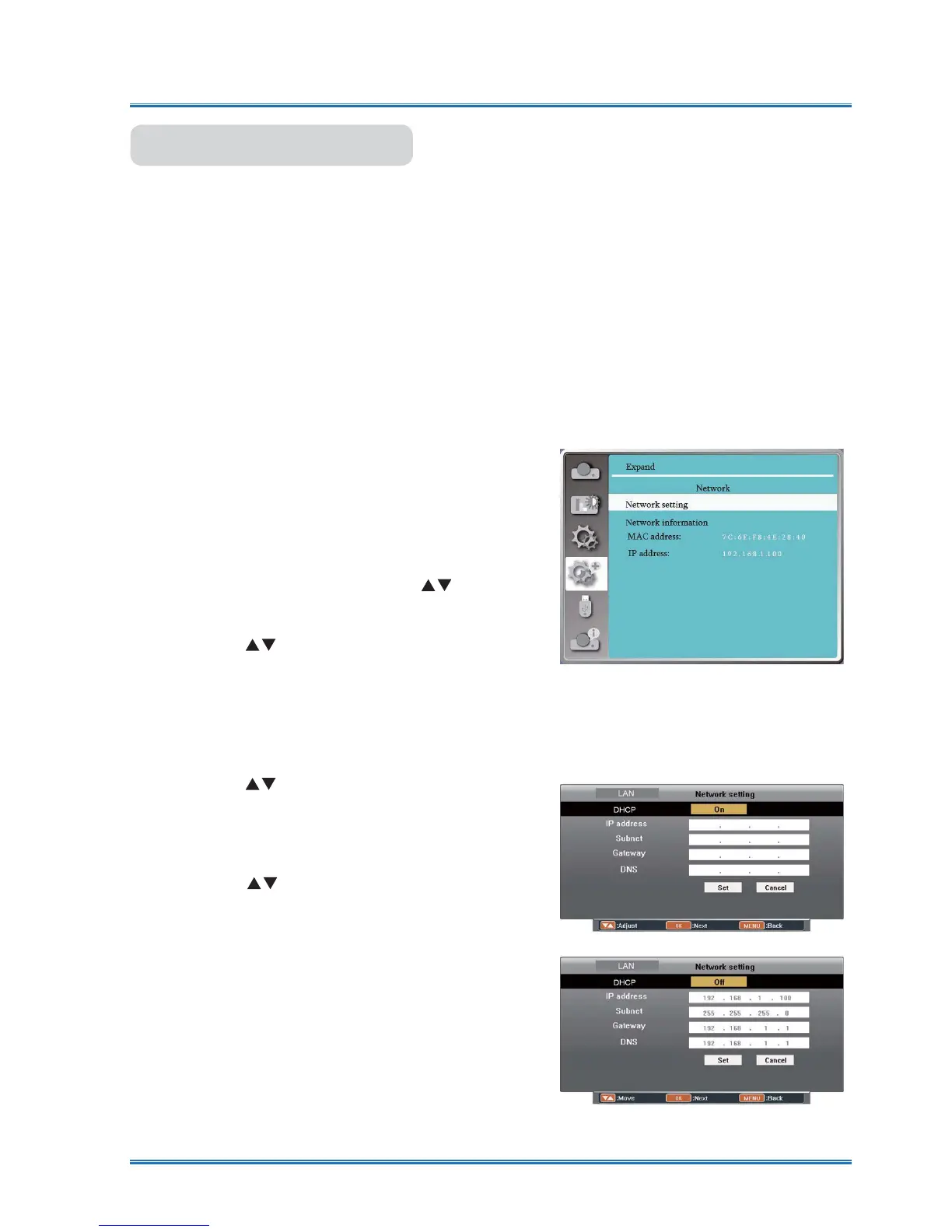
3 Enter the network setup menu
(1) Press MENU button on remote controller or
top of the control panel, press
button to
select network icon.
(2) Press
button select network settings and
press OK button to enter.
MAC address......Display the MAC address
of wired network.
IP address...........Display the IP address of
wired network.
(3) Press
button to set DHCP On to obtain
an IP address, subnet , gateway and DNS
automatically , and press OK button to
FRQ¿UP
Press
button to set DHCP Off,then
press OK button to enter an IP address,
then press
T
button to select subnet ,
gateway and DNS automatically.And press
2.EXWWRQWRFRQ¿UP
Network menu
Function: This function is designed to allow the computer control the projector remotely via
intranet.
Preparation
1 Required equipment: Projector, computer, network cable
2 Connection:
Connect your projector to a router or switch in the LAN with normal or jumper network
cable. In case a normal network cable failed to connect successfully, use a jumper cable
instead.
7XUQRQWKHFRPSXWHU7KH/$1SRUWRQFRPSXWHUDQGSURMHFWRUDUHÀDVKLQJDIWHUSRZHU
on the projector.
Network



 To Next Page